

Law firm settings
Workspace- Firm profile
- Payments
- Connectors
- Team & members
- Matter access
- Audit log
- Agent policy
- Plans & billing
- Account
- Notifications
- Agent preferences
- Language
- Usage
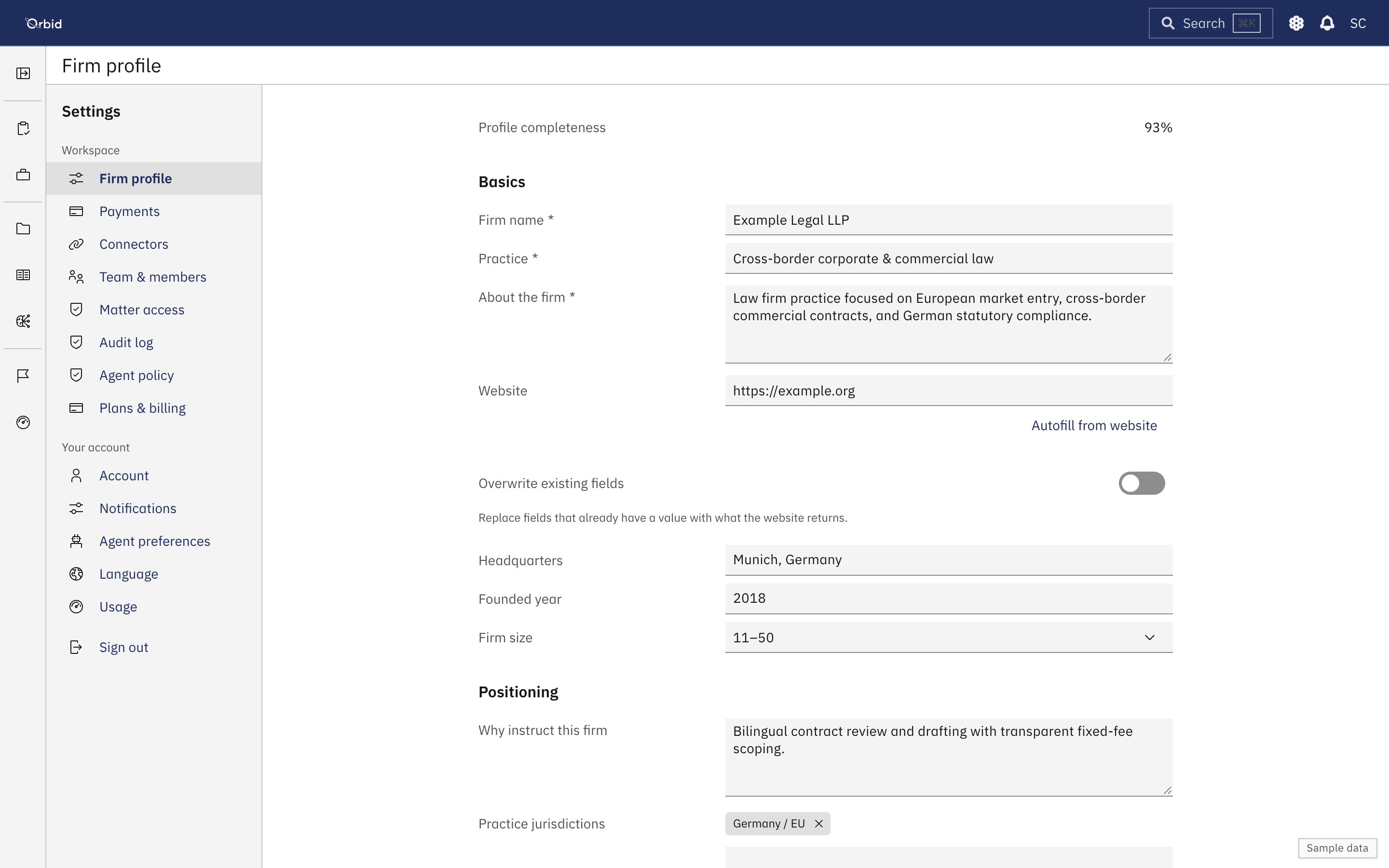
Law firm settings navigation covering workspace, team, access and account
Client settings
Your firm may need to turn client settings on first. You may then see:- Profile
- Preferences
- Notifications
- Sign-in & security
- Company profile
- Members
- Matter access
- Billing
- Audit log
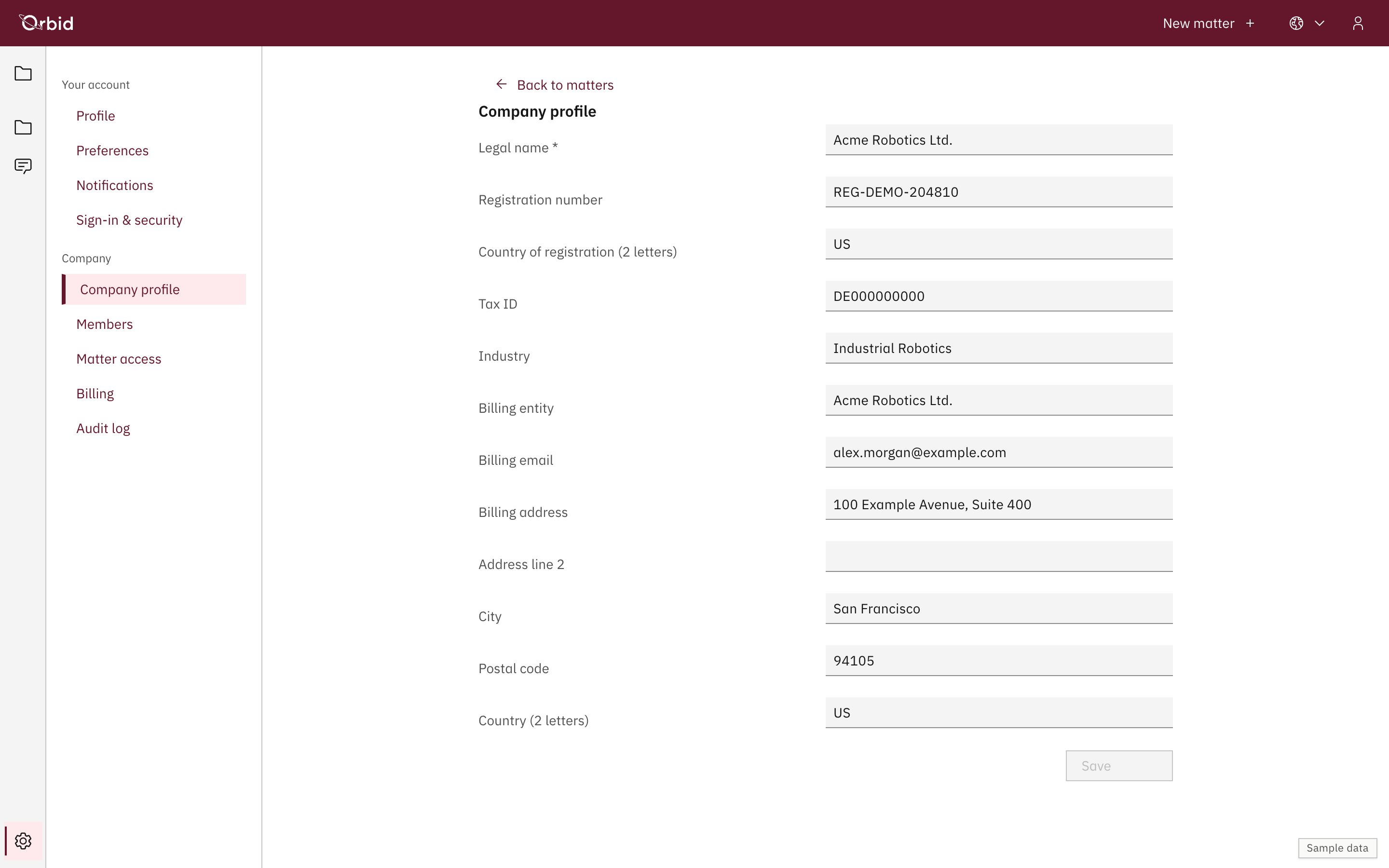
Client organization settings navigation and company profile form
What if I change company details?
If you change the legal name, registration number or country, the company’s identity check goes back to review. Saving does not mean the review is done.Where are invoices?
Client companies see invoices and payments in Billing. Prices are on orbid.dev/pricing.If something goes wrong
Related
Team and roles
Invite members.
Matter access
Control who sees matters.
Notifications
Choose alerts.