Learn how to send a new matter to your law firm in Orbid AI: choose a service, describe your situation, add files and submit for free.
In Orbid AI, submitting a new legal matter is free: sign in, pick a matter type, answer guided questions, review your details and upload identity documents. The law firm sends a fixed-price quote only if it accepts your matter.
Before you start
An email address you can open.
Any files that explain your situation, such as a contract or a letter.
A browser that allows pop-ups from Orbid. New matter opens in a new tab.
When you start, a bar at the top shows six steps: Start request, Choose service, Describe needs, Review details, Verify identity and View progress.
1
Sign in
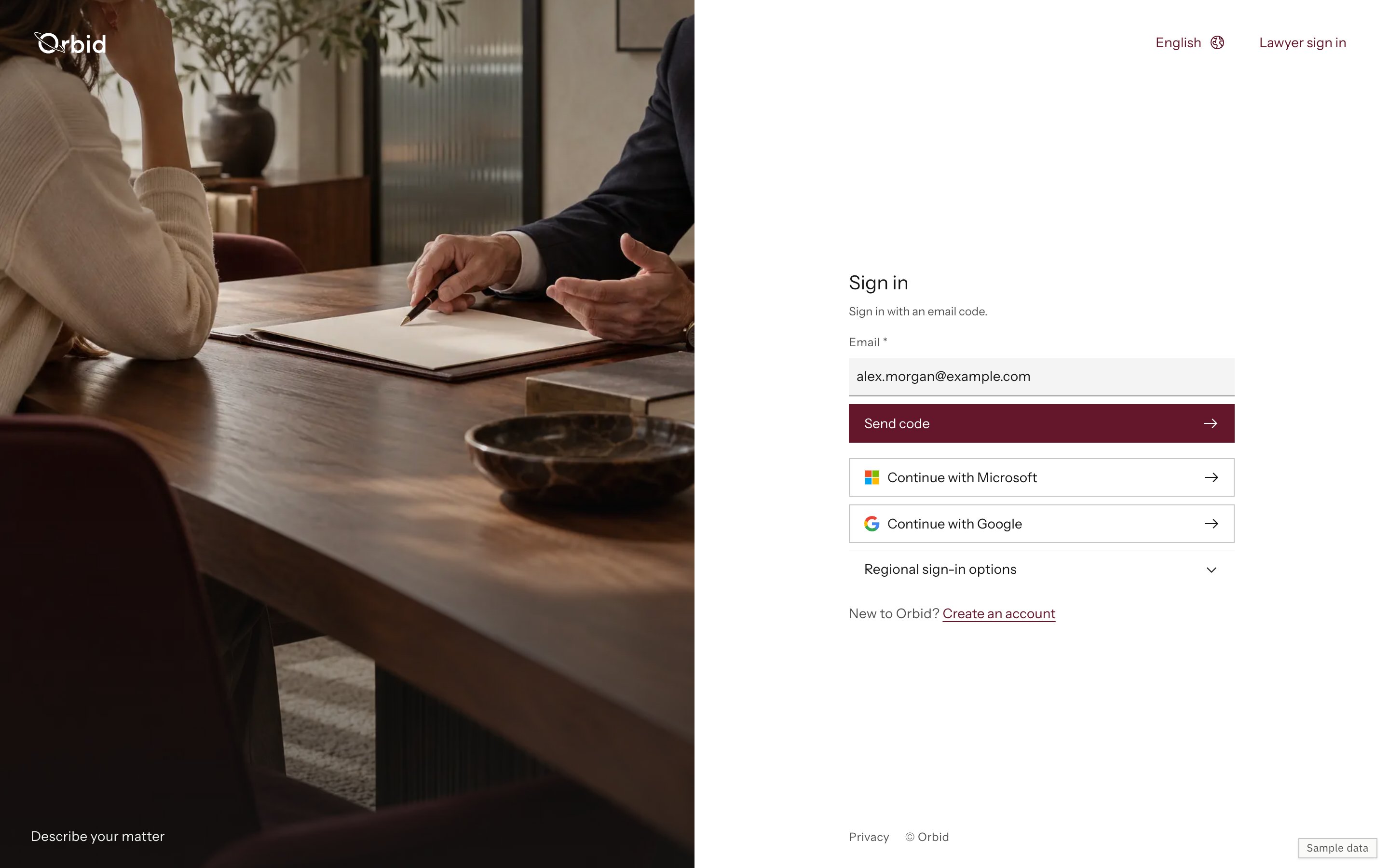
Open the link from your firm. Enter your email and select Send code, then enter the one-time code Orbid sends you. You can also sign in with Continue with Microsoft, Continue with Google, or open Regional sign-in options.
Client sign-in with email verification code and SSO options
2
Select New matter
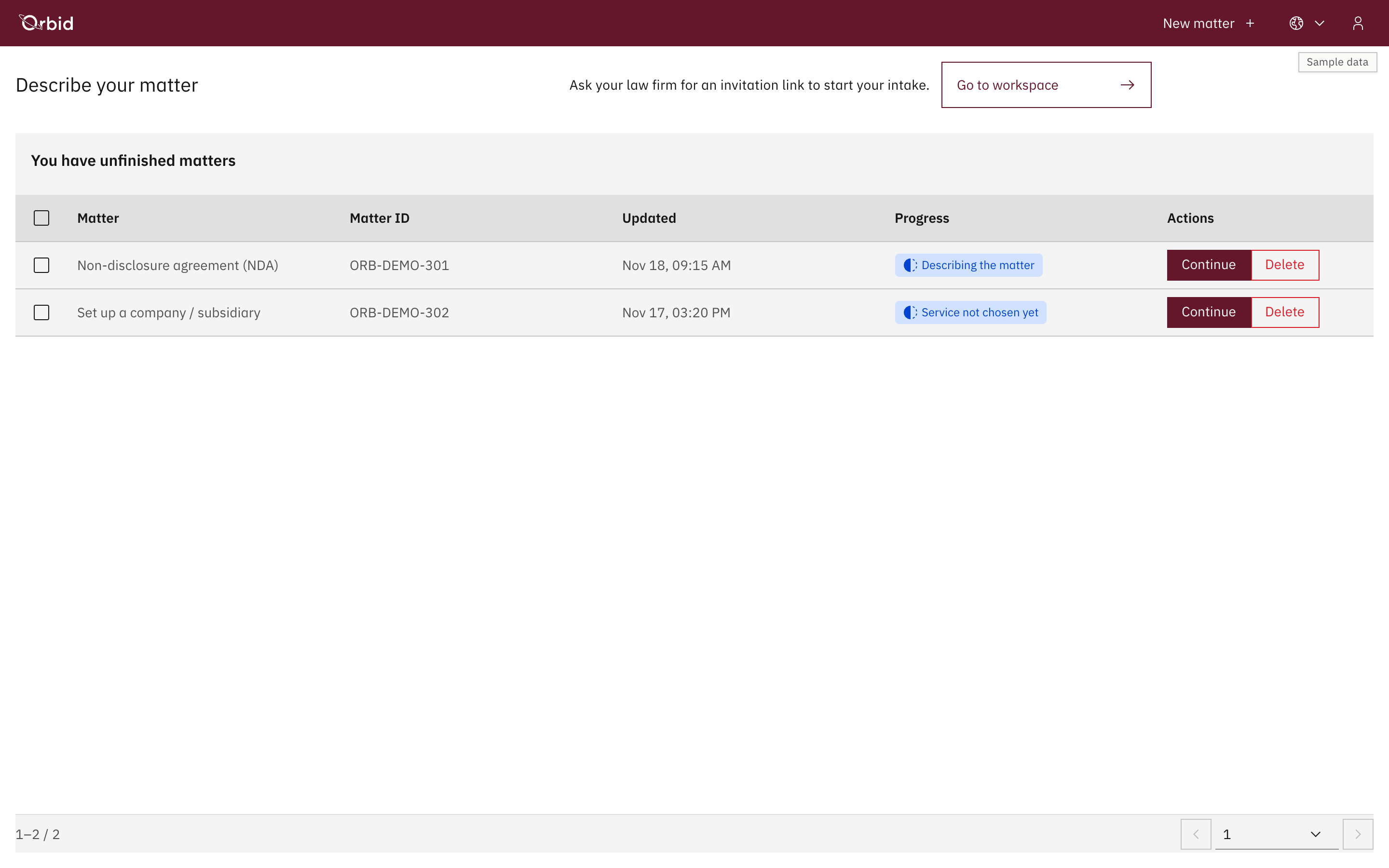
On your home page, select New matter. Orbid opens “Describe your matter” in a new tab. Keep working in that tab.
Start a new matter or resume an unfinished draft
3
Choose service
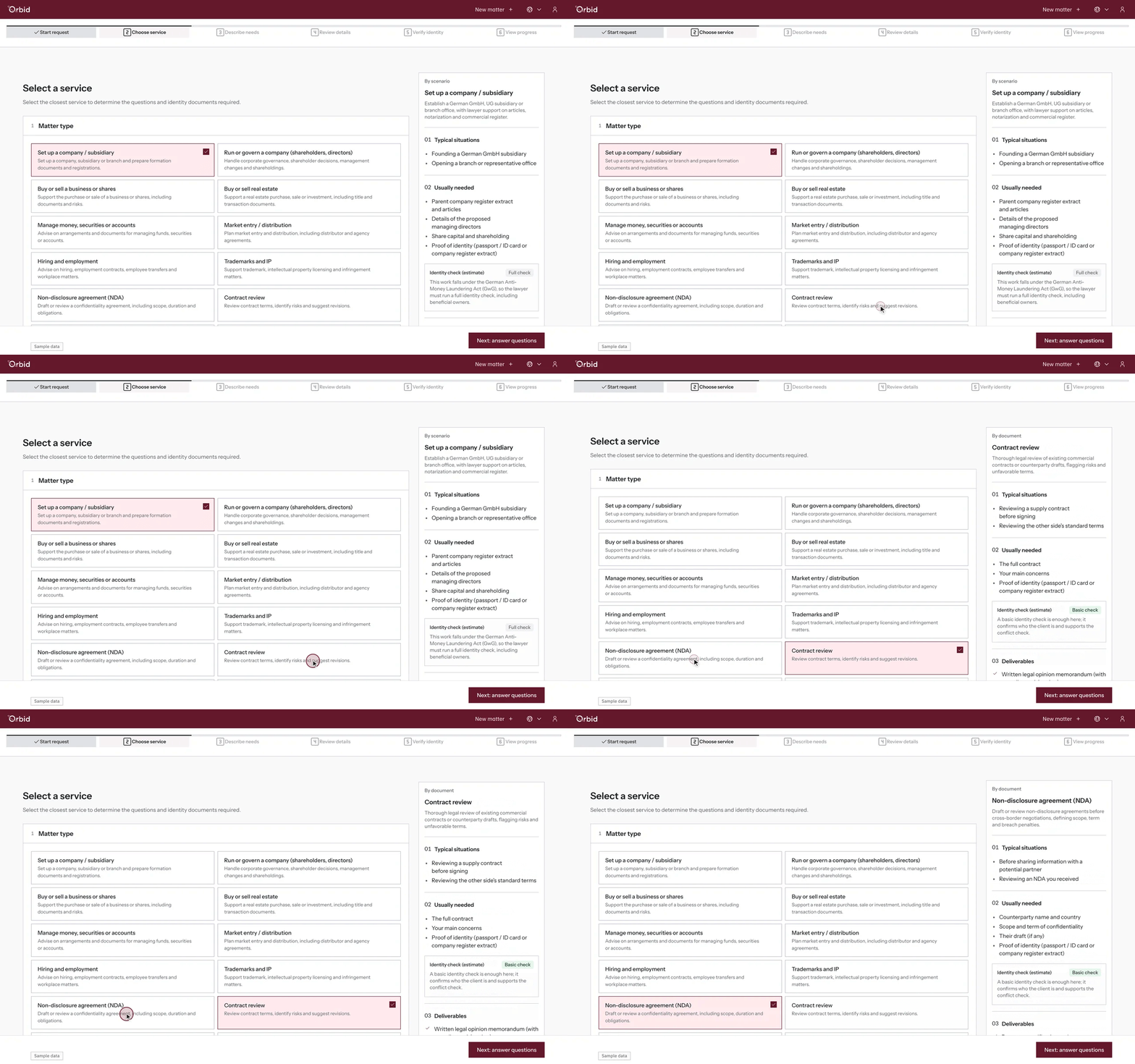
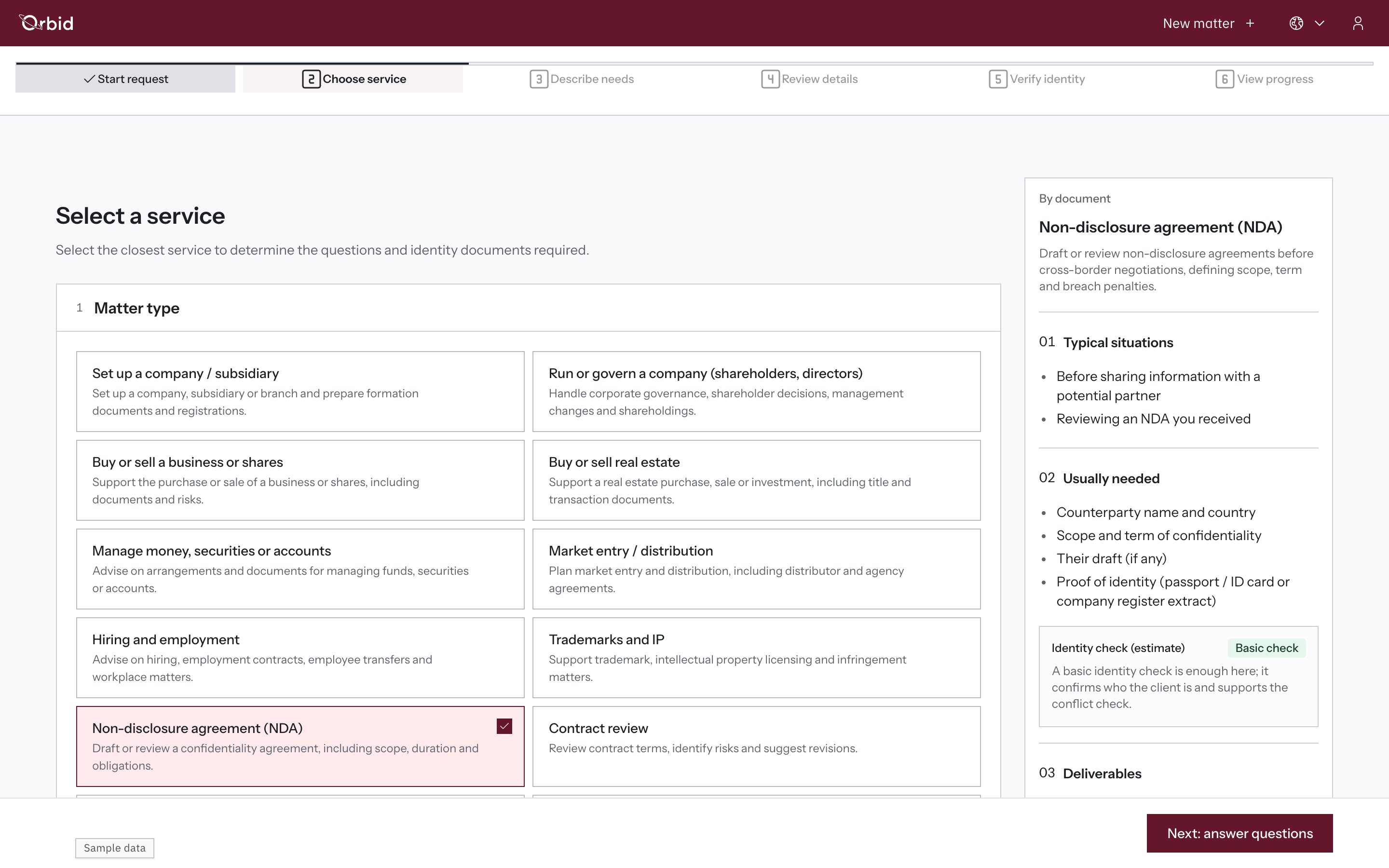
Under 1 Matter type, pick the closest service card, such as “Set up a company” or “NDA”. If nothing fits, choose “Something else” and describe it in a few words.
Choose a matter type card and review typical deliverables
4
Describe needs
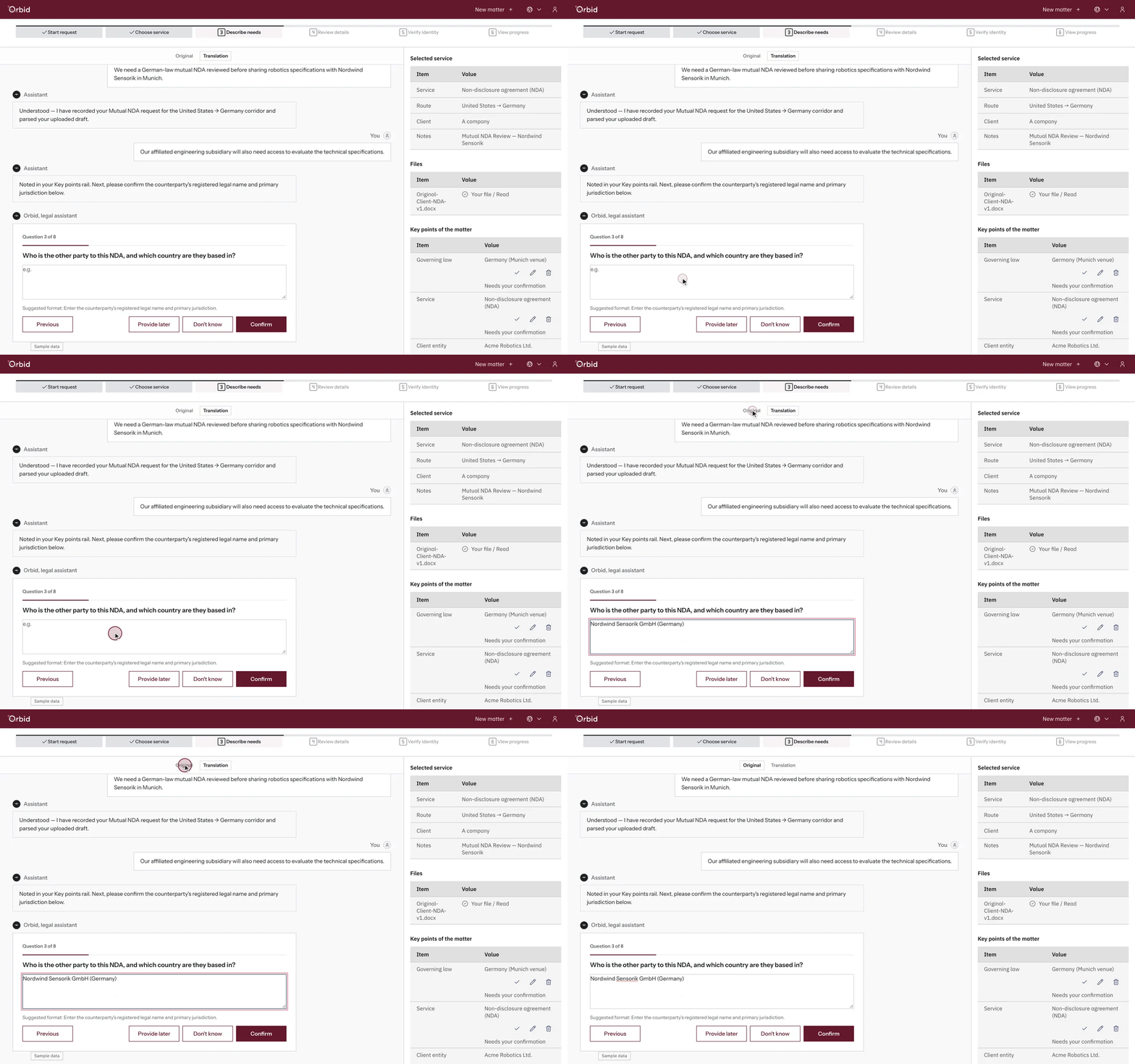
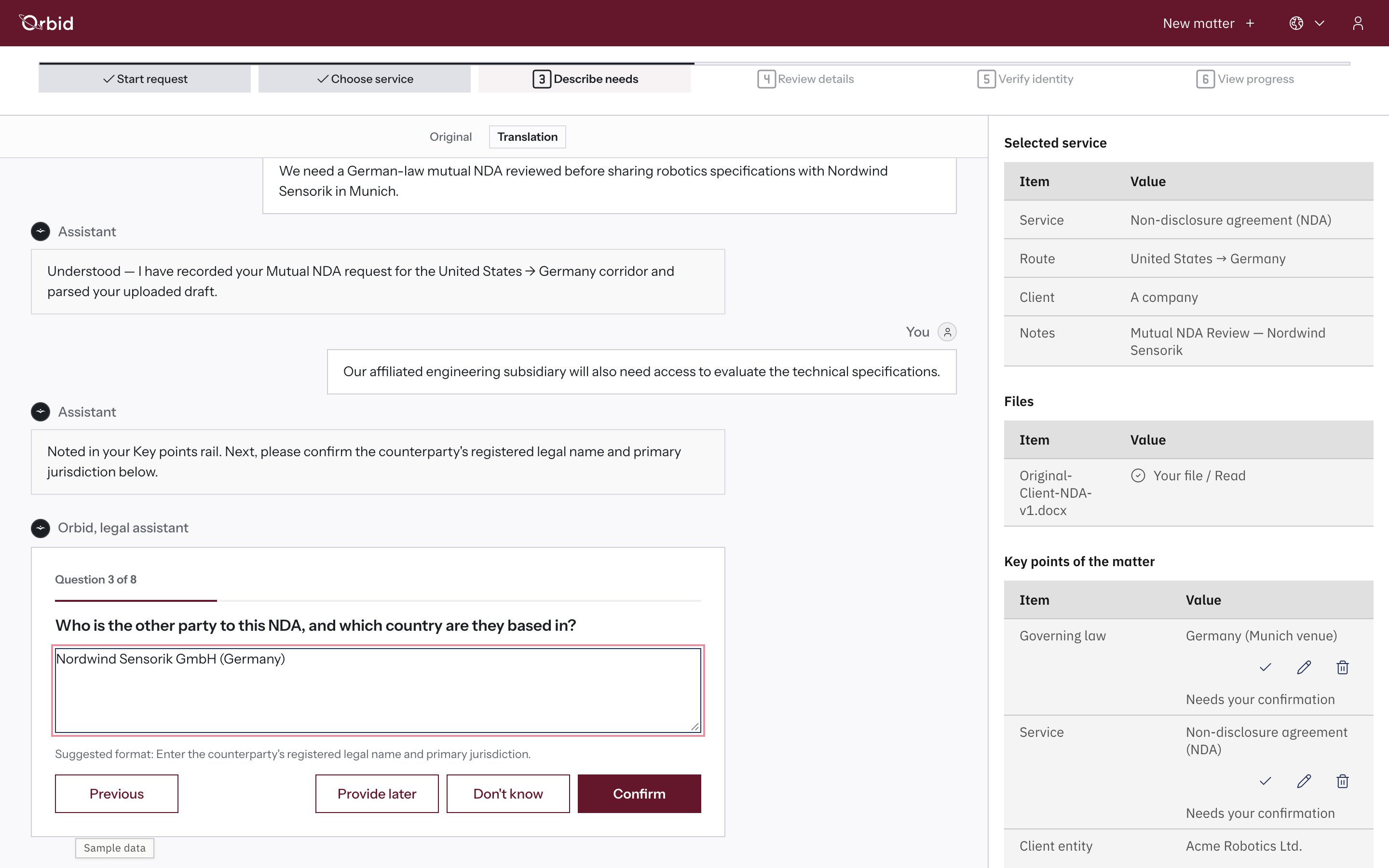
Orbid asks guided questions one at a time, such as “Question 3 of 8”. It is not a free chat, so you only answer what you see. The questions may cover the country or region you come from and go to, and whether you are a company, an individual or an agent acting for someone else. Add your files.
Answer guided intake questions alongside the live key-points summary
5
Review details
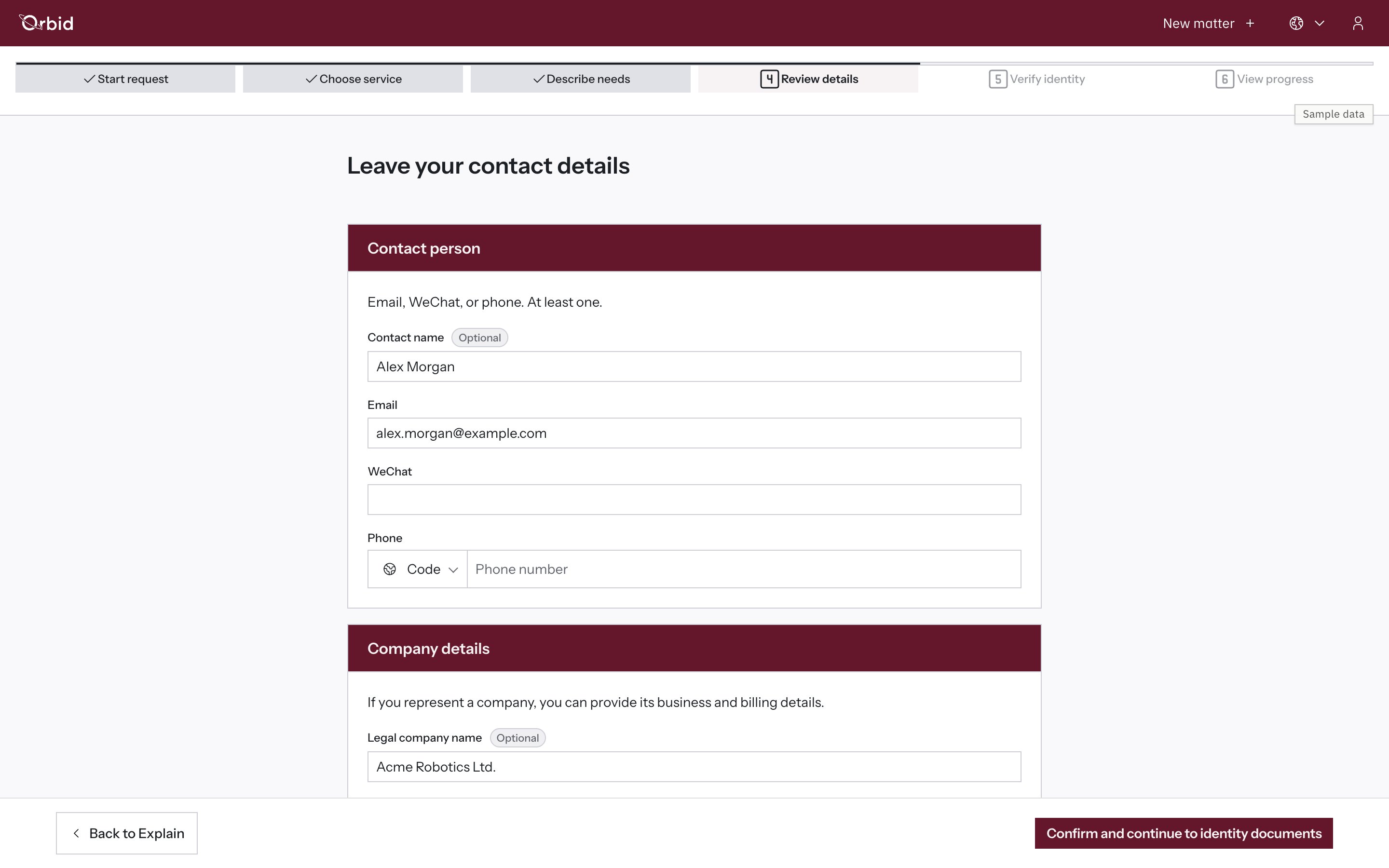
Check your contact and company details, fix anything that is wrong and select Confirm and continue to identity documents.
Verify contact and company details before uploading identity documents
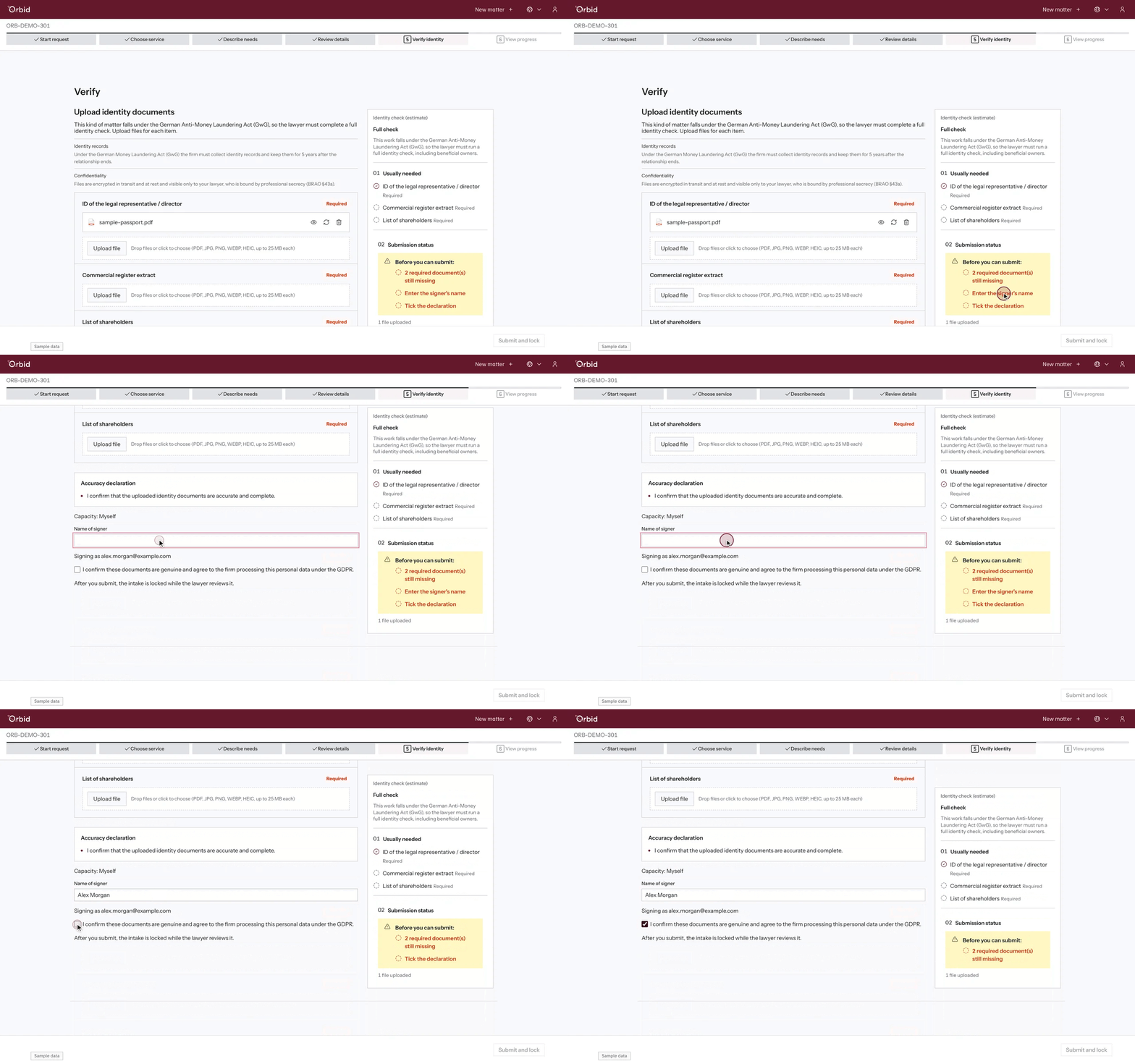
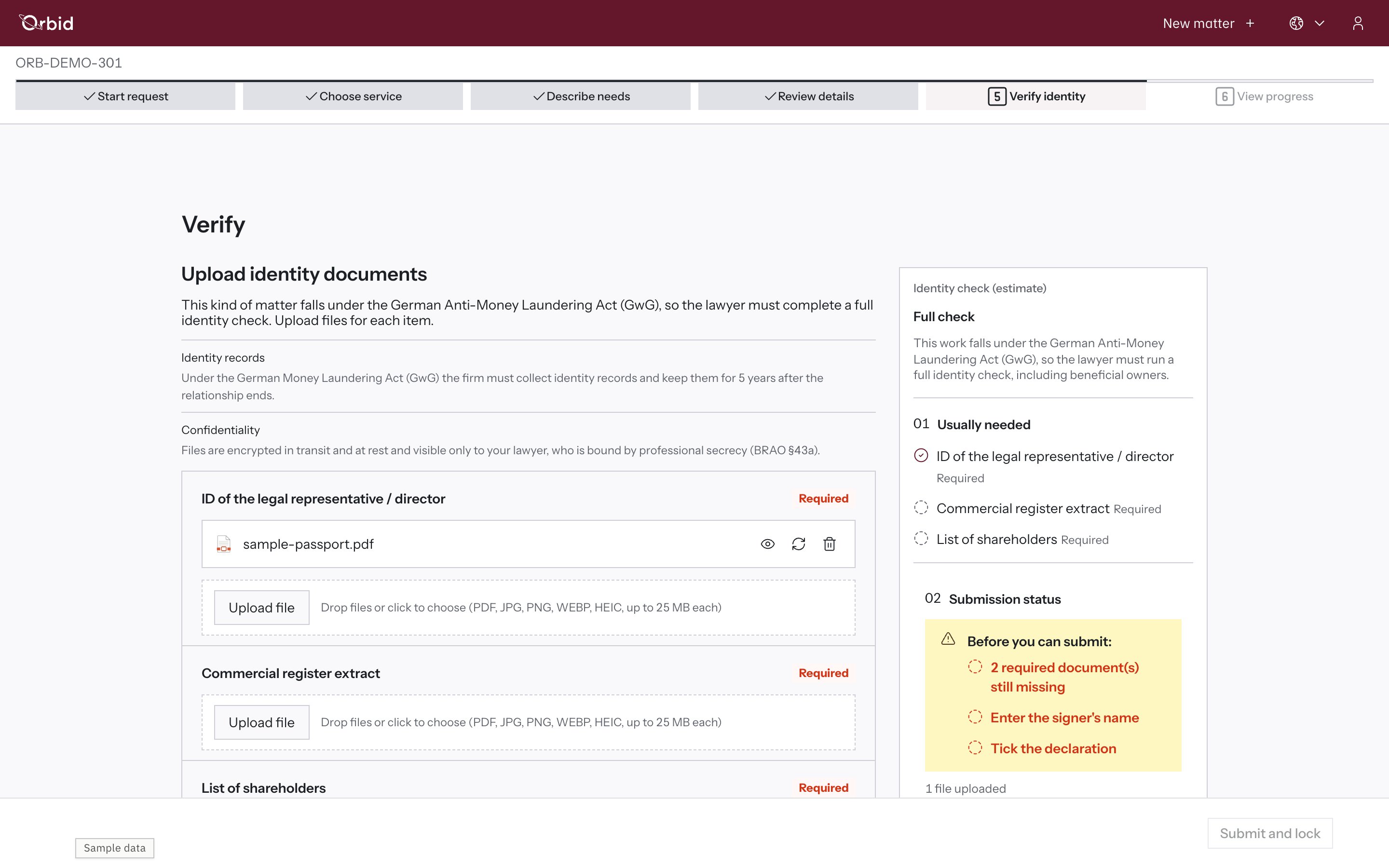
Upload required identity documents on the Verify checklist
7
View progress
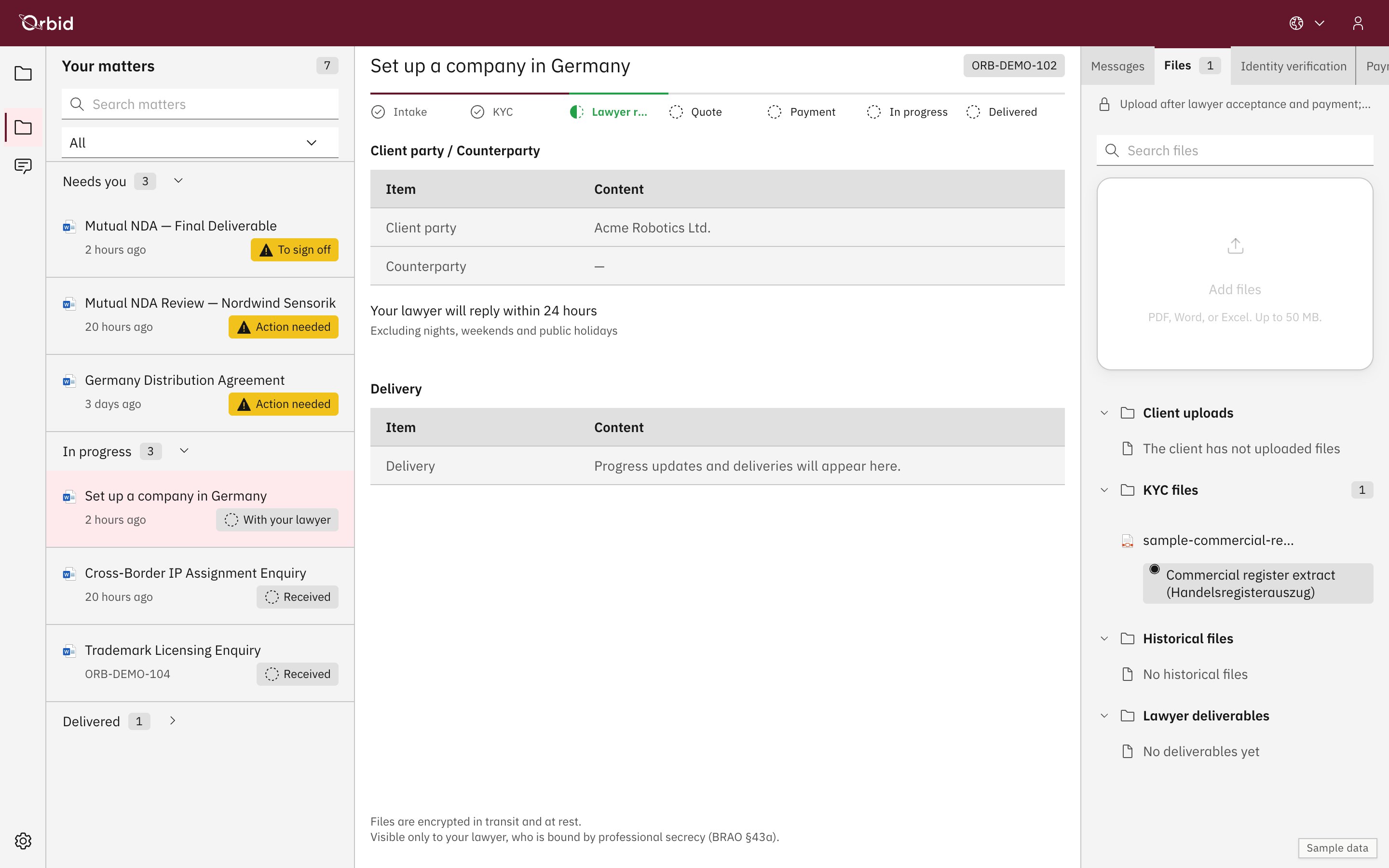
After you submit, this step shows where your matter stands. See Track your matter.
Track matter progress across intake, lawyer review, payment and delivery
The guide next to each service is only a rough idea. It is not legal advice. The lawyer decides.
Common questions
Does it cost anything to submit? No. You pay later, after the firm accepts and sends a quote.Can I change my answers after I submit? Not while the lawyer is reviewing. If the firm declines, you can edit and resubmit.Can I stop and come back? Yes. Unfinished matters appear under “You have unfinished matters”. Select Continue.
If something goes wrong
What you see
What to do
“Could not open a new tab. Please allow pop-ups for this site and retry.”
Allow pop-ups for this site in your browser settings, then select New matter again.
“Nothing matches”
Choose “Something else” and describe your matter briefly.
“Please read before uploading”
Read the notice. If you agree, select Confirm and upload. If not, ask your firm. Nothing is sent until you confirm.
{"docsConfig":{"theme":"maple","$schema":"https://mintlify.com/docs.json","name":"Orbid AI","description":"Orbid AI Help Center: guides for clients and law firms on submitting matters, identity checks, quotes, payment, document delivery and team administration.","colors":{"primary":"#8B1E1E","light":"#E06B6B","dark":"#8B1E1E"},"logo":{"light":"https://mintcdn.com/startosphere/BPr8xYo-TXQ5Yhl_/logo/light.svg?fit=max\u0026auto=format\u0026n=BPr8xYo-TXQ5Yhl_\u0026q=85\u0026s=bda011f48657a2dcbd0dff0a20365b03","dark":"https://mintcdn.com/startosphere/BPr8xYo-TXQ5Yhl_/logo/dark.svg?fit=max\u0026auto=format\u0026n=BPr8xYo-TXQ5Yhl_\u0026q=85\u0026s=a386920a91be8c47b513a8d7b1d16be9","href":"https://orbid.dev/"},"favicon":"https://mintcdn.com/startosphere/APvJixAMicQYRrst/favicon.svg?fit=max\u0026auto=format\u0026n=APvJixAMicQYRrst\u0026q=85\u0026s=8a94c4be52f74a19f167a83ffddb17ae","appearance":{"default":"system","strict":false},"background":{"decoration":"gradient","color":{"light":"#FFFFFF","dark":"#0E0B0B"}},"seo":{"metatags":{"og:type":"website","og:locale":"en_US","og:site_name":"Orbid AI Help Center","og:image":"https://docs.orbid.dev/images/og-image.png","og:image:width":"1200","og:image:height":"630","og:image:alt":"Orbid AI Help Center — guides for clients and law firms","twitter:card":"summary_large_image","twitter:image":"https://docs.orbid.dev/images/og-image.png","twitter:image:alt":"Orbid AI Help Center — guides for clients and law firms","format-detection":"telephone=no","theme-color":"#FFFFFF","apple-mobile-web-app-title":"Orbid AI Docs"},"paths":[{"path":"de","metatags":{"og:locale":"de_DE","og:image:alt":"Orbid AI Hilfe-Center — Anleitungen für Mandantinnen, Mandanten und Kanzleien","twitter:image:alt":"Orbid AI Hilfe-Center — Anleitungen für Mandantinnen, Mandanten und Kanzleien"}},{"path":"zh-TW","metatags":{"og:locale":"zh_TW","og:image:alt":"Orbid AI 說明中心 — 客戶與律師事務所操作指南","twitter:image:alt":"Orbid AI 說明中心 — 客戶與律師事務所操作指南"}},{"path":"zh-CN","metatags":{"og:locale":"zh_CN","og:image:alt":"Orbid AI 帮助中心 — 客户与律所操作指南","twitter:image:alt":"Orbid AI 帮助中心 — 客户与律所操作指南"}}],"organization":{"id":"https://orbid.dev/#organization","name":"Orbid AI","url":"https://orbid.dev","logo":"https://docs.orbid.dev/logo/light.svg","sameAs":["https://orbid.dev","https://docs.orbid.dev"]},"indexing":"navigable"},"fonts":{"heading":{"family":"Inter","weight":650},"body":{"family":"Inter","weight":400}},"icons":{"library":"fontawesome"},"styling":{"eyebrows":"breadcrumbs","codeblocks":"system","latex":false},"integrations":{"ga4":{"measurementId":"G-YK5SB959CT"}},"contextual":{"options":["copy","view","chatgpt","claude","perplexity"],"display":"toc"},"thumbnails":{"preset":"headline","appearance":"light","surface":"brand"},"interaction":{"drilldown":false},"metadata":{"timestamp":true},"navigation":{"languages":[{"language":"en","default":true,"footer":{"socials":{"website":"https://orbid.dev"},"links":[{"header":"Orbid AI","items":[{"label":"Website","href":"https://orbid.dev/"},{"label":"Pricing","href":"https://orbid.dev/pricing"},{"label":"Book a demo","href":"https://orbid.dev/book"}]},{"header":"Help","items":[{"label":"FAQ","href":"/help/faq"},{"label":"Glossary","href":"/help/glossary"}]}]},"navbar":{"links":[{"href":"https://orbid.dev/book","label":"Book Demo"},{"href":"https://orbid.dev/pricing","label":"Pricing"}],"primary":{"type":"button","label":"Open Orbid AI","href":"https://orbid.dev"}},"href":""},{"language":"de","default":false,"footer":{"socials":{"website":"https://orbid.dev"},"links":[{"header":"Orbid AI","items":[{"label":"Website","href":"https://orbid.dev/"},{"label":"Preise","href":"https://orbid.dev/pricing"},{"label":"Demo vereinbaren","href":"https://orbid.dev/book"}]},{"header":"Hilfe","items":[{"label":"Häufige Fragen","href":"/de/help/faq"},{"label":"Glossar","href":"/de/help/glossary"}]}]},"navbar":{"links":[{"href":"https://orbid.dev/book","label":"Demo vereinbaren"},{"href":"https://orbid.dev/pricing","label":"Preise"}],"primary":{"type":"button","label":"Orbid AI öffnen","href":"https://orbid.dev"}},"href":"de"},{"language":"zh-Hant","default":false,"footer":{"socials":{"website":"https://orbid.dev"},"links":[{"header":"Orbid AI","items":[{"label":"官方網站","href":"https://orbid.dev/"},{"label":"價格方案","href":"https://orbid.dev/pricing"},{"label":"預約示範","href":"https://orbid.dev/book"}]},{"header":"說明","items":[{"label":"常見問題","href":"/zh-TW/help/faq"},{"label":"術語表","href":"/zh-TW/help/glossary"}]}]},"navbar":{"links":[{"href":"https://orbid.dev/book","label":"預約示範"},{"href":"https://orbid.dev/pricing","label":"價格方案"}],"primary":{"type":"button","label":"開啟 Orbid AI","href":"https://orbid.dev"}},"href":"zh-TW"},{"language":"zh-Hans","default":false,"footer":{"socials":{"website":"https://orbid.dev"},"links":[{"header":"Orbid AI","items":[{"label":"官方网站","href":"https://orbid.dev/"},{"label":"价格方案","href":"https://orbid.dev/pricing"},{"label":"预约演示","href":"https://orbid.dev/book"}]},{"header":"帮助","items":[{"label":"常见问题","href":"/zh-CN/help/faq"},{"label":"术语表","href":"/zh-CN/help/glossary"}]}]},"navbar":{"links":[{"href":"https://orbid.dev/book","label":"预约演示"},{"href":"https://orbid.dev/pricing","label":"价格方案"}],"primary":{"type":"button","label":"打开 Orbid AI","href":"https://orbid.dev"}},"href":"zh-CN"}]}},"deployment":{"deploymentMetadataValue":{"subdomain":"startosphere","hasAudioNarration":false,"actualSubdomain":"startosphere","customDomains":["docs.orbid.dev"],"gitSource":{"type":"github","owner":"leon-sg","repo":"docs","deployBranch":"main","contentDirectory":"","isPrivate":false,"mountPath":"","label":""},"feedback":{"thumbs":true,"edits":true,"issues":true},"entitlements":{},"buildId":"6b044348ee7eab21fbdb8088","clientVersion":"0.0.4340","searchFilterCounts":[{"language":"en","tag":"For clients","count":6},{"language":"de","tag":"Für Mandanten","count":6},{"language":"zh-Hans","tag":"客户","count":6},{"language":"zh-Hant","tag":"客戶","count":6},{"language":"en","tag":"Administration","count":5},{"language":"en","tag":"For law firms","count":5},{"language":"de","tag":"Verwaltung","count":5},{"language":"de","tag":"Für Kanzleien","count":5},{"language":"zh-Hans","tag":"管理","count":5},{"language":"zh-Hans","tag":"律所","count":5},{"language":"zh-Hant","tag":"管理","count":5},{"language":"zh-Hant","tag":"律師事務所","count":5},{"language":"en","tag":"Get started","count":3},{"language":"de","tag":"Einstieg","count":3},{"language":"zh-Hans","tag":"开始使用","count":3},{"language":"zh-Hant","tag":"開始使用","count":3},{"language":"en","tag":"Help","count":2},{"language":"de","tag":"Hilfe","count":2},{"language":"zh-Hans","tag":"帮助","count":2},{"language":"zh-Hant","tag":"說明","count":2}]},"assistantConfig":{"enableAskAiButton":false,"enableStarterQuestions":false,"enableAskAiSearchBar":true},"basePath":"","hasChatPermissions":false,"hasWebMcpPermissions":false,"toggles":[{"name":"kill-isr","enabled":true,"variant":{"name":"disabled","enabled":false,"feature_enabled":true},"impressionData":false},{"name":"custom-rbac-roles","enabled":true,"variant":{"name":"disabled","enabled":false,"feature_enabled":true},"impressionData":false},{"name":"agent-mintlify-slack","enabled":true,"variant":{"name":"disabled","enabled":false,"feature_enabled":true},"impressionData":false},{"name":"agent-integrations-settings","enabled":true,"variant":{"name":"disabled","enabled":false,"feature_enabled":true},"impressionData":false},{"name":"rbac-expansion","enabled":true,"variant":{"name":"disabled","enabled":false,"feature_enabled":true},"impressionData":false},{"name":"automations-pr-grouping","enabled":true,"variant":{"name":"disabled","enabled":false,"feature_enabled":true},"impressionData":false},{"name":"custom-prefix","enabled":true,"variant":{"name":"disabled","enabled":false,"feature_enabled":true},"impressionData":false},{"name":"analytics-v7","enabled":true,"variant":{"name":"disabled","enabled":false,"feature_enabled":true},"impressionData":false},{"name":"user-flows-analytics","enabled":true,"variant":{"name":"disabled","enabled":false,"feature_enabled":true},"impressionData":false},{"name":"no-publish-flow","enabled":true,"variant":{"name":"disabled","enabled":false,"feature_enabled":true},"impressionData":false},{"name":"snapshot-serving-live","enabled":true,"variant":{"name":"disabled","enabled":false,"feature_enabled":true},"impressionData":false},{"name":"stripTemperatureMiddleware","enabled":true,"variant":{"name":"disabled","enabled":false,"feature_enabled":true},"impressionData":false},{"name":"support-platform-pylon-zendesk","enabled":true,"variant":{"name":"disabled","enabled":false,"feature_enabled":true},"impressionData":false},{"name":"snapshot-serving","enabled":true,"variant":{"name":"disabled","enabled":false,"feature_enabled":true},"impressionData":false},{"name":"instant-rollback","enabled":true,"variant":{"name":"disabled","enabled":false,"feature_enabled":true},"impressionData":false},{"name":"granular-notifications-server","enabled":true,"variant":{"name":"disabled","enabled":false,"feature_enabled":true},"impressionData":false},{"name":"granular-notifications","enabled":true,"variant":{"name":"disabled","enabled":false,"feature_enabled":true},"impressionData":false},{"name":"automations-fable","enabled":true,"variant":{"name":"disabled","enabled":false,"feature_enabled":true},"impressionData":false},{"name":"fixed-ai-action-pricing","enabled":true,"variant":{"name":"disabled","enabled":false,"feature_enabled":true},"impressionData":false},{"name":"site-roles","enabled":true,"variant":{"name":"disabled","enabled":false,"feature_enabled":true},"impressionData":false},{"name":"automation-resolve-merge-conflict","enabled":true,"variant":{"name":"disabled","enabled":false,"feature_enabled":true},"impressionData":false},{"name":"scoped-publishing","enabled":true,"variant":{"name":"disabled","enabled":false,"feature_enabled":true},"impressionData":false},{"name":"mintql","enabled":true,"variant":{"name":"disabled","enabled":false,"feature_enabled":true},"impressionData":false},{"name":"page-level-analytics","enabled":true,"variant":{"name":"disabled","enabled":false,"feature_enabled":true},"impressionData":false},{"name":"editor-version-history-v2","enabled":true,"variant":{"name":"disabled","enabled":false,"feature_enabled":true},"impressionData":false},{"name":"billing-page-v2","enabled":true,"variant":{"name":"disabled","enabled":false,"feature_enabled":true},"impressionData":false},{"name":"full-page-search","enabled":true,"variant":{"name":"disabled","enabled":false,"feature_enabled":true},"impressionData":false},{"name":"workspace-projects","enabled":true,"variant":{"name":"disabled","enabled":false,"feature_enabled":true},"impressionData":false},{"name":"fork-pr-previews","enabled":true,"variant":{"name":"disabled","enabled":false,"feature_enabled":true},"impressionData":false},{"name":"revalidation-jwt","enabled":true,"variant":{"name":"disabled","enabled":false,"feature_enabled":true},"impressionData":false},{"name":"hobby-abuse-scan","enabled":true,"variant":{"name":"disabled","enabled":false,"feature_enabled":true},"impressionData":false},{"name":"dashboard-inbox","enabled":true,"variant":{"name":"disabled","enabled":false,"feature_enabled":true},"impressionData":false},{"name":"turbopuffer-dual-write","enabled":true,"variant":{"name":"disabled","enabled":false,"feature_enabled":true},"impressionData":false},{"name":"approve-review-flow","enabled":true,"variant":{"name":"disabled","enabled":false,"feature_enabled":true},"impressionData":false},{"name":"editor-metadata","enabled":true,"variant":{"name":"disabled","enabled":false,"feature_enabled":true},"impressionData":false},{"name":"turbopuffer-serve","enabled":true,"variant":{"name":"disabled","enabled":false,"feature_enabled":true},"impressionData":false},{"name":"live-agents","enabled":true,"variant":{"name":"disabled","enabled":false,"feature_enabled":true},"impressionData":false},{"name":"starter-pricing","enabled":true,"variant":{"name":"treatment","enabled":true,"payload":{"type":"string","value":"treatment"},"feature_enabled":true},"impressionData":false},{"name":"llms-txt-v2","enabled":true,"variant":{"name":"disabled","enabled":false,"feature_enabled":true},"impressionData":false},{"name":"wildcard-email-auth","enabled":true,"variant":{"name":"disabled","enabled":false,"feature_enabled":true},"impressionData":false}],"starterQuestions":[],"privacy":{"consentBanner":{"enabled":true}},"googleFontsInlined":false},"customCss":[{"filePath":"style.css","content":"html{-webkit-text-size-adjust:100%;text-size-adjust:100%;background-color:#ffffff;scroll-padding-top:calc(4.5rem + env(safe-area-inset-top, 0px));scroll-padding-bottom:calc(2rem + env(safe-area-inset-bottom, 0px))}html.dark{background-color:#0e0b0b}body{background-color:#ffffff;touch-action:manipulation;-webkit-tap-highlight-color:rgba(139, 30, 30, 0.14)}html.dark body{background-color:#0e0b0b}#navbar{padding-left:max(1rem, env(safe-area-inset-left, 0px));padding-right:max(1rem, env(safe-area-inset-right, 0px))}footer,#footer{padding-bottom:max(2rem, calc(env(safe-area-inset-bottom, 0px) + 1.25rem));padding-left:max(1rem, env(safe-area-inset-left, 0px));padding-right:max(1rem, env(safe-area-inset-right, 0px))}html:has(.orbid-home-lead) #header{margin:0 0 1.75rem;padding:2.25rem 2rem;border-radius:1rem;border:1px solid rgba(139, 30, 30, 0.14);background:radial-gradient(120% 140% at 0% 0%, rgba(139, 30, 30, 0.10) 0%, rgba(139, 30, 30, 0) 60%),\n linear-gradient(180deg, rgba(139, 30, 30, 0.04), rgba(139, 30, 30, 0))}.dark:has(.orbid-home-lead) #header{border-color:rgba(224, 107, 107, 0.2);background:radial-gradient(120% 140% at 0% 0%, rgba(224, 107, 107, 0.14) 0%, rgba(224, 107, 107, 0) 60%)}html:has(.orbid-home-lead) #header nav[aria-label=\"Breadcrumb\"] li{font-size:0.8125rem;font-weight:600;letter-spacing:0.06em;text-transform:uppercase;color:#8b1e1e}.dark:has(.orbid-home-lead) #header nav[aria-label=\"Breadcrumb\"] li{color:#e06b6b}html:has(.orbid-home-lead) #header #page-title{margin:0.25rem 0 0.5rem!important;font-size:clamp(1.75rem, 1.25rem + 2vw, 2.5rem)!important;line-height:1.15!important;font-weight:700!important;letter-spacing:-0.02em}.orbid-home-lead{margin:0 0 1.5rem;max-width:48rem;font-size:1.0625rem;line-height:1.65}#content-area{line-height:1.7;padding-bottom:max(1.5rem, env(safe-area-inset-bottom, 0px))}#content-area h2{margin-top:2.5rem;letter-spacing:-0.01em}#content-area p,#content-area li,#content-area td,#content-area th,#content-area figcaption{overflow-wrap:break-word}#content-area a,#content-area code{overflow-wrap:anywhere}html[lang^=\"de\"] #content-area p,html[lang^=\"de\"] #content-area li,html[lang^=\"de\"] #content-area td,html[lang^=\"de\"] #content-area figcaption{-webkit-hyphens:auto;hyphens:auto}.card{transition:transform 0.15s ease, box-shadow 0.15s ease, border-color 0.15s ease}@media (hover: hover) and (pointer: fine){.card:hover{transform:translateY(-2px);box-shadow:0 6px 20px -8px rgba(139, 30, 30, 0.25)}}#content-area table{width:100%;max-width:100%;font-size:0.9375rem;line-height:1.55;border-collapse:collapse}#content-area th{font-weight:600;padding-top:0.75rem;padding-bottom:0.75rem}#content-area td{padding-top:0.625rem;padding-bottom:0.625rem;vertical-align:top}#content-area .overflow-x-auto{-webkit-overflow-scrolling:touch;overscroll-behavior-x:contain}@media (max-width: 640px){#content-area th{white-space:normal}#content-area table td:first-child{min-width:108px}#content-area table td:not(:first-child){min-width:0}}[data-component-part=\"step-title\"]{font-weight:600!important;margin-bottom:0!important}[data-component-part=\"step-content\"]>:first-child{margin-top:0.25rem}#content-area figure img,#content-area [data-component-part=\"frame\"] img{height:auto;max-width:100%}#content-area figcaption{font-size:0.875rem;line-height:1.5}footer a,#footer a{color:#44403c!important}.dark footer a,.dark #footer a{color:#d6d3d1!important}@media (hover: hover) and (pointer: fine){footer a:hover,#footer a:hover{color:#1c1917!important}.dark footer a:hover,.dark #footer a:hover{color:#ffffff!important}}@media (pointer: coarse), (max-width: 768px){input,textarea,select{font-size:max(1rem, 16px)!important}#search-bar-entry-mobile,#navbar button,header button,button[aria-label=\"More actions\"],button[aria-label=\"Weitere Aktionen\"],button[aria-label=\"更多操作\"],a.anchor-link{min-width:44px!important;min-height:44px!important;display:inline-flex;align-items:center;justify-content:center}#navbar a.select-none,footer a.select-none,#footer a.select-none{min-height:44px!important;min-width:44px!important;display:inline-flex!important;align-items:center}footer a,#footer a{min-height:44px!important;min-width:44px!important;display:inline-flex!important;align-items:center;padding-top:0.5rem;padding-bottom:0.5rem}footer a.h-fit,#footer a.h-fit{justify-content:center}footer button,#footer button{min-width:44px!important;min-height:44px!important;display:inline-flex!important;align-items:center;justify-content:center}footer>div,#footer>div{padding-left:1rem!important;padding-right:1rem!important}footer div:has(>button),#footer div:has(>button){gap:0.25rem!important;margin-left:auto}footer div:has(>a[href*=\"mintlify.com\"]),#footer div:has(>a[href*=\"mintlify.com\"]){flex-wrap:wrap;row-gap:0.5rem;column-gap:1rem}[data-component-part=\"pagination-prev\"],[data-component-part=\"pagination-next\"],#pagination a,button[data-component-part=\"accordion-button\"],.accordion button{min-height:44px!important;min-width:44px!important}button[aria-label*=\"Send\"],button[aria-label*=\"Senden\"],button[aria-label*=\"傳送\"],button[aria-label*=\"发送\"]{min-width:44px!important;min-height:44px!important}}@media (max-width: 640px){html:has(.orbid-home-lead) #header{padding:1.5rem 1.25rem;margin-bottom:1.25rem}#page-title{word-break:break-word}}[data-component-part=\"pagination-label\"]{white-space:nowrap}[data-component-part=\"pagination-prev\"]{flex-shrink:0}[data-component-part=\"card-content-container\"]{display:flex;flex-direction:column;align-items:flex-start}[data-component-part=\"card-title\"]{margin-top:0.75rem!important}div:has(>a[href*=\"github.com\"]){flex-wrap:wrap}.orbid-motion-static{display:none!important}@media (prefers-reduced-motion: reduce){.orbid-motion-anim{display:none!important}.orbid-motion-static{display:block!important}}"}]}
{"page":{"pagePath":"clients/submit-a-matter","slug":"/clients/submit-a-matter","pageMetadata":{"icon":"file-circle-plus","title":"Submit a new matter","description":"Learn how to send a new matter to your law firm in Orbid AI: choose a service, describe your situation, add files and submit for free.","sidebarTitle":"Submit a matter","keywords":["submit matter","new matter","client intake","Orbid","legal request"],"href":"/clients/submit-a-matter"},"description":{"compiledSource":"\"use strict\";\nconst {jsx: _jsx} = arguments[0];\nconst {useMDXComponents: _provideComponents} = arguments[0];\nfunction _createMdxContent(props) {\n const _components = {\n p: \"p\",\n ..._provideComponents(),\n ...props.components\n };\n return _jsx(_components.p, {\n children: \"Learn how to send a new matter to your law firm in Orbid AI: choose a service, describe your situation, add files and submit for free.\"\n });\n}\nfunction MDXContent(props = {}) {\n const {wrapper: MDXLayout} = {\n ..._provideComponents(),\n ...props.components\n };\n return MDXLayout ? _jsx(MDXLayout, {\n ...props,\n children: _jsx(_createMdxContent, {\n ...props\n })\n }) : _createMdxContent(props);\n}\nreturn {\n default: MDXContent\n};\n","frontmatter":{},"scope":{}},"pageType":"default","mdx":{"mdxSource":{"compiledSource":"\"use strict\";const{Fragment:_Fragment,jsx:_jsx,jsxs:_jsxs}=arguments[0];const{useMDXComponents:_provideComponents}=arguments[0];function _createMdxContent(props){const _components={a:`a`,li:`li`,p:`p`,strong:`strong`,tbody:`tbody`,td:`td`,th:`th`,thead:`thead`,tr:`tr`,ul:`ul`,..._provideComponents(),...props.components},{Card,CardGroup,Frame,Heading,Note,OptimizedImage,Step,Steps,Table}=_components;if(!Card)_missingMdxReference(`Card`,true);if(!CardGroup)_missingMdxReference(`CardGroup`,true);if(!Frame)_missingMdxReference(`Frame`,true);if(!Heading)_missingMdxReference(`Heading`,true);if(!Note)_missingMdxReference(`Note`,true);if(!OptimizedImage)_missingMdxReference(`OptimizedImage`,true);if(!Step)_missingMdxReference(`Step`,true);if(!Steps)_missingMdxReference(`Steps`,true);if(!Table)_missingMdxReference(`Table`,true);return _jsxs(_Fragment,{children:[_jsxs(_components.p,{children:[`In `,_jsx(_components.strong,{children:`Orbid AI`}),`, submitting a new legal matter is free: sign in, pick a matter type, answer guided questions, review your details and upload identity documents. The law firm sends a fixed-price quote only if it accepts your matter.`]}),`\n`,_jsx(Heading,{level:`2`,id:`before-you-start`,children:`Before you start`}),`\n`,_jsxs(_components.ul,{children:[`\n`,_jsx(_components.li,{children:`An email address you can open.`}),`\n`,_jsx(_components.li,{children:`Any files that explain your situation, such as a contract or a letter.`}),`\n`,_jsxs(_components.li,{children:[`A browser that allows pop-ups from Orbid. `,_jsx(_components.strong,{children:`New matter`}),` opens in a new tab.`]}),`\n`]}),`\n`,_jsx(_components.p,{children:`When you start, a bar at the top shows six steps: Start request, Choose service, Describe needs, Review details, Verify identity and View progress.`}),`\n`,_jsxs(Steps,{children:[_jsxs(Step,{title:`Sign in`,children:[_jsxs(_components.p,{children:[`Open the link from your firm. Enter your email and select `,_jsx(_components.strong,{children:`Send code`}),`, then enter the one-time code Orbid sends you. You can also sign in with `,_jsx(_components.strong,{children:`Continue with Microsoft`}),`, `,_jsx(_components.strong,{children:`Continue with Google`}),`, or open `,_jsx(_components.strong,{children:`Regional sign-in options`}),`.`]}),_jsx(Frame,{caption:`Client sign-in with email verification code and SSO options`,children:_jsx(OptimizedImage,{src:`https://mintcdn.com/startosphere/wvTz78QGtc9uEOWn/images/screenshots/en/intake-sign-in.png?fit=max\u0026auto=format\u0026n=wvTz78QGtc9uEOWn\u0026q=85\u0026s=d7b07f857fcf3df4f1990140775ef61b`,alt:`Orbid AI: Client sign-in card with Email input for 'alex.morgan@example.com', 'Send code' button, 'Continue with Microsoft' and 'Continue with Google' options and 'Regional sign-in options' below`,width:`1440`,height:`900`,\"data-og-width\":`2880`,\"data-og-height\":`1800`,\"data-path\":`images/screenshots/en/intake-sign-in.png`,\"data-optimize\":`true`,\"data-opv\":`3`,srcset:`https://mintcdn.com/startosphere/wvTz78QGtc9uEOWn/images/screenshots/en/intake-sign-in.png?w=280\u0026fit=max\u0026auto=format\u0026n=wvTz78QGtc9uEOWn\u0026q=85\u0026s=11eda00b6e554b6b8884ed35faf50524 280w, https://mintcdn.com/startosphere/wvTz78QGtc9uEOWn/images/screenshots/en/intake-sign-in.png?w=560\u0026fit=max\u0026auto=format\u0026n=wvTz78QGtc9uEOWn\u0026q=85\u0026s=f514d7c04d805287337fff188b60c990 560w, https://mintcdn.com/startosphere/wvTz78QGtc9uEOWn/images/screenshots/en/intake-sign-in.png?w=840\u0026fit=max\u0026auto=format\u0026n=wvTz78QGtc9uEOWn\u0026q=85\u0026s=cd01243c08012cec24a01d0952b2f698 840w, https://mintcdn.com/startosphere/wvTz78QGtc9uEOWn/images/screenshots/en/intake-sign-in.png?w=1100\u0026fit=max\u0026auto=format\u0026n=wvTz78QGtc9uEOWn\u0026q=85\u0026s=dd4ec0fd382d5b7c6dfeb2751af2530b 1100w, https://mintcdn.com/startosphere/wvTz78QGtc9uEOWn/images/screenshots/en/intake-sign-in.png?w=1650\u0026fit=max\u0026auto=format\u0026n=wvTz78QGtc9uEOWn\u0026q=85\u0026s=1191271323b7bbfcbf67924ac1e368df 1650w, https://mintcdn.com/startosphere/wvTz78QGtc9uEOWn/images/screenshots/en/intake-sign-in.png?w=2500\u0026fit=max\u0026auto=format\u0026n=wvTz78QGtc9uEOWn\u0026q=85\u0026s=7af20269db4c8b57476b4cce0f1a633b 2500w`})})]}),_jsxs(Step,{title:`Select New matter`,children:[_jsxs(_components.p,{children:[`On your home page, select `,_jsx(_components.strong,{children:`New matter`}),`. Orbid opens “Describe your matter” in a new tab. Keep working in that tab.`]}),_jsx(Frame,{caption:`Start a new matter or resume an unfinished draft`,children:_jsx(OptimizedImage,{src:`https://mintcdn.com/startosphere/wvTz78QGtc9uEOWn/images/screenshots/en/intake-new-matter-entry.png?fit=max\u0026auto=format\u0026n=wvTz78QGtc9uEOWn\u0026q=85\u0026s=f33ea5b9e27da354b6353ea704503a0c`,alt:`Orbid AI: 'Describe your matter' page showing the new matter intake entry and the 'You have unfinished matters' list with a Continue button; client 'Acme Robotics Ltd.'`,width:`1440`,height:`900`,\"data-og-width\":`2880`,\"data-og-height\":`1800`,\"data-path\":`images/screenshots/en/intake-new-matter-entry.png`,\"data-optimize\":`true`,\"data-opv\":`3`,srcset:`https://mintcdn.com/startosphere/wvTz78QGtc9uEOWn/images/screenshots/en/intake-new-matter-entry.png?w=280\u0026fit=max\u0026auto=format\u0026n=wvTz78QGtc9uEOWn\u0026q=85\u0026s=64e13f68a35b57ae22561d7f541ea531 280w, https://mintcdn.com/startosphere/wvTz78QGtc9uEOWn/images/screenshots/en/intake-new-matter-entry.png?w=560\u0026fit=max\u0026auto=format\u0026n=wvTz78QGtc9uEOWn\u0026q=85\u0026s=a5e7f5b4f894a0c228064ee2da8c8097 560w, https://mintcdn.com/startosphere/wvTz78QGtc9uEOWn/images/screenshots/en/intake-new-matter-entry.png?w=840\u0026fit=max\u0026auto=format\u0026n=wvTz78QGtc9uEOWn\u0026q=85\u0026s=5d4568982edd62aeae0d5a968d86dd6a 840w, https://mintcdn.com/startosphere/wvTz78QGtc9uEOWn/images/screenshots/en/intake-new-matter-entry.png?w=1100\u0026fit=max\u0026auto=format\u0026n=wvTz78QGtc9uEOWn\u0026q=85\u0026s=a6e0549be2121874af8501ad9a27d67e 1100w, https://mintcdn.com/startosphere/wvTz78QGtc9uEOWn/images/screenshots/en/intake-new-matter-entry.png?w=1650\u0026fit=max\u0026auto=format\u0026n=wvTz78QGtc9uEOWn\u0026q=85\u0026s=5a5c56a1b4db60e8dd44b482ff9e7284 1650w, https://mintcdn.com/startosphere/wvTz78QGtc9uEOWn/images/screenshots/en/intake-new-matter-entry.png?w=2500\u0026fit=max\u0026auto=format\u0026n=wvTz78QGtc9uEOWn\u0026q=85\u0026s=16ef9d67eeaac931e389e1cbb6c8d34a 2500w`})})]}),_jsxs(Step,{title:`Choose service`,children:[_jsxs(_components.p,{children:[`Under `,_jsx(_components.strong,{children:`1 Matter type`}),`, pick the closest service card, such as “Set up a company” or “NDA”. If nothing fits, choose “Something else” and describe it in a few words.`]}),_jsxs(Frame,{caption:`Choose a matter type card and review typical deliverables`,children:[_jsx(`div`,{className:`orbid-motion-anim`,children:_jsx(OptimizedImage,{src:`https://mintcdn.com/startosphere/n5PNQ6tv_d4yWapa/images/screenshots/en/intake-select-service.webp?fit=max\u0026auto=format\u0026n=n5PNQ6tv_d4yWapa\u0026q=85\u0026s=0e325c044e7c86ac8702041be9546a98`,alt:`Orbid AI: Matter step 'Choose service' showing the '1 Matter type' two-column card grid with 'NDA' selected and the service guide open (Typical situations, Usually needed and Deliverables); client 'Acme Robotics Ltd.'`,width:`1280`,height:`800`,loading:`lazy`,\"data-og-width\":`1280`,\"data-og-height\":`800`,\"data-path\":`images/screenshots/en/intake-select-service.webp`,\"data-optimize\":`true`,\"data-opv\":`3`,srcset:`https://mintcdn.com/startosphere/n5PNQ6tv_d4yWapa/images/screenshots/en/intake-select-service.webp?w=280\u0026fit=max\u0026auto=format\u0026n=n5PNQ6tv_d4yWapa\u0026q=85\u0026s=ac609f2af14f6bc5484b5d98f0a4fb67 280w, https://mintcdn.com/startosphere/n5PNQ6tv_d4yWapa/images/screenshots/en/intake-select-service.webp?w=560\u0026fit=max\u0026auto=format\u0026n=n5PNQ6tv_d4yWapa\u0026q=85\u0026s=09aa97ff4c50f9a6ebff987290299bd0 560w, https://mintcdn.com/startosphere/n5PNQ6tv_d4yWapa/images/screenshots/en/intake-select-service.webp?w=840\u0026fit=max\u0026auto=format\u0026n=n5PNQ6tv_d4yWapa\u0026q=85\u0026s=bb99421ed3bb1396470bd5519b3e1099 840w, https://mintcdn.com/startosphere/n5PNQ6tv_d4yWapa/images/screenshots/en/intake-select-service.webp?w=1100\u0026fit=max\u0026auto=format\u0026n=n5PNQ6tv_d4yWapa\u0026q=85\u0026s=704b8e63416371964526b947f5700c85 1100w, https://mintcdn.com/startosphere/n5PNQ6tv_d4yWapa/images/screenshots/en/intake-select-service.webp?w=1650\u0026fit=max\u0026auto=format\u0026n=n5PNQ6tv_d4yWapa\u0026q=85\u0026s=ebe59a30bfb5ac3ec85b4ab8f2d1531b 1650w, https://mintcdn.com/startosphere/n5PNQ6tv_d4yWapa/images/screenshots/en/intake-select-service.webp?w=2500\u0026fit=max\u0026auto=format\u0026n=n5PNQ6tv_d4yWapa\u0026q=85\u0026s=71436d8f70b4fd088a20e3fd84616eab 2500w`})}),_jsx(`div`,{className:`orbid-motion-static`,children:_jsx(OptimizedImage,{src:`https://mintcdn.com/startosphere/wvTz78QGtc9uEOWn/images/screenshots/en/intake-select-service.png?fit=max\u0026auto=format\u0026n=wvTz78QGtc9uEOWn\u0026q=85\u0026s=39f21447ee94501e12d5780fc009297b`,alt:`Orbid AI: Matter step 'Choose service' showing the '1 Matter type' two-column card grid with 'NDA' selected and the service guide open (Typical situations, Usually needed and Deliverables); client 'Acme Robotics Ltd.'`,width:`1440`,height:`900`,loading:`lazy`,\"data-og-width\":`2880`,\"data-og-height\":`1800`,\"data-path\":`images/screenshots/en/intake-select-service.png`,\"data-optimize\":`true`,\"data-opv\":`3`,srcset:`https://mintcdn.com/startosphere/wvTz78QGtc9uEOWn/images/screenshots/en/intake-select-service.png?w=280\u0026fit=max\u0026auto=format\u0026n=wvTz78QGtc9uEOWn\u0026q=85\u0026s=8c72be9f9fbf3d9bdfed9fcbce41395c 280w, https://mintcdn.com/startosphere/wvTz78QGtc9uEOWn/images/screenshots/en/intake-select-service.png?w=560\u0026fit=max\u0026auto=format\u0026n=wvTz78QGtc9uEOWn\u0026q=85\u0026s=4c5085e9ed11e5df1a6b5d103c2d230e 560w, https://mintcdn.com/startosphere/wvTz78QGtc9uEOWn/images/screenshots/en/intake-select-service.png?w=840\u0026fit=max\u0026auto=format\u0026n=wvTz78QGtc9uEOWn\u0026q=85\u0026s=018ce2d58207420715bdf6602692eba6 840w, https://mintcdn.com/startosphere/wvTz78QGtc9uEOWn/images/screenshots/en/intake-select-service.png?w=1100\u0026fit=max\u0026auto=format\u0026n=wvTz78QGtc9uEOWn\u0026q=85\u0026s=3abcb15eba8a6842c4ece33d6490d8cb 1100w, https://mintcdn.com/startosphere/wvTz78QGtc9uEOWn/images/screenshots/en/intake-select-service.png?w=1650\u0026fit=max\u0026auto=format\u0026n=wvTz78QGtc9uEOWn\u0026q=85\u0026s=12aa0f2f1f718652b3d2cfe18db6c0b9 1650w, https://mintcdn.com/startosphere/wvTz78QGtc9uEOWn/images/screenshots/en/intake-select-service.png?w=2500\u0026fit=max\u0026auto=format\u0026n=wvTz78QGtc9uEOWn\u0026q=85\u0026s=29a9cf3e12a2e57690238b198f19a5e7 2500w`})})]})]}),_jsxs(Step,{title:`Describe needs`,children:[_jsx(_components.p,{children:`Orbid asks guided questions one at a time, such as “Question 3 of 8”. It is not a free chat, so you only answer what you see. The questions may cover the country or region you come from and go to, and whether you are a company, an individual or an agent acting for someone else. Add your files.`}),_jsxs(Frame,{caption:`Answer guided intake questions alongside the live key-points summary`,children:[_jsx(`div`,{className:`orbid-motion-anim`,children:_jsx(OptimizedImage,{src:`https://mintcdn.com/startosphere/n5PNQ6tv_d4yWapa/images/screenshots/en/intake-describe-questions.webp?fit=max\u0026auto=format\u0026n=n5PNQ6tv_d4yWapa\u0026q=85\u0026s=95954d1adf247a1fe89b0208cb449022`,alt:`Orbid AI: Matter step 'Describe needs' showing guided intake questions alongside the structured key points panel on the right; client 'Acme Robotics Ltd.'`,width:`1280`,height:`800`,loading:`lazy`,\"data-og-width\":`1280`,\"data-og-height\":`800`,\"data-path\":`images/screenshots/en/intake-describe-questions.webp`,\"data-optimize\":`true`,\"data-opv\":`3`,srcset:`https://mintcdn.com/startosphere/n5PNQ6tv_d4yWapa/images/screenshots/en/intake-describe-questions.webp?w=280\u0026fit=max\u0026auto=format\u0026n=n5PNQ6tv_d4yWapa\u0026q=85\u0026s=32c195107d1c0fd1fe64fe0886714302 280w, https://mintcdn.com/startosphere/n5PNQ6tv_d4yWapa/images/screenshots/en/intake-describe-questions.webp?w=560\u0026fit=max\u0026auto=format\u0026n=n5PNQ6tv_d4yWapa\u0026q=85\u0026s=601f47c10e44933f44082432b69e784b 560w, https://mintcdn.com/startosphere/n5PNQ6tv_d4yWapa/images/screenshots/en/intake-describe-questions.webp?w=840\u0026fit=max\u0026auto=format\u0026n=n5PNQ6tv_d4yWapa\u0026q=85\u0026s=f54106db5bfcddacbba36c9f52c45ee5 840w, https://mintcdn.com/startosphere/n5PNQ6tv_d4yWapa/images/screenshots/en/intake-describe-questions.webp?w=1100\u0026fit=max\u0026auto=format\u0026n=n5PNQ6tv_d4yWapa\u0026q=85\u0026s=912427e9ba7f6d535eb31ce54c177885 1100w, https://mintcdn.com/startosphere/n5PNQ6tv_d4yWapa/images/screenshots/en/intake-describe-questions.webp?w=1650\u0026fit=max\u0026auto=format\u0026n=n5PNQ6tv_d4yWapa\u0026q=85\u0026s=621560d05d5f66a35b62c50eba0d6766 1650w, https://mintcdn.com/startosphere/n5PNQ6tv_d4yWapa/images/screenshots/en/intake-describe-questions.webp?w=2500\u0026fit=max\u0026auto=format\u0026n=n5PNQ6tv_d4yWapa\u0026q=85\u0026s=382b92b8fac5529dd9d1f9c3390db374 2500w`})}),_jsx(`div`,{className:`orbid-motion-static`,children:_jsx(OptimizedImage,{src:`https://mintcdn.com/startosphere/wvTz78QGtc9uEOWn/images/screenshots/en/intake-describe-questions.png?fit=max\u0026auto=format\u0026n=wvTz78QGtc9uEOWn\u0026q=85\u0026s=cf8b54c76951e75c140f781e8fe6428e`,alt:`Orbid AI: Matter step 'Describe needs' showing guided intake questions alongside the structured key points panel on the right; client 'Acme Robotics Ltd.'`,width:`1440`,height:`900`,loading:`lazy`,\"data-og-width\":`2880`,\"data-og-height\":`1800`,\"data-path\":`images/screenshots/en/intake-describe-questions.png`,\"data-optimize\":`true`,\"data-opv\":`3`,srcset:`https://mintcdn.com/startosphere/wvTz78QGtc9uEOWn/images/screenshots/en/intake-describe-questions.png?w=280\u0026fit=max\u0026auto=format\u0026n=wvTz78QGtc9uEOWn\u0026q=85\u0026s=7e4247ceebf798fe148c6949f7b7f65c 280w, https://mintcdn.com/startosphere/wvTz78QGtc9uEOWn/images/screenshots/en/intake-describe-questions.png?w=560\u0026fit=max\u0026auto=format\u0026n=wvTz78QGtc9uEOWn\u0026q=85\u0026s=3d2849f220dc90d1f764036f5d67af85 560w, https://mintcdn.com/startosphere/wvTz78QGtc9uEOWn/images/screenshots/en/intake-describe-questions.png?w=840\u0026fit=max\u0026auto=format\u0026n=wvTz78QGtc9uEOWn\u0026q=85\u0026s=4adea5c6461f317efd48bd8b59259cb2 840w, https://mintcdn.com/startosphere/wvTz78QGtc9uEOWn/images/screenshots/en/intake-describe-questions.png?w=1100\u0026fit=max\u0026auto=format\u0026n=wvTz78QGtc9uEOWn\u0026q=85\u0026s=2310bc43e1829155be4f1e9edee26c53 1100w, https://mintcdn.com/startosphere/wvTz78QGtc9uEOWn/images/screenshots/en/intake-describe-questions.png?w=1650\u0026fit=max\u0026auto=format\u0026n=wvTz78QGtc9uEOWn\u0026q=85\u0026s=b6a54eebb3baf88917f570571ab74934 1650w, https://mintcdn.com/startosphere/wvTz78QGtc9uEOWn/images/screenshots/en/intake-describe-questions.png?w=2500\u0026fit=max\u0026auto=format\u0026n=wvTz78QGtc9uEOWn\u0026q=85\u0026s=f3d5235a4ef799e18b302f6a569b77d7 2500w`})})]})]}),_jsxs(Step,{title:`Review details`,children:[_jsxs(_components.p,{children:[`Check your contact and company details, fix anything that is wrong and select `,_jsx(_components.strong,{children:`Confirm and continue to identity documents`}),`.`]}),_jsx(Frame,{caption:`Verify contact and company details before uploading identity documents`,children:_jsx(OptimizedImage,{src:`https://mintcdn.com/startosphere/wvTz78QGtc9uEOWn/images/screenshots/en/intake-review-details.png?fit=max\u0026auto=format\u0026n=wvTz78QGtc9uEOWn\u0026q=85\u0026s=aa65ab2a6a1e7667582e59243bc07b30`,alt:`Orbid AI: Matter step 'Review details' showing 'Leave your contact details' (Contact person and Company details for 'Acme Robotics Ltd.') with 'Confirm and continue to identity documents' below`,width:`1440`,height:`900`,\"data-og-width\":`2880`,\"data-og-height\":`1800`,\"data-path\":`images/screenshots/en/intake-review-details.png`,\"data-optimize\":`true`,\"data-opv\":`3`,srcset:`https://mintcdn.com/startosphere/wvTz78QGtc9uEOWn/images/screenshots/en/intake-review-details.png?w=280\u0026fit=max\u0026auto=format\u0026n=wvTz78QGtc9uEOWn\u0026q=85\u0026s=eb420937cff880cdc4e9c35c2d1f7492 280w, https://mintcdn.com/startosphere/wvTz78QGtc9uEOWn/images/screenshots/en/intake-review-details.png?w=560\u0026fit=max\u0026auto=format\u0026n=wvTz78QGtc9uEOWn\u0026q=85\u0026s=b3a8cd283bac28d9bcf0f349c91e9e09 560w, https://mintcdn.com/startosphere/wvTz78QGtc9uEOWn/images/screenshots/en/intake-review-details.png?w=840\u0026fit=max\u0026auto=format\u0026n=wvTz78QGtc9uEOWn\u0026q=85\u0026s=75470b85f7cf0bc32e8041b424d5b13c 840w, https://mintcdn.com/startosphere/wvTz78QGtc9uEOWn/images/screenshots/en/intake-review-details.png?w=1100\u0026fit=max\u0026auto=format\u0026n=wvTz78QGtc9uEOWn\u0026q=85\u0026s=4c16c510fa80c75da3c0a44601c0e0e8 1100w, https://mintcdn.com/startosphere/wvTz78QGtc9uEOWn/images/screenshots/en/intake-review-details.png?w=1650\u0026fit=max\u0026auto=format\u0026n=wvTz78QGtc9uEOWn\u0026q=85\u0026s=2497284a21c3fd70fe2795b3042ff948 1650w, https://mintcdn.com/startosphere/wvTz78QGtc9uEOWn/images/screenshots/en/intake-review-details.png?w=2500\u0026fit=max\u0026auto=format\u0026n=wvTz78QGtc9uEOWn\u0026q=85\u0026s=91ed7425fbf084b77a4b7ba28c8d347b 2500w`})})]}),_jsxs(Step,{title:`Verify identity`,children:[_jsxs(_components.p,{children:[`Upload your identity documents. See `,_jsx(_components.a,{href:`/clients/identity-documents`,children:`Upload identity documents`}),`. Then select `,_jsx(_components.strong,{children:`Submit and lock`}),`.`]}),_jsxs(Frame,{caption:`Upload required identity documents on the Verify checklist`,children:[_jsx(`div`,{className:`orbid-motion-anim`,children:_jsx(OptimizedImage,{src:`https://mintcdn.com/startosphere/n5PNQ6tv_d4yWapa/images/screenshots/en/intake-verify-upload.webp?fit=max\u0026auto=format\u0026n=n5PNQ6tv_d4yWapa\u0026q=85\u0026s=46a0c2898f394d6c04ac224142f3f616`,alt:`Orbid AI: Verify step with a checklist of three required items; the first shows an uploaded file 'sample-passport.pdf', the others show 'Upload file', with 'Submit and lock' below; client 'Acme Robotics Ltd.'`,width:`1280`,height:`800`,loading:`lazy`,\"data-og-width\":`1280`,\"data-og-height\":`800`,\"data-path\":`images/screenshots/en/intake-verify-upload.webp`,\"data-optimize\":`true`,\"data-opv\":`3`,srcset:`https://mintcdn.com/startosphere/n5PNQ6tv_d4yWapa/images/screenshots/en/intake-verify-upload.webp?w=280\u0026fit=max\u0026auto=format\u0026n=n5PNQ6tv_d4yWapa\u0026q=85\u0026s=c9848f3fe9747865cff25d259aa0483d 280w, https://mintcdn.com/startosphere/n5PNQ6tv_d4yWapa/images/screenshots/en/intake-verify-upload.webp?w=560\u0026fit=max\u0026auto=format\u0026n=n5PNQ6tv_d4yWapa\u0026q=85\u0026s=9f629fee148b52617695938e4029eb44 560w, https://mintcdn.com/startosphere/n5PNQ6tv_d4yWapa/images/screenshots/en/intake-verify-upload.webp?w=840\u0026fit=max\u0026auto=format\u0026n=n5PNQ6tv_d4yWapa\u0026q=85\u0026s=6dc5af3f7e85d85f1f19f7f631e2e3de 840w, https://mintcdn.com/startosphere/n5PNQ6tv_d4yWapa/images/screenshots/en/intake-verify-upload.webp?w=1100\u0026fit=max\u0026auto=format\u0026n=n5PNQ6tv_d4yWapa\u0026q=85\u0026s=77d084ea4773a3c274a92b56c6afe802 1100w, https://mintcdn.com/startosphere/n5PNQ6tv_d4yWapa/images/screenshots/en/intake-verify-upload.webp?w=1650\u0026fit=max\u0026auto=format\u0026n=n5PNQ6tv_d4yWapa\u0026q=85\u0026s=ccd3a3f926cbb1f12ab27dc5ae5e0aee 1650w, https://mintcdn.com/startosphere/n5PNQ6tv_d4yWapa/images/screenshots/en/intake-verify-upload.webp?w=2500\u0026fit=max\u0026auto=format\u0026n=n5PNQ6tv_d4yWapa\u0026q=85\u0026s=23c0260251a8c4f948c1d02bf1707478 2500w`})}),_jsx(`div`,{className:`orbid-motion-static`,children:_jsx(OptimizedImage,{src:`https://mintcdn.com/startosphere/wvTz78QGtc9uEOWn/images/screenshots/en/intake-verify-upload.png?fit=max\u0026auto=format\u0026n=wvTz78QGtc9uEOWn\u0026q=85\u0026s=837b73a8a5dbd3e3e00e1e2a782f2bae`,alt:`Orbid AI: Verify step with a checklist of three required items; the first shows an uploaded file 'sample-passport.pdf', the others show 'Upload file', with 'Submit and lock' below; client 'Acme Robotics Ltd.'`,width:`1440`,height:`900`,loading:`lazy`,\"data-og-width\":`2880`,\"data-og-height\":`1800`,\"data-path\":`images/screenshots/en/intake-verify-upload.png`,\"data-optimize\":`true`,\"data-opv\":`3`,srcset:`https://mintcdn.com/startosphere/wvTz78QGtc9uEOWn/images/screenshots/en/intake-verify-upload.png?w=280\u0026fit=max\u0026auto=format\u0026n=wvTz78QGtc9uEOWn\u0026q=85\u0026s=862aee90f43e368ff2ad42fb7edfef97 280w, https://mintcdn.com/startosphere/wvTz78QGtc9uEOWn/images/screenshots/en/intake-verify-upload.png?w=560\u0026fit=max\u0026auto=format\u0026n=wvTz78QGtc9uEOWn\u0026q=85\u0026s=9a9e309c7754ed9b6f4a4831fc8f1987 560w, https://mintcdn.com/startosphere/wvTz78QGtc9uEOWn/images/screenshots/en/intake-verify-upload.png?w=840\u0026fit=max\u0026auto=format\u0026n=wvTz78QGtc9uEOWn\u0026q=85\u0026s=e35d3dfaf5846cc782fae24768d032a4 840w, https://mintcdn.com/startosphere/wvTz78QGtc9uEOWn/images/screenshots/en/intake-verify-upload.png?w=1100\u0026fit=max\u0026auto=format\u0026n=wvTz78QGtc9uEOWn\u0026q=85\u0026s=ad1901cdf75325b76e5458802018305b 1100w, https://mintcdn.com/startosphere/wvTz78QGtc9uEOWn/images/screenshots/en/intake-verify-upload.png?w=1650\u0026fit=max\u0026auto=format\u0026n=wvTz78QGtc9uEOWn\u0026q=85\u0026s=4c218f8fe81fec1a4126a5f5088d7292 1650w, https://mintcdn.com/startosphere/wvTz78QGtc9uEOWn/images/screenshots/en/intake-verify-upload.png?w=2500\u0026fit=max\u0026auto=format\u0026n=wvTz78QGtc9uEOWn\u0026q=85\u0026s=dfc268ed2ba9b4925c967742da623a45 2500w`})})]})]}),_jsxs(Step,{title:`View progress`,children:[_jsxs(_components.p,{children:[`After you submit, this step shows where your matter stands. See `,_jsx(_components.a,{href:`/clients/track-your-matter`,children:`Track your matter`}),`.`]}),_jsx(Frame,{caption:`Track matter progress across intake, lawyer review, payment and delivery`,children:_jsx(OptimizedImage,{src:`https://mintcdn.com/startosphere/wvTz78QGtc9uEOWn/images/screenshots/en/client-home-progress.png?fit=max\u0026auto=format\u0026n=wvTz78QGtc9uEOWn\u0026q=85\u0026s=1a03603f9b691d0e489c541e13f0295a`,alt:`Orbid AI: Client home with one matter open and the progress bar on 'Lawyer review'; client 'Acme Robotics Ltd.', matter 'Set up a company in Germany'`,width:`1440`,height:`900`,\"data-og-width\":`2880`,\"data-og-height\":`1800`,\"data-path\":`images/screenshots/en/client-home-progress.png`,\"data-optimize\":`true`,\"data-opv\":`3`,srcset:`https://mintcdn.com/startosphere/wvTz78QGtc9uEOWn/images/screenshots/en/client-home-progress.png?w=280\u0026fit=max\u0026auto=format\u0026n=wvTz78QGtc9uEOWn\u0026q=85\u0026s=b58a7ae20919374abc52a91e81ecae30 280w, https://mintcdn.com/startosphere/wvTz78QGtc9uEOWn/images/screenshots/en/client-home-progress.png?w=560\u0026fit=max\u0026auto=format\u0026n=wvTz78QGtc9uEOWn\u0026q=85\u0026s=ff18bdde40d8b32a98590ea4e68b7305 560w, https://mintcdn.com/startosphere/wvTz78QGtc9uEOWn/images/screenshots/en/client-home-progress.png?w=840\u0026fit=max\u0026auto=format\u0026n=wvTz78QGtc9uEOWn\u0026q=85\u0026s=071ff41fe7915e69634b52decd93e835 840w, https://mintcdn.com/startosphere/wvTz78QGtc9uEOWn/images/screenshots/en/client-home-progress.png?w=1100\u0026fit=max\u0026auto=format\u0026n=wvTz78QGtc9uEOWn\u0026q=85\u0026s=39996925f6ada6f34dcfa8c8612c23b5 1100w, https://mintcdn.com/startosphere/wvTz78QGtc9uEOWn/images/screenshots/en/client-home-progress.png?w=1650\u0026fit=max\u0026auto=format\u0026n=wvTz78QGtc9uEOWn\u0026q=85\u0026s=4097958651d73f777c1f56547112fd59 1650w, https://mintcdn.com/startosphere/wvTz78QGtc9uEOWn/images/screenshots/en/client-home-progress.png?w=2500\u0026fit=max\u0026auto=format\u0026n=wvTz78QGtc9uEOWn\u0026q=85\u0026s=83924acc0f9036fb8e158b5135befe9a 2500w`})})]})]}),`\n`,_jsx(Note,{children:_jsx(_components.p,{children:`The guide next to each service is only a rough idea. It is not legal advice. The lawyer decides.`})}),`\n`,_jsx(Heading,{level:`2`,id:`common-questions`,children:`Common questions`}),`\n`,_jsxs(_components.p,{children:[_jsx(_components.strong,{children:`Does it cost anything to submit?`}),` No. You pay later, after the firm accepts and sends a `,_jsx(_components.a,{href:`/clients/quotes-and-payment`,children:`quote`}),`.`]}),`\n`,_jsxs(_components.p,{children:[_jsx(_components.strong,{children:`Can I change my answers after I submit?`}),` Not while the lawyer is reviewing. If the firm declines, you can `,_jsx(_components.a,{href:`/clients/resubmit-a-declined-matter`,children:`edit and resubmit`}),`.`]}),`\n`,_jsxs(_components.p,{children:[_jsx(_components.strong,{children:`Can I stop and come back?`}),` Yes. Unfinished matters appear under “You have unfinished matters”. Select `,_jsx(_components.strong,{children:`Continue`}),`.`]}),`\n`,_jsx(Heading,{level:`2`,id:`if-something-goes-wrong`,children:`If something goes wrong`}),`\n`,_jsxs(Table,{children:[_jsx(_components.thead,{children:_jsxs(_components.tr,{children:[_jsx(_components.th,{children:`What you see`}),_jsx(_components.th,{children:`What to do`})]})}),_jsxs(_components.tbody,{children:[_jsxs(_components.tr,{children:[_jsx(_components.td,{children:`“Could not open a new tab. Please allow pop-ups for this site and retry.”`}),_jsxs(_components.td,{children:[`Allow pop-ups for this site in your browser settings, then select `,_jsx(_components.strong,{children:`New matter`}),` again.`]})]}),_jsxs(_components.tr,{children:[_jsx(_components.td,{children:`“Nothing matches”`}),_jsx(_components.td,{children:`Choose “Something else” and describe your matter briefly.`})]}),_jsxs(_components.tr,{children:[_jsx(_components.td,{children:`“Please read before uploading”`}),_jsxs(_components.td,{children:[`Read the notice. If you agree, select `,_jsx(_components.strong,{children:`Confirm and upload`}),`. If not, ask your firm. Nothing is sent until you confirm.`]})]}),_jsxs(_components.tr,{children:[_jsx(_components.td,{children:`Your invitation link does not work`}),_jsx(_components.td,{children:`Ask your firm to send you a new link.`})]}),_jsxs(_components.tr,{children:[_jsx(_components.td,{children:`“Could not save. Please try again.”`}),_jsx(_components.td,{children:`Try again in a moment.`})]})]})]}),`\n`,_jsx(Heading,{level:`2`,id:`related`,children:`Related`}),`\n`,_jsxs(CardGroup,{cols:2,children:[_jsx(Card,{title:`Identity documents`,icon:`id-card`,href:`/clients/identity-documents`,children:_jsx(_components.p,{children:`What to upload and why.`})}),_jsx(Card,{title:`Track your matter`,icon:`chart-line`,href:`/clients/track-your-matter`,children:_jsx(_components.p,{children:`See progress after you submit.`})})]})]})}function MDXContent(props={}){const{wrapper:MDXLayout}={..._provideComponents(),...props.components};return MDXLayout?_jsx(MDXLayout,{...props,children:_jsx(_createMdxContent,{...props})}):_createMdxContent(props)}return{default:MDXContent};function _missingMdxReference(id,component){throw new Error(`Expected `+(component?`component`:`object`)+\" `\"+id+\"` to be defined: you likely forgot to import, pass, or provide it.\")}","frontmatter":{},"scope":{"codeStyling":"system","config":{},"pageMetadata":{"icon":"file-circle-plus","title":"Submit a new matter","description":"Learn how to send a new matter to your law firm in Orbid AI: choose a service, describe your situation, add files and submit for free.","sidebarTitle":"Submit a matter","keywords":["submit matter","new matter","client intake","Orbid","legal request"],"href":"/clients/submit-a-matter"}}},"mdxSourceWithNoJs":null},"mdxExtracts":{"tableOfContents":[{"title":"Before you start","slug":"before-you-start","depth":2,"children":[]},{"title":"Common questions","slug":"common-questions","depth":2,"children":[]},{"title":"If something goes wrong","slug":"if-something-goes-wrong","depth":2,"children":[]},{"title":"Related","slug":"related","depth":2,"children":[]}],"codeExamples":{}},"jsLinks":[],"subdomain":"startosphere","siteName":"Orbid AI","title":"Submit a new matter - Orbid AI","contextualStarterQuestions":[],"navMaps":{"firstHrefInVersion":{},"firstHrefInLanguage":{"en":{"href":"/clients/submit-a-matter","matchLevel":0},"de":{"href":"/de/clients/submit-a-matter","matchLevel":1},"zh-Hant":{"href":"/zh-TW/clients/submit-a-matter","matchLevel":1},"zh-Hans":{"href":"/zh-CN/clients/submit-a-matter","matchLevel":1}}},"lastModified":"2026-11-23T13:44:47.945Z","gitLastModified":"2026-11-23T12:58:32.000Z","originalFileLocation":"clients/submit-a-matter.mdx","locale":"en"},"headHtml":"\u003cscript data-mint-head>(function(){var d=document.documentElement,p=null;if(!p){try{p=localStorage.getItem(\"isDarkMode\")}catch(e){}if(p==='true')p='dark';else if(p==='false')p='light';if(p!=='light'\u0026\u0026p!=='dark'\u0026\u0026p!=='system')p=\"system\"}var r=p==='system'?(matchMedia(\"(prefers-color-scheme: dark)\").matches?'dark':'light'):p;d.classList.remove(r==='dark'?'light':'dark');d.classList.add(r);d.setAttribute(\"data-theme-preference\",p)})();\u003c/script>\u003cmeta data-mint-head name=\"description\" content=\"Learn how to send a new matter to your law firm in Orbid AI: choose a service, describe your situation, add files and submit for free.\">\u003cmeta data-mint-head name=\"application-name\" content=\"Orbid AI\">\u003cmeta data-mint-head name=\"generator\" content=\"Mintlify\">\u003clink data-mint-head rel=\"icon\" type=\"image/png\" sizes=\"192x192\" href=\"/mintlify-assets/_mintlify/favicons/startosphere/L_5yid5I1-w1Xqq4/_generated/favicon/android-chrome-192x192.png\" media=\"(prefers-color-scheme: light)\">\u003clink data-mint-head rel=\"apple-touch-icon\" type=\"image/png\" sizes=\"180x180\" href=\"/mintlify-assets/_mintlify/favicons/startosphere/L_5yid5I1-w1Xqq4/_generated/favicon/apple-touch-icon.png\">\u003clink data-mint-head rel=\"icon\" type=\"image/png\" sizes=\"16x16\" href=\"/mintlify-assets/_mintlify/favicons/startosphere/L_5yid5I1-w1Xqq4/_generated/favicon/favicon-16x16.png\" media=\"(prefers-color-scheme: light)\">\u003clink data-mint-head rel=\"icon\" type=\"image/png\" sizes=\"32x32\" href=\"/mintlify-assets/_mintlify/favicons/startosphere/L_5yid5I1-w1Xqq4/_generated/favicon/favicon-32x32.png\" media=\"(prefers-color-scheme: light)\">\u003clink data-mint-head rel=\"shortcut icon\" type=\"image/x-icon\" href=\"/mintlify-assets/_mintlify/favicons/startosphere/L_5yid5I1-w1Xqq4/_generated/favicon/favicon.ico\" media=\"(prefers-color-scheme: light)\">\u003clink data-mint-head rel=\"icon\" type=\"image/png\" sizes=\"192x192\" href=\"/mintlify-assets/_mintlify/favicons/startosphere/L_5yid5I1-w1Xqq4/_generated/favicon-dark/android-chrome-192x192.png\" media=\"(prefers-color-scheme: dark)\">\u003clink data-mint-head rel=\"icon\" type=\"image/png\" sizes=\"16x16\" href=\"/mintlify-assets/_mintlify/favicons/startosphere/L_5yid5I1-w1Xqq4/_generated/favicon-dark/favicon-16x16.png\" media=\"(prefers-color-scheme: dark)\">\u003clink data-mint-head rel=\"icon\" type=\"image/png\" sizes=\"32x32\" href=\"/mintlify-assets/_mintlify/favicons/startosphere/L_5yid5I1-w1Xqq4/_generated/favicon-dark/favicon-32x32.png\" media=\"(prefers-color-scheme: dark)\">\u003clink data-mint-head rel=\"shortcut icon\" type=\"image/x-icon\" href=\"/mintlify-assets/_mintlify/favicons/startosphere/L_5yid5I1-w1Xqq4/_generated/favicon-dark/favicon.ico\" media=\"(prefers-color-scheme: dark)\">\u003cmeta data-mint-head property=\"og:title\" content=\"Submit a new matter - Orbid AI\">\u003cmeta data-mint-head property=\"og:description\" content=\"Learn how to send a new matter to your law firm in Orbid AI: choose a service, describe your situation, add files and submit for free.\">\u003cmeta data-mint-head property=\"og:site_name\" content=\"Orbid AI Help Center\">\u003cmeta data-mint-head property=\"og:url\" content=\"https://docs.orbid.dev/clients/submit-a-matter\">\u003cmeta data-mint-head property=\"og:type\" content=\"website\">\u003cmeta data-mint-head property=\"og:image\" content=\"https://docs.orbid.dev/images/og-image.png\">\u003cmeta data-mint-head property=\"og:image:width\" content=\"1200\">\u003cmeta data-mint-head property=\"og:image:height\" content=\"630\">\u003cmeta data-mint-head name=\"twitter:card\" content=\"summary_large_image\">\u003cmeta data-mint-head name=\"twitter:title\" content=\"Submit a new matter - Orbid AI\">\u003cmeta data-mint-head name=\"twitter:description\" content=\"Learn how to send a new matter to your law firm in Orbid AI: choose a service, describe your situation, add files and submit for free.\">\u003cmeta data-mint-head name=\"twitter:image\" content=\"https://docs.orbid.dev/images/og-image.png\">\u003cmeta data-mint-head name=\"twitter:image:width\" content=\"1200\">\u003cmeta data-mint-head name=\"twitter:image:height\" content=\"630\">\u003cmeta data-mint-head name=\"msapplication-config\" content=\"/mintlify-assets/_mintlify/favicons/startosphere/L_5yid5I1-w1Xqq4/_generated/favicon/browserconfig.xml\">\u003cmeta data-mint-head name=\"apple-mobile-web-app-title\" content=\"Orbid AI Docs\">\u003cmeta data-mint-head name=\"msapplication-TileColor\" content=\"#8B1E1E\">\u003cmeta data-mint-head name=\"og:locale\" content=\"en_US\">\u003cmeta data-mint-head name=\"og:image:alt\" content=\"Orbid AI Help Center — guides for clients and law firms\">\u003cmeta data-mint-head name=\"twitter:image:alt\" content=\"Orbid AI Help Center — guides for clients and law firms\">\u003cmeta data-mint-head name=\"format-detection\" content=\"telephone=no\">\u003cmeta data-mint-head name=\"theme-color\" content=\"#FFFFFF\">\u003clink data-mint-head rel=\"canonical\" href=\"https://docs.orbid.dev/clients/submit-a-matter\">\u003clink data-mint-head rel=\"alternate\" type=\"application/xml\" href=\"/sitemap.xml\">\u003clink data-mint-head rel=\"alternate\" type=\"text/markdown\" href=\"/clients/submit-a-matter.md\">\u003clink data-mint-head rel=\"alternate\" hreflang=\"en\" href=\"https://docs.orbid.dev/clients/submit-a-matter\">\u003clink data-mint-head rel=\"alternate\" hreflang=\"de\" href=\"https://docs.orbid.dev/de/clients/submit-a-matter\">\u003clink data-mint-head rel=\"alternate\" hreflang=\"zh-Hant\" href=\"https://docs.orbid.dev/zh-TW/clients/submit-a-matter\">\u003clink data-mint-head rel=\"alternate\" hreflang=\"zh-Hans\" href=\"https://docs.orbid.dev/zh-CN/clients/submit-a-matter\">\u003clink data-mint-head rel=\"alternate\" hreflang=\"x-default\" href=\"https://docs.orbid.dev/clients/submit-a-matter\">\u003cscript data-mint-head type=\"application/ld+json\">{\"@context\":\"https://schema.org\",\"@graph\":[{\"@type\":\"Organization\",\"@id\":\"https://orbid.dev/#organization\",\"name\":\"Orbid AI\",\"url\":\"https://orbid.dev\",\"logo\":{\"@type\":\"ImageObject\",\"url\":\"https://docs.orbid.dev/logo/light.svg\"},\"sameAs\":[\"https://orbid.dev\",\"https://docs.orbid.dev\"]},{\"@type\":\"WebSite\",\"@id\":\"https://docs.orbid.dev#website\",\"name\":\"Orbid AI\",\"url\":\"https://docs.orbid.dev\",\"publisher\":{\"@id\":\"https://orbid.dev/#organization\"}},{\"@type\":\"WebPage\",\"@id\":\"https://docs.orbid.dev/clients/submit-a-matter#webpage\",\"url\":\"https://docs.orbid.dev/clients/submit-a-matter\",\"name\":\"Submit a new matter\",\"description\":\"Learn how to send a new matter to your law firm in Orbid AI: choose a service, describe your situation, add files and submit for free.\",\"dateModified\":\"2026-11-23T12:58:32.000Z\",\"isPartOf\":{\"@id\":\"https://docs.orbid.dev#website\"},\"breadcrumb\":{\"@id\":\"https://docs.orbid.dev/clients/submit-a-matter#breadcrumb\"}},{\"@type\":\"BreadcrumbList\",\"@id\":\"https://docs.orbid.dev/clients/submit-a-matter#breadcrumb\",\"itemListElement\":[{\"@type\":\"ListItem\",\"position\":1,\"name\":\"Orbid AI\",\"item\":\"https://docs.orbid.dev\"},{\"@type\":\"ListItem\",\"position\":2,\"name\":\"Submit a new matter\",\"item\":\"https://docs.orbid.dev/clients/submit-a-matter\"}]},{\"@type\":[\"Article\",\"TechArticle\"],\"@id\":\"https://docs.orbid.dev/clients/submit-a-matter#article\",\"headline\":\"Submit a new matter\",\"name\":\"Submit a new matter\",\"description\":\"Learn how to send a new matter to your law firm in Orbid AI: choose a service, describe your situation, add files and submit for free.\",\"url\":\"https://docs.orbid.dev/clients/submit-a-matter\",\"mainEntityOfPage\":{\"@id\":\"https://docs.orbid.dev/clients/submit-a-matter#webpage\"},\"image\":\"https://docs.orbid.dev/images/og-image.png\",\"dateModified\":\"2026-11-23T12:58:32.000Z\",\"keywords\":\"submit matter, new matter, client intake, Orbid, legal request\",\"publisher\":{\"@id\":\"https://orbid.dev/#organization\"},\"isPartOf\":{\"@id\":\"https://docs.orbid.dev#website\"}}]}\u003c/script>\u003cscript data-mint-head type=\"application/ld+json\">{\"@context\":\"https://schema.org\",\"@type\":\"WebSite\",\"name\":\"Orbid AI\",\"publisher\":{\"@type\":\"Organization\",\"name\":\"Orbid AI\"},\"provider\":{\"@type\":\"Organization\",\"name\":\"Mintlify\",\"url\":\"https://mintlify.com\"}}\u003c/script>","agentPointerHref":"/clients/submit-a-matter.md","siteName":"Orbid AI","nav":{"global":null,"languages":[{"language":"en","default":true,"footer":{"socials":{"website":"https://orbid.dev"},"links":[{"header":"Orbid AI","items":[{"label":"Website","href":"https://orbid.dev/"},{"label":"Pricing","href":"https://orbid.dev/pricing"},{"label":"Book a demo","href":"https://orbid.dev/book"}]},{"header":"Help","items":[{"label":"FAQ","href":"/help/faq"},{"label":"Glossary","href":"/help/glossary"}]}]},"navbar":{"links":[{"href":"https://orbid.dev/book","label":"Book Demo"},{"href":"https://orbid.dev/pricing","label":"Pricing"}],"primary":{"type":"button","label":"Open Orbid AI","href":"https://orbid.dev"}},"groups":[{"group":"Get started","icon":"rocket","pages":[{"icon":"house","title":"Orbid AI Help Center","sidebarTitle":"Welcome","mode":"wide","href":""},{"icon":"user","title":"Get started as a client","sidebarTitle":"For clients","href":"/getting-started/for-clients"},{"icon":"briefcase","title":"Get started as a law firm","description":"See how your firm uses Orbid AI to review new matters, send quotes, do the work and deliver finished documents to clients.","sidebarTitle":"For law firms","href":"/getting-started/for-law-firms"}]},{"group":"For clients","icon":"user","pages":[{"icon":"file-circle-plus","title":"Submit a new matter","sidebarTitle":"Submit a matter","href":"/clients/submit-a-matter"},{"icon":"id-card","title":"Upload identity documents","description":"See which identity files Orbid AI accepts, file size limits, why your law firm asks for KYC documents and what happens after you submit.","sidebarTitle":"Identity documents","href":"/clients/identity-documents"},{"icon":"credit-card","title":"Review a quote and pay","sidebarTitle":"Quotes and payment","href":"/clients/quotes-and-payment"},{"icon":"list-check","title":"Track your matter","sidebarTitle":"Track your matter","href":"/clients/track-your-matter"},{"icon":"file-arrow-down","title":"Receive your documents","sidebarTitle":"Receive documents","href":"/clients/receive-documents"},{"icon":"rotate-right","title":"Resubmit a declined matter","sidebarTitle":"Resubmit a declined matter","href":"/clients/resubmit-a-declined-matter"}]},{"group":"For law firms","icon":"scale-balanced","pages":[{"icon":"clipboard-check","title":"Review engagements","sidebarTitle":"Review engagements","href":"/law-firms/review-engagements"},{"icon":"file-invoice-dollar","title":"Send a quote to a client","sidebarTitle":"Send a quote","href":"/law-firms/send-a-quote"},{"icon":"folder-open","title":"Work in the matter workbench","sidebarTitle":"Matter workbench","href":"/law-firms/matter-workspace"},{"icon":"paper-plane","title":"Deliver documents to a client","sidebarTitle":"Deliver documents","href":"/law-firms/deliver-documents"},{"icon":"book","title":"Use the contract library","sidebarTitle":"Contract library","href":"/law-firms/firm-library"}]},{"group":"Administration","icon":"gear","pages":[{"icon":"users","title":"Invite team members and set roles","sidebarTitle":"Team and roles","href":"/admin/team-and-roles"},{"icon":"lock","title":"Control matter access","sidebarTitle":"Matter access","href":"/admin/matter-access"},{"icon":"bell","title":"Manage notifications","sidebarTitle":"Notifications","href":"/admin/notifications"},{"icon":"clock-rotate-left","title":"Review and export the audit log","sidebarTitle":"Audit log","href":"/admin/audit-log"},{"icon":"sliders","title":"Settings overview","sidebarTitle":"Settings overview","href":"/admin/settings-overview"}]},{"group":"Help","icon":"life-ring","pages":[{"icon":"circle-question","title":"Frequently asked questions","sidebarTitle":"FAQ","href":"/help/faq"},{"icon":"book-open","title":"Glossary","sidebarTitle":"Glossary","href":"/help/glossary"}]}]},{"language":"de","default":false,"footer":{"socials":{"website":"https://orbid.dev"},"links":[{"header":"Orbid AI","items":[{"label":"Website","href":"https://orbid.dev/"},{"label":"Preise","href":"https://orbid.dev/pricing"},{"label":"Demo vereinbaren","href":"https://orbid.dev/book"}]},{"header":"Hilfe","items":[{"label":"Häufige Fragen","href":"/de/help/faq"},{"label":"Glossar","href":"/de/help/glossary"}]}]},"navbar":{"links":[{"href":"https://orbid.dev/book","label":"Demo vereinbaren"},{"href":"https://orbid.dev/pricing","label":"Preise"}],"primary":{"type":"button","label":"Orbid AI öffnen","href":"https://orbid.dev"}},"pages":[{"title":"de","href":"/de/clients/submit-a-matter"}]},{"language":"zh-Hant","default":false,"footer":{"socials":{"website":"https://orbid.dev"},"links":[{"header":"Orbid AI","items":[{"label":"官方網站","href":"https://orbid.dev/"},{"label":"價格方案","href":"https://orbid.dev/pricing"},{"label":"預約示範","href":"https://orbid.dev/book"}]},{"header":"說明","items":[{"label":"常見問題","href":"/zh-TW/help/faq"},{"label":"術語表","href":"/zh-TW/help/glossary"}]}]},"navbar":{"links":[{"href":"https://orbid.dev/book","label":"預約示範"},{"href":"https://orbid.dev/pricing","label":"價格方案"}],"primary":{"type":"button","label":"開啟 Orbid AI","href":"https://orbid.dev"}},"pages":[{"title":"zh-Hant","href":"/zh-TW/clients/submit-a-matter"}]},{"language":"zh-Hans","default":false,"footer":{"socials":{"website":"https://orbid.dev"},"links":[{"header":"Orbid AI","items":[{"label":"官方网站","href":"https://orbid.dev/"},{"label":"价格方案","href":"https://orbid.dev/pricing"},{"label":"预约演示","href":"https://orbid.dev/book"}]},{"header":"帮助","items":[{"label":"常见问题","href":"/zh-CN/help/faq"},{"label":"术语表","href":"/zh-CN/help/glossary"}]}]},"navbar":{"links":[{"href":"https://orbid.dev/book","label":"预约演示"},{"href":"https://orbid.dev/pricing","label":"价格方案"}],"primary":{"type":"button","label":"打开 Orbid AI","href":"https://orbid.dev"}},"pages":[{"title":"zh-Hans","href":"/zh-CN/clients/submit-a-matter"}]}]},"basePath":"","title":"Submit a new matter - Orbid AI","deploymentId":"dpl_EtLmMeZHkKGqAjV1DiX4ZXCriDj3","buildId":"dpl_EtLmMeZHkKGqAjV1DiX4ZXCriDj3","dynamics":["07c022d89b","a74be98ba7"],"chunks":["Frame-CCOo5IeD.js","DynamicMarkdown-Czhs88Hc.js","zoom-image-lightbox-BA_UUN68.js","lightbox-handle-r17bVUz3.js"]}