See the five steps of the Orbid AI client journey: send a matter, prove your identity, wait for the firm, pay the quote and receive your documents.
In Orbid AI, clients submit a legal matter for free, upload required identity documents, pay a fixed-price quote only after the law firm accepts, and receive finished documents in one workspace. See an overview of how Orbid AI works for clients.
Before you start
An email address you can open. Orbid sends you a one-time code to sign in. There is no password.
Identity documents for you or your company, as PDF, JPEG, PNG, WebP or HEIC files.
The five steps
1
Send your matter
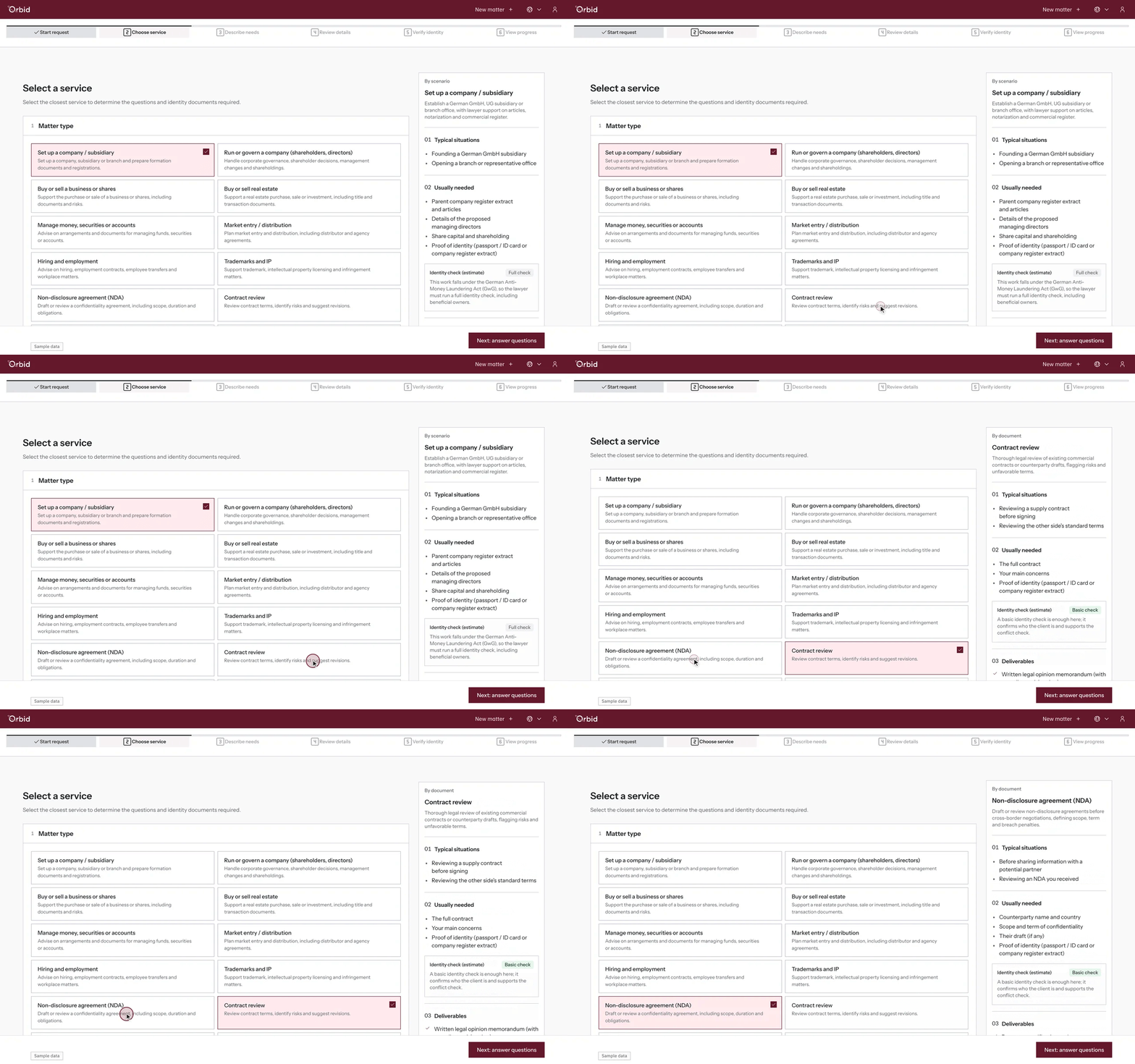
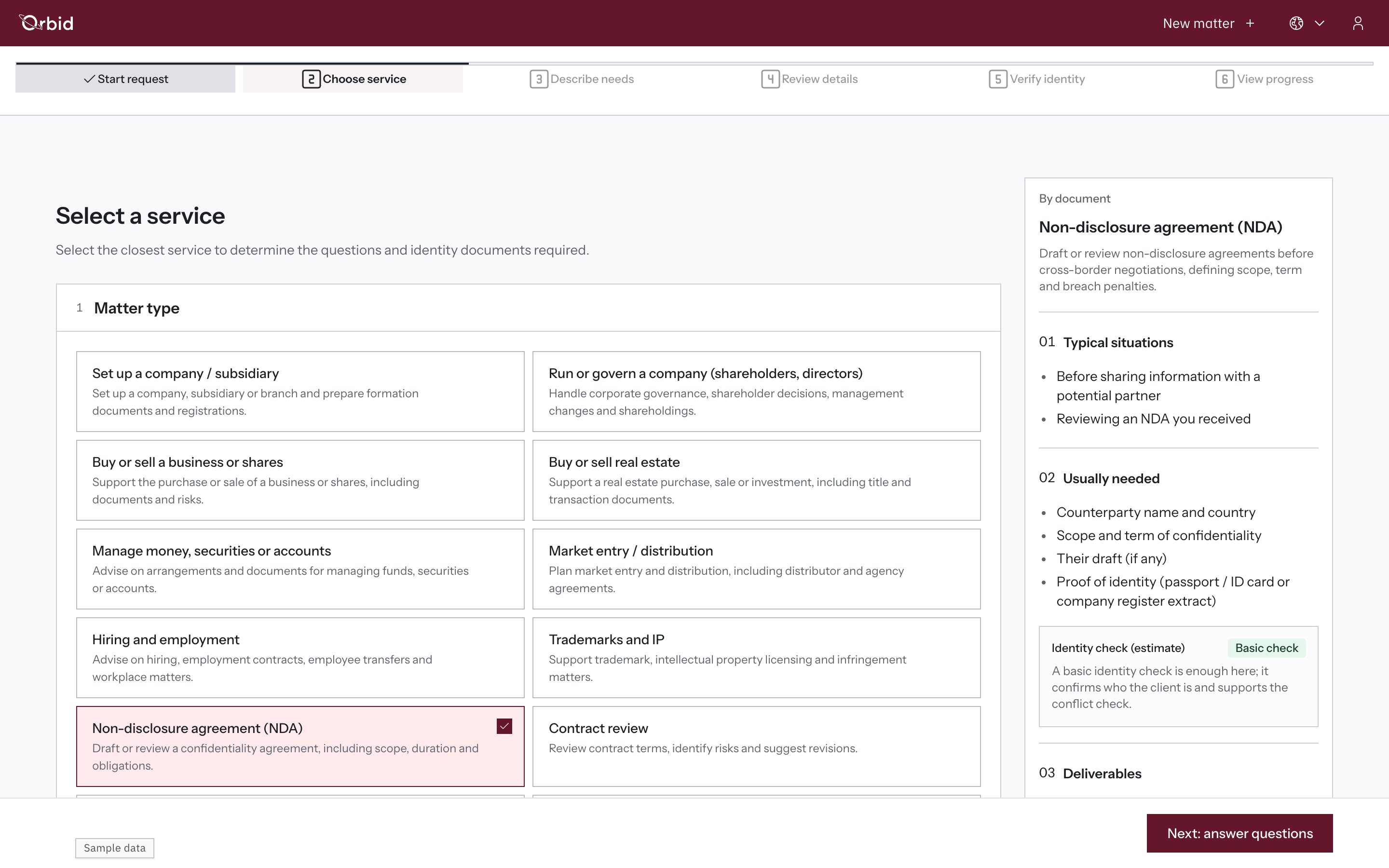
Sign in with your email code and select New matter. It opens in a new tab. Follow the six steps: Start request, Choose service, Describe needs, Review details, Verify identity and View progress. Orbid asks guided questions one at a time. See Submit a matter.
Choose a matter type card and review typical deliverables
2
Prove who you are
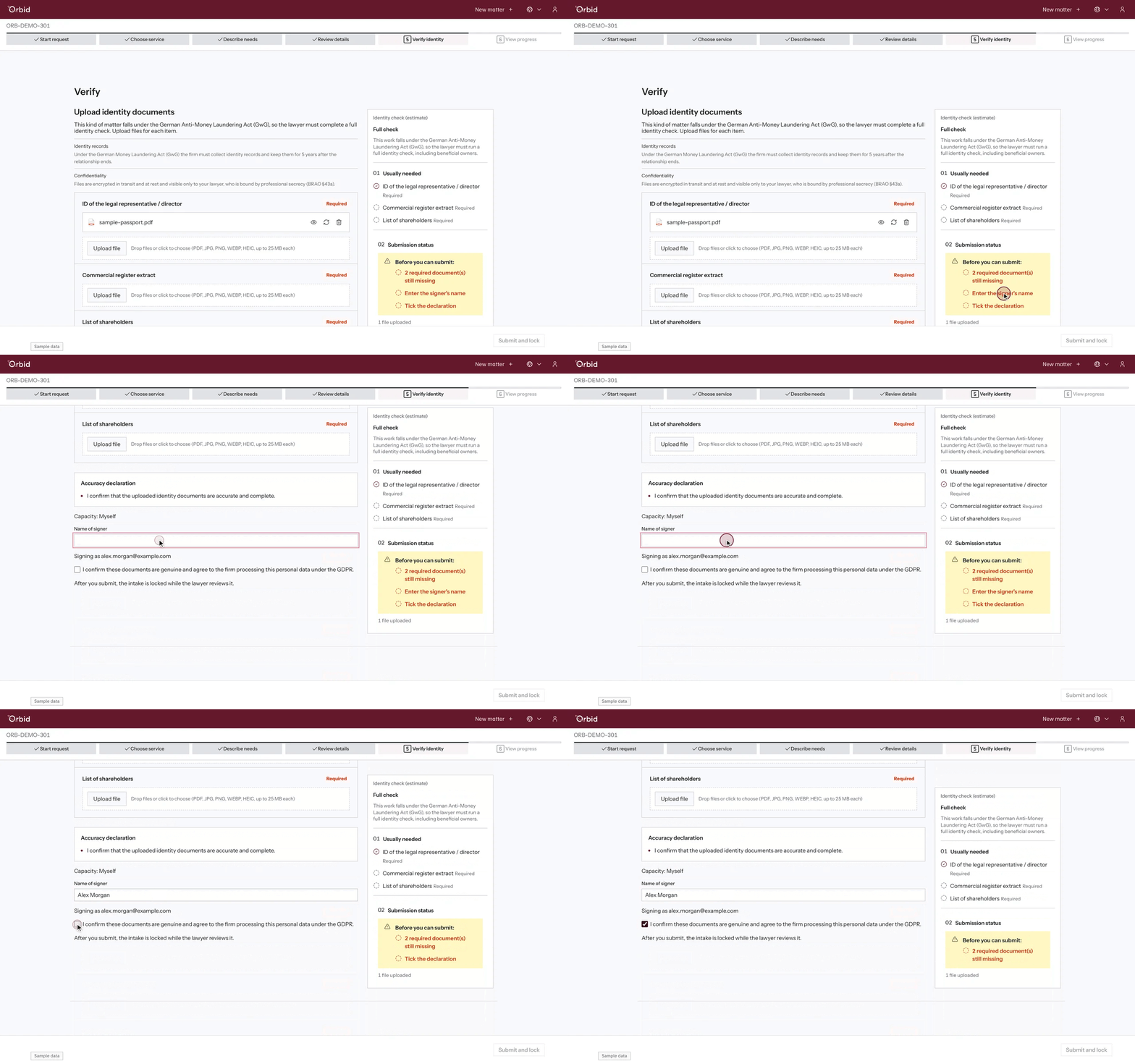
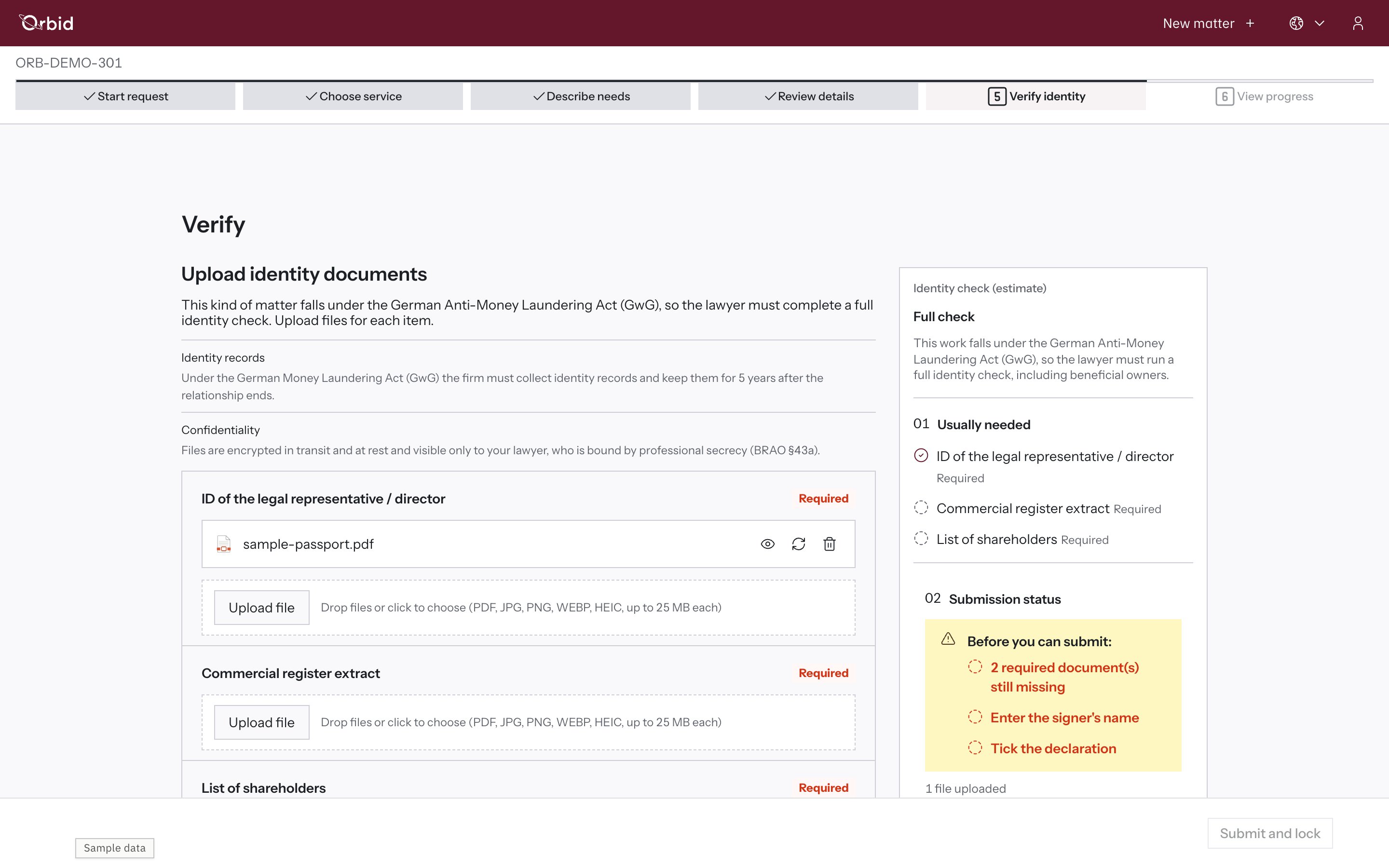
Upload the identity documents the lawyer asks for, then select Submit and lock. See Upload identity documents.
Upload required identity documents on the Verify checklist
3
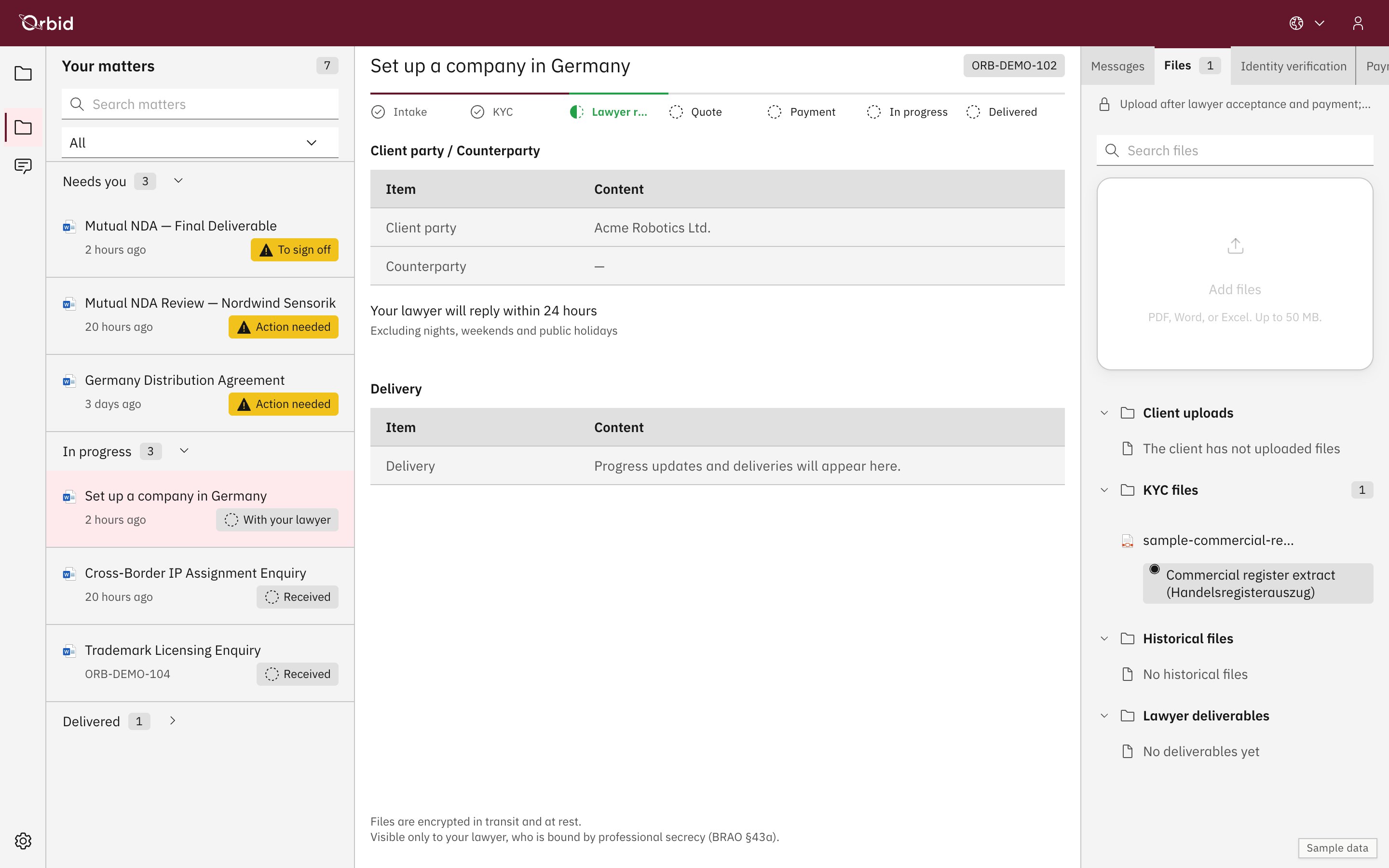
Wait for the firm's answer
The lawyer reads your matter and accepts or declines it. The progress bar shows where you are. See Track your matter.
Track matter progress across intake, lawyer review, payment and delivery
4
Review the quote and pay
The firm sends a fixed price. Check Quote details, then select Review quote to view payment options and pay. See Quotes and payment.
Review fixed-price quote line items, tax treatment and validity date
5
Receive your documents
Download your files and select Confirm receipt. See Receive documents.
Download delivered files and confirm receipt in your workspace
Orbid’s AI is an aid. The lawyer checks your matter and makes the decisions.
{"docsConfig":{"theme":"maple","$schema":"https://mintlify.com/docs.json","name":"Orbid AI","description":"Orbid AI Help Center: guides for clients and law firms on submitting matters, identity checks, quotes, payment, document delivery and team administration.","colors":{"primary":"#8B1E1E","light":"#E06B6B","dark":"#8B1E1E"},"logo":{"light":"https://mintcdn.com/startosphere/BPr8xYo-TXQ5Yhl_/logo/light.svg?fit=max\u0026auto=format\u0026n=BPr8xYo-TXQ5Yhl_\u0026q=85\u0026s=bda011f48657a2dcbd0dff0a20365b03","dark":"https://mintcdn.com/startosphere/BPr8xYo-TXQ5Yhl_/logo/dark.svg?fit=max\u0026auto=format\u0026n=BPr8xYo-TXQ5Yhl_\u0026q=85\u0026s=a386920a91be8c47b513a8d7b1d16be9","href":"https://orbid.dev/"},"favicon":"https://mintcdn.com/startosphere/APvJixAMicQYRrst/favicon.svg?fit=max\u0026auto=format\u0026n=APvJixAMicQYRrst\u0026q=85\u0026s=8a94c4be52f74a19f167a83ffddb17ae","appearance":{"default":"system","strict":false},"background":{"decoration":"gradient","color":{"light":"#FFFFFF","dark":"#0E0B0B"}},"seo":{"metatags":{"og:type":"website","og:locale":"en_US","og:site_name":"Orbid AI Help Center","og:image":"https://docs.orbid.dev/images/og-image.png","og:image:width":"1200","og:image:height":"630","og:image:alt":"Orbid AI Help Center — guides for clients and law firms","twitter:card":"summary_large_image","twitter:image":"https://docs.orbid.dev/images/og-image.png","twitter:image:alt":"Orbid AI Help Center — guides for clients and law firms","format-detection":"telephone=no","theme-color":"#FFFFFF","apple-mobile-web-app-title":"Orbid AI Docs"},"paths":[{"path":"de","metatags":{"og:locale":"de_DE","og:image:alt":"Orbid AI Hilfe-Center — Anleitungen für Mandantinnen, Mandanten und Kanzleien","twitter:image:alt":"Orbid AI Hilfe-Center — Anleitungen für Mandantinnen, Mandanten und Kanzleien"}},{"path":"zh-TW","metatags":{"og:locale":"zh_TW","og:image:alt":"Orbid AI 說明中心 — 客戶與律師事務所操作指南","twitter:image:alt":"Orbid AI 說明中心 — 客戶與律師事務所操作指南"}},{"path":"zh-CN","metatags":{"og:locale":"zh_CN","og:image:alt":"Orbid AI 帮助中心 — 客户与律所操作指南","twitter:image:alt":"Orbid AI 帮助中心 — 客户与律所操作指南"}}],"organization":{"id":"https://orbid.dev/#organization","name":"Orbid AI","url":"https://orbid.dev","logo":"https://docs.orbid.dev/logo/light.svg","sameAs":["https://orbid.dev","https://docs.orbid.dev"]},"indexing":"navigable"},"fonts":{"heading":{"family":"Inter","weight":650},"body":{"family":"Inter","weight":400}},"icons":{"library":"fontawesome"},"styling":{"eyebrows":"breadcrumbs","codeblocks":"system","latex":false},"integrations":{"ga4":{"measurementId":"G-YK5SB959CT"}},"contextual":{"options":["copy","view","chatgpt","claude","perplexity"],"display":"toc"},"thumbnails":{"preset":"headline","appearance":"light","surface":"brand"},"interaction":{"drilldown":false},"metadata":{"timestamp":true},"navigation":{"languages":[{"language":"en","default":true,"footer":{"socials":{"website":"https://orbid.dev"},"links":[{"header":"Orbid AI","items":[{"label":"Website","href":"https://orbid.dev/"},{"label":"Pricing","href":"https://orbid.dev/pricing"},{"label":"Book a demo","href":"https://orbid.dev/book"}]},{"header":"Help","items":[{"label":"FAQ","href":"/help/faq"},{"label":"Glossary","href":"/help/glossary"}]}]},"navbar":{"links":[{"href":"https://orbid.dev/book","label":"Book Demo"},{"href":"https://orbid.dev/pricing","label":"Pricing"}],"primary":{"type":"button","label":"Open Orbid AI","href":"https://orbid.dev"}},"href":""},{"language":"de","default":false,"footer":{"socials":{"website":"https://orbid.dev"},"links":[{"header":"Orbid AI","items":[{"label":"Website","href":"https://orbid.dev/"},{"label":"Preise","href":"https://orbid.dev/pricing"},{"label":"Demo vereinbaren","href":"https://orbid.dev/book"}]},{"header":"Hilfe","items":[{"label":"Häufige Fragen","href":"/de/help/faq"},{"label":"Glossar","href":"/de/help/glossary"}]}]},"navbar":{"links":[{"href":"https://orbid.dev/book","label":"Demo vereinbaren"},{"href":"https://orbid.dev/pricing","label":"Preise"}],"primary":{"type":"button","label":"Orbid AI öffnen","href":"https://orbid.dev"}},"href":"de"},{"language":"zh-Hant","default":false,"footer":{"socials":{"website":"https://orbid.dev"},"links":[{"header":"Orbid AI","items":[{"label":"官方網站","href":"https://orbid.dev/"},{"label":"價格方案","href":"https://orbid.dev/pricing"},{"label":"預約示範","href":"https://orbid.dev/book"}]},{"header":"說明","items":[{"label":"常見問題","href":"/zh-TW/help/faq"},{"label":"術語表","href":"/zh-TW/help/glossary"}]}]},"navbar":{"links":[{"href":"https://orbid.dev/book","label":"預約示範"},{"href":"https://orbid.dev/pricing","label":"價格方案"}],"primary":{"type":"button","label":"開啟 Orbid AI","href":"https://orbid.dev"}},"href":"zh-TW"},{"language":"zh-Hans","default":false,"footer":{"socials":{"website":"https://orbid.dev"},"links":[{"header":"Orbid AI","items":[{"label":"官方网站","href":"https://orbid.dev/"},{"label":"价格方案","href":"https://orbid.dev/pricing"},{"label":"预约演示","href":"https://orbid.dev/book"}]},{"header":"帮助","items":[{"label":"常见问题","href":"/zh-CN/help/faq"},{"label":"术语表","href":"/zh-CN/help/glossary"}]}]},"navbar":{"links":[{"href":"https://orbid.dev/book","label":"预约演示"},{"href":"https://orbid.dev/pricing","label":"价格方案"}],"primary":{"type":"button","label":"打开 Orbid AI","href":"https://orbid.dev"}},"href":"zh-CN"}]}},"deployment":{"deploymentMetadataValue":{"subdomain":"startosphere","hasAudioNarration":false,"actualSubdomain":"startosphere","customDomains":["docs.orbid.dev"],"gitSource":{"type":"github","owner":"leon-sg","repo":"docs","deployBranch":"main","contentDirectory":"","isPrivate":false,"mountPath":"","label":""},"feedback":{"thumbs":true,"edits":true,"issues":true},"entitlements":{},"buildId":"6b044348ee7eab21fbdb8088","clientVersion":"0.0.4340","searchFilterCounts":[{"language":"en","tag":"For clients","count":6},{"language":"de","tag":"Für Mandanten","count":6},{"language":"zh-Hans","tag":"客户","count":6},{"language":"zh-Hant","tag":"客戶","count":6},{"language":"en","tag":"Administration","count":5},{"language":"en","tag":"For law firms","count":5},{"language":"de","tag":"Verwaltung","count":5},{"language":"de","tag":"Für Kanzleien","count":5},{"language":"zh-Hans","tag":"管理","count":5},{"language":"zh-Hans","tag":"律所","count":5},{"language":"zh-Hant","tag":"管理","count":5},{"language":"zh-Hant","tag":"律師事務所","count":5},{"language":"en","tag":"Get started","count":3},{"language":"de","tag":"Einstieg","count":3},{"language":"zh-Hans","tag":"开始使用","count":3},{"language":"zh-Hant","tag":"開始使用","count":3},{"language":"en","tag":"Help","count":2},{"language":"de","tag":"Hilfe","count":2},{"language":"zh-Hans","tag":"帮助","count":2},{"language":"zh-Hant","tag":"說明","count":2}]},"assistantConfig":{"enableAskAiButton":false,"enableStarterQuestions":false,"enableAskAiSearchBar":true},"basePath":"","hasChatPermissions":false,"hasWebMcpPermissions":false,"toggles":[{"name":"kill-isr","enabled":true,"variant":{"name":"disabled","enabled":false,"feature_enabled":true},"impressionData":false},{"name":"custom-rbac-roles","enabled":true,"variant":{"name":"disabled","enabled":false,"feature_enabled":true},"impressionData":false},{"name":"agent-mintlify-slack","enabled":true,"variant":{"name":"disabled","enabled":false,"feature_enabled":true},"impressionData":false},{"name":"agent-integrations-settings","enabled":true,"variant":{"name":"disabled","enabled":false,"feature_enabled":true},"impressionData":false},{"name":"rbac-expansion","enabled":true,"variant":{"name":"disabled","enabled":false,"feature_enabled":true},"impressionData":false},{"name":"automations-pr-grouping","enabled":true,"variant":{"name":"disabled","enabled":false,"feature_enabled":true},"impressionData":false},{"name":"custom-prefix","enabled":true,"variant":{"name":"disabled","enabled":false,"feature_enabled":true},"impressionData":false},{"name":"analytics-v7","enabled":true,"variant":{"name":"disabled","enabled":false,"feature_enabled":true},"impressionData":false},{"name":"user-flows-analytics","enabled":true,"variant":{"name":"disabled","enabled":false,"feature_enabled":true},"impressionData":false},{"name":"no-publish-flow","enabled":true,"variant":{"name":"disabled","enabled":false,"feature_enabled":true},"impressionData":false},{"name":"snapshot-serving-live","enabled":true,"variant":{"name":"disabled","enabled":false,"feature_enabled":true},"impressionData":false},{"name":"stripTemperatureMiddleware","enabled":true,"variant":{"name":"disabled","enabled":false,"feature_enabled":true},"impressionData":false},{"name":"support-platform-pylon-zendesk","enabled":true,"variant":{"name":"disabled","enabled":false,"feature_enabled":true},"impressionData":false},{"name":"snapshot-serving","enabled":true,"variant":{"name":"disabled","enabled":false,"feature_enabled":true},"impressionData":false},{"name":"instant-rollback","enabled":true,"variant":{"name":"disabled","enabled":false,"feature_enabled":true},"impressionData":false},{"name":"granular-notifications-server","enabled":true,"variant":{"name":"disabled","enabled":false,"feature_enabled":true},"impressionData":false},{"name":"granular-notifications","enabled":true,"variant":{"name":"disabled","enabled":false,"feature_enabled":true},"impressionData":false},{"name":"automations-fable","enabled":true,"variant":{"name":"disabled","enabled":false,"feature_enabled":true},"impressionData":false},{"name":"fixed-ai-action-pricing","enabled":true,"variant":{"name":"disabled","enabled":false,"feature_enabled":true},"impressionData":false},{"name":"site-roles","enabled":true,"variant":{"name":"disabled","enabled":false,"feature_enabled":true},"impressionData":false},{"name":"automation-resolve-merge-conflict","enabled":true,"variant":{"name":"disabled","enabled":false,"feature_enabled":true},"impressionData":false},{"name":"scoped-publishing","enabled":true,"variant":{"name":"disabled","enabled":false,"feature_enabled":true},"impressionData":false},{"name":"mintql","enabled":true,"variant":{"name":"disabled","enabled":false,"feature_enabled":true},"impressionData":false},{"name":"page-level-analytics","enabled":true,"variant":{"name":"disabled","enabled":false,"feature_enabled":true},"impressionData":false},{"name":"editor-version-history-v2","enabled":true,"variant":{"name":"disabled","enabled":false,"feature_enabled":true},"impressionData":false},{"name":"billing-page-v2","enabled":true,"variant":{"name":"disabled","enabled":false,"feature_enabled":true},"impressionData":false},{"name":"full-page-search","enabled":true,"variant":{"name":"disabled","enabled":false,"feature_enabled":true},"impressionData":false},{"name":"workspace-projects","enabled":true,"variant":{"name":"disabled","enabled":false,"feature_enabled":true},"impressionData":false},{"name":"fork-pr-previews","enabled":true,"variant":{"name":"disabled","enabled":false,"feature_enabled":true},"impressionData":false},{"name":"revalidation-jwt","enabled":true,"variant":{"name":"disabled","enabled":false,"feature_enabled":true},"impressionData":false},{"name":"hobby-abuse-scan","enabled":true,"variant":{"name":"disabled","enabled":false,"feature_enabled":true},"impressionData":false},{"name":"dashboard-inbox","enabled":true,"variant":{"name":"disabled","enabled":false,"feature_enabled":true},"impressionData":false},{"name":"turbopuffer-dual-write","enabled":true,"variant":{"name":"disabled","enabled":false,"feature_enabled":true},"impressionData":false},{"name":"approve-review-flow","enabled":true,"variant":{"name":"disabled","enabled":false,"feature_enabled":true},"impressionData":false},{"name":"editor-metadata","enabled":true,"variant":{"name":"disabled","enabled":false,"feature_enabled":true},"impressionData":false},{"name":"turbopuffer-serve","enabled":true,"variant":{"name":"disabled","enabled":false,"feature_enabled":true},"impressionData":false},{"name":"live-agents","enabled":true,"variant":{"name":"disabled","enabled":false,"feature_enabled":true},"impressionData":false},{"name":"starter-pricing","enabled":true,"variant":{"name":"treatment","enabled":true,"payload":{"type":"string","value":"treatment"},"feature_enabled":true},"impressionData":false},{"name":"llms-txt-v2","enabled":true,"variant":{"name":"disabled","enabled":false,"feature_enabled":true},"impressionData":false},{"name":"wildcard-email-auth","enabled":true,"variant":{"name":"disabled","enabled":false,"feature_enabled":true},"impressionData":false}],"starterQuestions":[],"privacy":{"consentBanner":{"enabled":true}},"googleFontsInlined":false},"customCss":[{"filePath":"style.css","content":"html{-webkit-text-size-adjust:100%;text-size-adjust:100%;background-color:#ffffff;scroll-padding-top:calc(4.5rem + env(safe-area-inset-top, 0px));scroll-padding-bottom:calc(2rem + env(safe-area-inset-bottom, 0px))}html.dark{background-color:#0e0b0b}body{background-color:#ffffff;touch-action:manipulation;-webkit-tap-highlight-color:rgba(139, 30, 30, 0.14)}html.dark body{background-color:#0e0b0b}#navbar{padding-left:max(1rem, env(safe-area-inset-left, 0px));padding-right:max(1rem, env(safe-area-inset-right, 0px))}footer,#footer{padding-bottom:max(2rem, calc(env(safe-area-inset-bottom, 0px) + 1.25rem));padding-left:max(1rem, env(safe-area-inset-left, 0px));padding-right:max(1rem, env(safe-area-inset-right, 0px))}html:has(.orbid-home-lead) #header{margin:0 0 1.75rem;padding:2.25rem 2rem;border-radius:1rem;border:1px solid rgba(139, 30, 30, 0.14);background:radial-gradient(120% 140% at 0% 0%, rgba(139, 30, 30, 0.10) 0%, rgba(139, 30, 30, 0) 60%),\n linear-gradient(180deg, rgba(139, 30, 30, 0.04), rgba(139, 30, 30, 0))}.dark:has(.orbid-home-lead) #header{border-color:rgba(224, 107, 107, 0.2);background:radial-gradient(120% 140% at 0% 0%, rgba(224, 107, 107, 0.14) 0%, rgba(224, 107, 107, 0) 60%)}html:has(.orbid-home-lead) #header nav[aria-label=\"Breadcrumb\"] li{font-size:0.8125rem;font-weight:600;letter-spacing:0.06em;text-transform:uppercase;color:#8b1e1e}.dark:has(.orbid-home-lead) #header nav[aria-label=\"Breadcrumb\"] li{color:#e06b6b}html:has(.orbid-home-lead) #header #page-title{margin:0.25rem 0 0.5rem!important;font-size:clamp(1.75rem, 1.25rem + 2vw, 2.5rem)!important;line-height:1.15!important;font-weight:700!important;letter-spacing:-0.02em}.orbid-home-lead{margin:0 0 1.5rem;max-width:48rem;font-size:1.0625rem;line-height:1.65}#content-area{line-height:1.7;padding-bottom:max(1.5rem, env(safe-area-inset-bottom, 0px))}#content-area h2{margin-top:2.5rem;letter-spacing:-0.01em}#content-area p,#content-area li,#content-area td,#content-area th,#content-area figcaption{overflow-wrap:break-word}#content-area a,#content-area code{overflow-wrap:anywhere}html[lang^=\"de\"] #content-area p,html[lang^=\"de\"] #content-area li,html[lang^=\"de\"] #content-area td,html[lang^=\"de\"] #content-area figcaption{-webkit-hyphens:auto;hyphens:auto}.card{transition:transform 0.15s ease, box-shadow 0.15s ease, border-color 0.15s ease}@media (hover: hover) and (pointer: fine){.card:hover{transform:translateY(-2px);box-shadow:0 6px 20px -8px rgba(139, 30, 30, 0.25)}}#content-area table{width:100%;max-width:100%;font-size:0.9375rem;line-height:1.55;border-collapse:collapse}#content-area th{font-weight:600;padding-top:0.75rem;padding-bottom:0.75rem}#content-area td{padding-top:0.625rem;padding-bottom:0.625rem;vertical-align:top}#content-area .overflow-x-auto{-webkit-overflow-scrolling:touch;overscroll-behavior-x:contain}@media (max-width: 640px){#content-area th{white-space:normal}#content-area table td:first-child{min-width:108px}#content-area table td:not(:first-child){min-width:0}}[data-component-part=\"step-title\"]{font-weight:600!important;margin-bottom:0!important}[data-component-part=\"step-content\"]>:first-child{margin-top:0.25rem}#content-area figure img,#content-area [data-component-part=\"frame\"] img{height:auto;max-width:100%}#content-area figcaption{font-size:0.875rem;line-height:1.5}footer a,#footer a{color:#44403c!important}.dark footer a,.dark #footer a{color:#d6d3d1!important}@media (hover: hover) and (pointer: fine){footer a:hover,#footer a:hover{color:#1c1917!important}.dark footer a:hover,.dark #footer a:hover{color:#ffffff!important}}@media (pointer: coarse), (max-width: 768px){input,textarea,select{font-size:max(1rem, 16px)!important}#search-bar-entry-mobile,#navbar button,header button,button[aria-label=\"More actions\"],button[aria-label=\"Weitere Aktionen\"],button[aria-label=\"更多操作\"],a.anchor-link{min-width:44px!important;min-height:44px!important;display:inline-flex;align-items:center;justify-content:center}#navbar a.select-none,footer a.select-none,#footer a.select-none{min-height:44px!important;min-width:44px!important;display:inline-flex!important;align-items:center}footer a,#footer a{min-height:44px!important;min-width:44px!important;display:inline-flex!important;align-items:center;padding-top:0.5rem;padding-bottom:0.5rem}footer a.h-fit,#footer a.h-fit{justify-content:center}footer button,#footer button{min-width:44px!important;min-height:44px!important;display:inline-flex!important;align-items:center;justify-content:center}footer>div,#footer>div{padding-left:1rem!important;padding-right:1rem!important}footer div:has(>button),#footer div:has(>button){gap:0.25rem!important;margin-left:auto}footer div:has(>a[href*=\"mintlify.com\"]),#footer div:has(>a[href*=\"mintlify.com\"]){flex-wrap:wrap;row-gap:0.5rem;column-gap:1rem}[data-component-part=\"pagination-prev\"],[data-component-part=\"pagination-next\"],#pagination a,button[data-component-part=\"accordion-button\"],.accordion button{min-height:44px!important;min-width:44px!important}button[aria-label*=\"Send\"],button[aria-label*=\"Senden\"],button[aria-label*=\"傳送\"],button[aria-label*=\"发送\"]{min-width:44px!important;min-height:44px!important}}@media (max-width: 640px){html:has(.orbid-home-lead) #header{padding:1.5rem 1.25rem;margin-bottom:1.25rem}#page-title{word-break:break-word}}[data-component-part=\"pagination-label\"]{white-space:nowrap}[data-component-part=\"pagination-prev\"]{flex-shrink:0}[data-component-part=\"card-content-container\"]{display:flex;flex-direction:column;align-items:flex-start}[data-component-part=\"card-title\"]{margin-top:0.75rem!important}div:has(>a[href*=\"github.com\"]){flex-wrap:wrap}.orbid-motion-static{display:none!important}@media (prefers-reduced-motion: reduce){.orbid-motion-anim{display:none!important}.orbid-motion-static{display:block!important}}"}]}
{"page":{"pagePath":"getting-started/for-clients","slug":"/getting-started/for-clients","pageMetadata":{"icon":"user","title":"Get started as a client","description":"See the five steps of the Orbid AI client journey: send a matter, prove your identity, wait for the firm, pay the quote and receive your documents.","sidebarTitle":"For clients","keywords":["Orbid client","submit matter","client onboarding","legal documents","getting started"],"href":"/getting-started/for-clients"},"description":{"compiledSource":"\"use strict\";\nconst {jsx: _jsx} = arguments[0];\nconst {useMDXComponents: _provideComponents} = arguments[0];\nfunction _createMdxContent(props) {\n const _components = {\n p: \"p\",\n ..._provideComponents(),\n ...props.components\n };\n return _jsx(_components.p, {\n children: \"See the five steps of the Orbid AI client journey: send a matter, prove your identity, wait for the firm, pay the quote and receive your documents.\"\n });\n}\nfunction MDXContent(props = {}) {\n const {wrapper: MDXLayout} = {\n ..._provideComponents(),\n ...props.components\n };\n return MDXLayout ? _jsx(MDXLayout, {\n ...props,\n children: _jsx(_createMdxContent, {\n ...props\n })\n }) : _createMdxContent(props);\n}\nreturn {\n default: MDXContent\n};\n","frontmatter":{},"scope":{}},"pageType":"default","mdx":{"mdxSource":{"compiledSource":"\"use strict\";const{Fragment:_Fragment,jsx:_jsx,jsxs:_jsxs}=arguments[0];const{useMDXComponents:_provideComponents}=arguments[0];function _createMdxContent(props){const _components={a:`a`,li:`li`,p:`p`,strong:`strong`,ul:`ul`,..._provideComponents(),...props.components},{Card,CardGroup,Frame,Heading,Note,OptimizedImage,Step,Steps}=_components;if(!Card)_missingMdxReference(`Card`,true);if(!CardGroup)_missingMdxReference(`CardGroup`,true);if(!Frame)_missingMdxReference(`Frame`,true);if(!Heading)_missingMdxReference(`Heading`,true);if(!Note)_missingMdxReference(`Note`,true);if(!OptimizedImage)_missingMdxReference(`OptimizedImage`,true);if(!Step)_missingMdxReference(`Step`,true);if(!Steps)_missingMdxReference(`Steps`,true);return _jsxs(_Fragment,{children:[_jsxs(_components.p,{children:[`In `,_jsx(_components.strong,{children:`Orbid AI`}),`, clients submit a legal matter for free, upload required identity documents, pay a fixed-price quote only after the law firm accepts, and receive finished documents in one workspace. See an overview of how `,_jsx(_components.a,{href:`https://orbid.dev/how-it-works`,children:`Orbid AI works for clients`}),`.`]}),`\n`,_jsx(Heading,{level:`2`,id:`before-you-start`,children:`Before you start`}),`\n`,_jsxs(_components.ul,{children:[`\n`,_jsx(_components.li,{children:`An email address you can open. Orbid sends you a one-time code to sign in. There is no password.`}),`\n`,_jsx(_components.li,{children:`Identity documents for you or your company, as PDF, JPEG, PNG, WebP or HEIC files.`}),`\n`]}),`\n`,_jsx(Heading,{level:`2`,id:`the-five-steps`,children:`The five steps`}),`\n`,_jsxs(Steps,{children:[_jsxs(Step,{title:`Send your matter`,children:[_jsxs(_components.p,{children:[`Sign in with your email code and select `,_jsx(_components.strong,{children:`New matter`}),`. It opens in a new tab. Follow the six steps: Start request, Choose service, Describe needs, Review details, Verify identity and View progress. Orbid asks guided questions one at a time. See `,_jsx(_components.a,{href:`/clients/submit-a-matter`,children:`Submit a matter`}),`.`]}),_jsxs(Frame,{caption:`Choose a matter type card and review typical deliverables`,children:[_jsx(`div`,{className:`orbid-motion-anim`,children:_jsx(OptimizedImage,{src:`https://mintcdn.com/startosphere/n5PNQ6tv_d4yWapa/images/screenshots/en/intake-select-service.webp?fit=max\u0026auto=format\u0026n=n5PNQ6tv_d4yWapa\u0026q=85\u0026s=0e325c044e7c86ac8702041be9546a98`,alt:`Orbid AI: Matter step 'Choose service' showing the '1 Matter type' two-column card grid with 'NDA' selected and the service guide open (Typical situations, Usually needed and Deliverables); client 'Acme Robotics Ltd.'`,width:`1280`,height:`800`,loading:`lazy`,\"data-og-width\":`1280`,\"data-og-height\":`800`,\"data-path\":`images/screenshots/en/intake-select-service.webp`,\"data-optimize\":`true`,\"data-opv\":`3`,srcset:`https://mintcdn.com/startosphere/n5PNQ6tv_d4yWapa/images/screenshots/en/intake-select-service.webp?w=280\u0026fit=max\u0026auto=format\u0026n=n5PNQ6tv_d4yWapa\u0026q=85\u0026s=ac609f2af14f6bc5484b5d98f0a4fb67 280w, https://mintcdn.com/startosphere/n5PNQ6tv_d4yWapa/images/screenshots/en/intake-select-service.webp?w=560\u0026fit=max\u0026auto=format\u0026n=n5PNQ6tv_d4yWapa\u0026q=85\u0026s=09aa97ff4c50f9a6ebff987290299bd0 560w, https://mintcdn.com/startosphere/n5PNQ6tv_d4yWapa/images/screenshots/en/intake-select-service.webp?w=840\u0026fit=max\u0026auto=format\u0026n=n5PNQ6tv_d4yWapa\u0026q=85\u0026s=bb99421ed3bb1396470bd5519b3e1099 840w, https://mintcdn.com/startosphere/n5PNQ6tv_d4yWapa/images/screenshots/en/intake-select-service.webp?w=1100\u0026fit=max\u0026auto=format\u0026n=n5PNQ6tv_d4yWapa\u0026q=85\u0026s=704b8e63416371964526b947f5700c85 1100w, https://mintcdn.com/startosphere/n5PNQ6tv_d4yWapa/images/screenshots/en/intake-select-service.webp?w=1650\u0026fit=max\u0026auto=format\u0026n=n5PNQ6tv_d4yWapa\u0026q=85\u0026s=ebe59a30bfb5ac3ec85b4ab8f2d1531b 1650w, https://mintcdn.com/startosphere/n5PNQ6tv_d4yWapa/images/screenshots/en/intake-select-service.webp?w=2500\u0026fit=max\u0026auto=format\u0026n=n5PNQ6tv_d4yWapa\u0026q=85\u0026s=71436d8f70b4fd088a20e3fd84616eab 2500w`})}),_jsx(`div`,{className:`orbid-motion-static`,children:_jsx(OptimizedImage,{src:`https://mintcdn.com/startosphere/wvTz78QGtc9uEOWn/images/screenshots/en/intake-select-service.png?fit=max\u0026auto=format\u0026n=wvTz78QGtc9uEOWn\u0026q=85\u0026s=39f21447ee94501e12d5780fc009297b`,alt:`Orbid AI: Matter step 'Choose service' showing the '1 Matter type' two-column card grid with 'NDA' selected and the service guide open (Typical situations, Usually needed and Deliverables); client 'Acme Robotics Ltd.'`,width:`1440`,height:`900`,loading:`lazy`,\"data-og-width\":`2880`,\"data-og-height\":`1800`,\"data-path\":`images/screenshots/en/intake-select-service.png`,\"data-optimize\":`true`,\"data-opv\":`3`,srcset:`https://mintcdn.com/startosphere/wvTz78QGtc9uEOWn/images/screenshots/en/intake-select-service.png?w=280\u0026fit=max\u0026auto=format\u0026n=wvTz78QGtc9uEOWn\u0026q=85\u0026s=8c72be9f9fbf3d9bdfed9fcbce41395c 280w, https://mintcdn.com/startosphere/wvTz78QGtc9uEOWn/images/screenshots/en/intake-select-service.png?w=560\u0026fit=max\u0026auto=format\u0026n=wvTz78QGtc9uEOWn\u0026q=85\u0026s=4c5085e9ed11e5df1a6b5d103c2d230e 560w, https://mintcdn.com/startosphere/wvTz78QGtc9uEOWn/images/screenshots/en/intake-select-service.png?w=840\u0026fit=max\u0026auto=format\u0026n=wvTz78QGtc9uEOWn\u0026q=85\u0026s=018ce2d58207420715bdf6602692eba6 840w, https://mintcdn.com/startosphere/wvTz78QGtc9uEOWn/images/screenshots/en/intake-select-service.png?w=1100\u0026fit=max\u0026auto=format\u0026n=wvTz78QGtc9uEOWn\u0026q=85\u0026s=3abcb15eba8a6842c4ece33d6490d8cb 1100w, https://mintcdn.com/startosphere/wvTz78QGtc9uEOWn/images/screenshots/en/intake-select-service.png?w=1650\u0026fit=max\u0026auto=format\u0026n=wvTz78QGtc9uEOWn\u0026q=85\u0026s=12aa0f2f1f718652b3d2cfe18db6c0b9 1650w, https://mintcdn.com/startosphere/wvTz78QGtc9uEOWn/images/screenshots/en/intake-select-service.png?w=2500\u0026fit=max\u0026auto=format\u0026n=wvTz78QGtc9uEOWn\u0026q=85\u0026s=29a9cf3e12a2e57690238b198f19a5e7 2500w`})})]})]}),_jsxs(Step,{title:`Prove who you are`,children:[_jsxs(_components.p,{children:[`Upload the identity documents the lawyer asks for, then select `,_jsx(_components.strong,{children:`Submit and lock`}),`. See `,_jsx(_components.a,{href:`/clients/identity-documents`,children:`Upload identity documents`}),`.`]}),_jsxs(Frame,{caption:`Upload required identity documents on the Verify checklist`,children:[_jsx(`div`,{className:`orbid-motion-anim`,children:_jsx(OptimizedImage,{src:`https://mintcdn.com/startosphere/n5PNQ6tv_d4yWapa/images/screenshots/en/intake-verify-upload.webp?fit=max\u0026auto=format\u0026n=n5PNQ6tv_d4yWapa\u0026q=85\u0026s=46a0c2898f394d6c04ac224142f3f616`,alt:`Orbid AI: Verify step with a checklist of three required items; the first shows an uploaded file 'sample-passport.pdf', the others show 'Upload file', with 'Submit and lock' below; client 'Acme Robotics Ltd.'`,width:`1280`,height:`800`,loading:`lazy`,\"data-og-width\":`1280`,\"data-og-height\":`800`,\"data-path\":`images/screenshots/en/intake-verify-upload.webp`,\"data-optimize\":`true`,\"data-opv\":`3`,srcset:`https://mintcdn.com/startosphere/n5PNQ6tv_d4yWapa/images/screenshots/en/intake-verify-upload.webp?w=280\u0026fit=max\u0026auto=format\u0026n=n5PNQ6tv_d4yWapa\u0026q=85\u0026s=c9848f3fe9747865cff25d259aa0483d 280w, https://mintcdn.com/startosphere/n5PNQ6tv_d4yWapa/images/screenshots/en/intake-verify-upload.webp?w=560\u0026fit=max\u0026auto=format\u0026n=n5PNQ6tv_d4yWapa\u0026q=85\u0026s=9f629fee148b52617695938e4029eb44 560w, https://mintcdn.com/startosphere/n5PNQ6tv_d4yWapa/images/screenshots/en/intake-verify-upload.webp?w=840\u0026fit=max\u0026auto=format\u0026n=n5PNQ6tv_d4yWapa\u0026q=85\u0026s=6dc5af3f7e85d85f1f19f7f631e2e3de 840w, https://mintcdn.com/startosphere/n5PNQ6tv_d4yWapa/images/screenshots/en/intake-verify-upload.webp?w=1100\u0026fit=max\u0026auto=format\u0026n=n5PNQ6tv_d4yWapa\u0026q=85\u0026s=77d084ea4773a3c274a92b56c6afe802 1100w, https://mintcdn.com/startosphere/n5PNQ6tv_d4yWapa/images/screenshots/en/intake-verify-upload.webp?w=1650\u0026fit=max\u0026auto=format\u0026n=n5PNQ6tv_d4yWapa\u0026q=85\u0026s=ccd3a3f926cbb1f12ab27dc5ae5e0aee 1650w, https://mintcdn.com/startosphere/n5PNQ6tv_d4yWapa/images/screenshots/en/intake-verify-upload.webp?w=2500\u0026fit=max\u0026auto=format\u0026n=n5PNQ6tv_d4yWapa\u0026q=85\u0026s=23c0260251a8c4f948c1d02bf1707478 2500w`})}),_jsx(`div`,{className:`orbid-motion-static`,children:_jsx(OptimizedImage,{src:`https://mintcdn.com/startosphere/wvTz78QGtc9uEOWn/images/screenshots/en/intake-verify-upload.png?fit=max\u0026auto=format\u0026n=wvTz78QGtc9uEOWn\u0026q=85\u0026s=837b73a8a5dbd3e3e00e1e2a782f2bae`,alt:`Orbid AI: Verify step with a checklist of three required items; the first shows an uploaded file 'sample-passport.pdf', the others show 'Upload file', with 'Submit and lock' below; client 'Acme Robotics Ltd.'`,width:`1440`,height:`900`,loading:`lazy`,\"data-og-width\":`2880`,\"data-og-height\":`1800`,\"data-path\":`images/screenshots/en/intake-verify-upload.png`,\"data-optimize\":`true`,\"data-opv\":`3`,srcset:`https://mintcdn.com/startosphere/wvTz78QGtc9uEOWn/images/screenshots/en/intake-verify-upload.png?w=280\u0026fit=max\u0026auto=format\u0026n=wvTz78QGtc9uEOWn\u0026q=85\u0026s=862aee90f43e368ff2ad42fb7edfef97 280w, https://mintcdn.com/startosphere/wvTz78QGtc9uEOWn/images/screenshots/en/intake-verify-upload.png?w=560\u0026fit=max\u0026auto=format\u0026n=wvTz78QGtc9uEOWn\u0026q=85\u0026s=9a9e309c7754ed9b6f4a4831fc8f1987 560w, https://mintcdn.com/startosphere/wvTz78QGtc9uEOWn/images/screenshots/en/intake-verify-upload.png?w=840\u0026fit=max\u0026auto=format\u0026n=wvTz78QGtc9uEOWn\u0026q=85\u0026s=e35d3dfaf5846cc782fae24768d032a4 840w, https://mintcdn.com/startosphere/wvTz78QGtc9uEOWn/images/screenshots/en/intake-verify-upload.png?w=1100\u0026fit=max\u0026auto=format\u0026n=wvTz78QGtc9uEOWn\u0026q=85\u0026s=ad1901cdf75325b76e5458802018305b 1100w, https://mintcdn.com/startosphere/wvTz78QGtc9uEOWn/images/screenshots/en/intake-verify-upload.png?w=1650\u0026fit=max\u0026auto=format\u0026n=wvTz78QGtc9uEOWn\u0026q=85\u0026s=4c218f8fe81fec1a4126a5f5088d7292 1650w, https://mintcdn.com/startosphere/wvTz78QGtc9uEOWn/images/screenshots/en/intake-verify-upload.png?w=2500\u0026fit=max\u0026auto=format\u0026n=wvTz78QGtc9uEOWn\u0026q=85\u0026s=dfc268ed2ba9b4925c967742da623a45 2500w`})})]})]}),_jsxs(Step,{title:`Wait for the firm's answer`,children:[_jsxs(_components.p,{children:[`The lawyer reads your matter and accepts or declines it. The progress bar shows where you are. See `,_jsx(_components.a,{href:`/clients/track-your-matter`,children:`Track your matter`}),`.`]}),_jsx(Frame,{caption:`Track matter progress across intake, lawyer review, payment and delivery`,children:_jsx(OptimizedImage,{src:`https://mintcdn.com/startosphere/wvTz78QGtc9uEOWn/images/screenshots/en/client-home-progress.png?fit=max\u0026auto=format\u0026n=wvTz78QGtc9uEOWn\u0026q=85\u0026s=1a03603f9b691d0e489c541e13f0295a`,alt:`Orbid AI: Client home with one matter open and the progress bar on 'Lawyer review'; client 'Acme Robotics Ltd.', matter 'Set up a company in Germany'`,width:`1440`,height:`900`,\"data-og-width\":`2880`,\"data-og-height\":`1800`,\"data-path\":`images/screenshots/en/client-home-progress.png`,\"data-optimize\":`true`,\"data-opv\":`3`,srcset:`https://mintcdn.com/startosphere/wvTz78QGtc9uEOWn/images/screenshots/en/client-home-progress.png?w=280\u0026fit=max\u0026auto=format\u0026n=wvTz78QGtc9uEOWn\u0026q=85\u0026s=b58a7ae20919374abc52a91e81ecae30 280w, https://mintcdn.com/startosphere/wvTz78QGtc9uEOWn/images/screenshots/en/client-home-progress.png?w=560\u0026fit=max\u0026auto=format\u0026n=wvTz78QGtc9uEOWn\u0026q=85\u0026s=ff18bdde40d8b32a98590ea4e68b7305 560w, https://mintcdn.com/startosphere/wvTz78QGtc9uEOWn/images/screenshots/en/client-home-progress.png?w=840\u0026fit=max\u0026auto=format\u0026n=wvTz78QGtc9uEOWn\u0026q=85\u0026s=071ff41fe7915e69634b52decd93e835 840w, https://mintcdn.com/startosphere/wvTz78QGtc9uEOWn/images/screenshots/en/client-home-progress.png?w=1100\u0026fit=max\u0026auto=format\u0026n=wvTz78QGtc9uEOWn\u0026q=85\u0026s=39996925f6ada6f34dcfa8c8612c23b5 1100w, https://mintcdn.com/startosphere/wvTz78QGtc9uEOWn/images/screenshots/en/client-home-progress.png?w=1650\u0026fit=max\u0026auto=format\u0026n=wvTz78QGtc9uEOWn\u0026q=85\u0026s=4097958651d73f777c1f56547112fd59 1650w, https://mintcdn.com/startosphere/wvTz78QGtc9uEOWn/images/screenshots/en/client-home-progress.png?w=2500\u0026fit=max\u0026auto=format\u0026n=wvTz78QGtc9uEOWn\u0026q=85\u0026s=83924acc0f9036fb8e158b5135befe9a 2500w`})})]}),_jsxs(Step,{title:`Review the quote and pay`,children:[_jsxs(_components.p,{children:[`The firm sends a fixed price. Check `,_jsx(_components.strong,{children:`Quote details`}),`, then select `,_jsx(_components.strong,{children:`Review quote`}),` to view payment options and pay. See `,_jsx(_components.a,{href:`/clients/quotes-and-payment`,children:`Quotes and payment`}),`.`]}),_jsxs(Frame,{caption:`Review fixed-price quote line items, tax treatment and validity date`,children:[_jsx(`div`,{className:`orbid-motion-anim`,children:_jsx(OptimizedImage,{src:`https://mintcdn.com/startosphere/n5PNQ6tv_d4yWapa/images/screenshots/en/client-quote-confirm.webp?fit=max\u0026auto=format\u0026n=n5PNQ6tv_d4yWapa\u0026q=85\u0026s=8090ef657e627865f87e7b2233c74384`,alt:`Orbid AI: Matter open on Quote details: two line items, VAT reverse charge, fixed price EUR 1,200.00, valid until 11/29/2026 (11 days left) and the 'Review quote €1,200.00' button; client 'Acme Robotics Ltd.'`,width:`1280`,height:`800`,loading:`lazy`,\"data-og-width\":`1280`,\"data-og-height\":`800`,\"data-path\":`images/screenshots/en/client-quote-confirm.webp`,\"data-optimize\":`true`,\"data-opv\":`3`,srcset:`https://mintcdn.com/startosphere/n5PNQ6tv_d4yWapa/images/screenshots/en/client-quote-confirm.webp?w=280\u0026fit=max\u0026auto=format\u0026n=n5PNQ6tv_d4yWapa\u0026q=85\u0026s=f942cf73c73272c75153c37ef617dcdb 280w, https://mintcdn.com/startosphere/n5PNQ6tv_d4yWapa/images/screenshots/en/client-quote-confirm.webp?w=560\u0026fit=max\u0026auto=format\u0026n=n5PNQ6tv_d4yWapa\u0026q=85\u0026s=d7183666ceb494ab9fee57728c2cf454 560w, https://mintcdn.com/startosphere/n5PNQ6tv_d4yWapa/images/screenshots/en/client-quote-confirm.webp?w=840\u0026fit=max\u0026auto=format\u0026n=n5PNQ6tv_d4yWapa\u0026q=85\u0026s=1c8de065b652f092ef9506300d5c98a9 840w, https://mintcdn.com/startosphere/n5PNQ6tv_d4yWapa/images/screenshots/en/client-quote-confirm.webp?w=1100\u0026fit=max\u0026auto=format\u0026n=n5PNQ6tv_d4yWapa\u0026q=85\u0026s=9bc3c64a74b365429eb69de5c4846aca 1100w, https://mintcdn.com/startosphere/n5PNQ6tv_d4yWapa/images/screenshots/en/client-quote-confirm.webp?w=1650\u0026fit=max\u0026auto=format\u0026n=n5PNQ6tv_d4yWapa\u0026q=85\u0026s=540877124849ab23b11f08d9902423a9 1650w, https://mintcdn.com/startosphere/n5PNQ6tv_d4yWapa/images/screenshots/en/client-quote-confirm.webp?w=2500\u0026fit=max\u0026auto=format\u0026n=n5PNQ6tv_d4yWapa\u0026q=85\u0026s=17b938c560298ad0e53aac3ce9eaade4 2500w`})}),_jsx(`div`,{className:`orbid-motion-static`,children:_jsx(OptimizedImage,{src:`https://mintcdn.com/startosphere/wvTz78QGtc9uEOWn/images/screenshots/en/client-quote-confirm.png?fit=max\u0026auto=format\u0026n=wvTz78QGtc9uEOWn\u0026q=85\u0026s=f13a79f67d0589ea7cf7872f7f4f8bb3`,alt:`Orbid AI: Matter open on Quote details: two line items, VAT reverse charge, fixed price EUR 1,200.00, valid until 11/29/2026 (11 days left) and the 'Review quote €1,200.00' button; client 'Acme Robotics Ltd.'`,width:`1440`,height:`900`,loading:`lazy`,\"data-og-width\":`2880`,\"data-og-height\":`1800`,\"data-path\":`images/screenshots/en/client-quote-confirm.png`,\"data-optimize\":`true`,\"data-opv\":`3`,srcset:`https://mintcdn.com/startosphere/wvTz78QGtc9uEOWn/images/screenshots/en/client-quote-confirm.png?w=280\u0026fit=max\u0026auto=format\u0026n=wvTz78QGtc9uEOWn\u0026q=85\u0026s=968958a7f8fb4cacb3a205b31d1b9f4f 280w, https://mintcdn.com/startosphere/wvTz78QGtc9uEOWn/images/screenshots/en/client-quote-confirm.png?w=560\u0026fit=max\u0026auto=format\u0026n=wvTz78QGtc9uEOWn\u0026q=85\u0026s=b101b6530d52746520019af9bf6a8a27 560w, https://mintcdn.com/startosphere/wvTz78QGtc9uEOWn/images/screenshots/en/client-quote-confirm.png?w=840\u0026fit=max\u0026auto=format\u0026n=wvTz78QGtc9uEOWn\u0026q=85\u0026s=6e602a0a9564cc5681ca417208729472 840w, https://mintcdn.com/startosphere/wvTz78QGtc9uEOWn/images/screenshots/en/client-quote-confirm.png?w=1100\u0026fit=max\u0026auto=format\u0026n=wvTz78QGtc9uEOWn\u0026q=85\u0026s=1775f847f294a283af22c1d14d66d729 1100w, https://mintcdn.com/startosphere/wvTz78QGtc9uEOWn/images/screenshots/en/client-quote-confirm.png?w=1650\u0026fit=max\u0026auto=format\u0026n=wvTz78QGtc9uEOWn\u0026q=85\u0026s=17c8409d21ef6610906a25abf13b9952 1650w, https://mintcdn.com/startosphere/wvTz78QGtc9uEOWn/images/screenshots/en/client-quote-confirm.png?w=2500\u0026fit=max\u0026auto=format\u0026n=wvTz78QGtc9uEOWn\u0026q=85\u0026s=a83029bb77e6948232199e85303a44c9 2500w`})})]})]}),_jsxs(Step,{title:`Receive your documents`,children:[_jsxs(_components.p,{children:[`Download your files and select `,_jsx(_components.strong,{children:`Confirm receipt`}),`. See `,_jsx(_components.a,{href:`/clients/receive-documents`,children:`Receive documents`}),`.`]}),_jsxs(Frame,{caption:`Download delivered files and confirm receipt in your workspace`,children:[_jsx(`div`,{className:`orbid-motion-anim`,children:_jsx(OptimizedImage,{src:`https://mintcdn.com/startosphere/n5PNQ6tv_d4yWapa/images/screenshots/en/client-delivery-files.webp?fit=max\u0026auto=format\u0026n=n5PNQ6tv_d4yWapa\u0026q=85\u0026s=22f5b3ea4f358317968412f77893d328`,alt:`Orbid AI: Matter with a delivery of two files, each with 'Download', and the receipt box below it; client 'Acme Robotics Ltd.'`,width:`1280`,height:`800`,loading:`lazy`,\"data-og-width\":`1280`,\"data-og-height\":`800`,\"data-path\":`images/screenshots/en/client-delivery-files.webp`,\"data-optimize\":`true`,\"data-opv\":`3`,srcset:`https://mintcdn.com/startosphere/n5PNQ6tv_d4yWapa/images/screenshots/en/client-delivery-files.webp?w=280\u0026fit=max\u0026auto=format\u0026n=n5PNQ6tv_d4yWapa\u0026q=85\u0026s=9956bf879d930a870af4fa360acb922e 280w, https://mintcdn.com/startosphere/n5PNQ6tv_d4yWapa/images/screenshots/en/client-delivery-files.webp?w=560\u0026fit=max\u0026auto=format\u0026n=n5PNQ6tv_d4yWapa\u0026q=85\u0026s=a0bca3845429cd56168e961743a31df6 560w, https://mintcdn.com/startosphere/n5PNQ6tv_d4yWapa/images/screenshots/en/client-delivery-files.webp?w=840\u0026fit=max\u0026auto=format\u0026n=n5PNQ6tv_d4yWapa\u0026q=85\u0026s=419dac86f2e7e1d650fec59c9ab853fc 840w, https://mintcdn.com/startosphere/n5PNQ6tv_d4yWapa/images/screenshots/en/client-delivery-files.webp?w=1100\u0026fit=max\u0026auto=format\u0026n=n5PNQ6tv_d4yWapa\u0026q=85\u0026s=5ebbe72e4a0ac6bfbb643c2f81d1c727 1100w, https://mintcdn.com/startosphere/n5PNQ6tv_d4yWapa/images/screenshots/en/client-delivery-files.webp?w=1650\u0026fit=max\u0026auto=format\u0026n=n5PNQ6tv_d4yWapa\u0026q=85\u0026s=ff74a1798e8e0bfd89b883ce98a6ee16 1650w, https://mintcdn.com/startosphere/n5PNQ6tv_d4yWapa/images/screenshots/en/client-delivery-files.webp?w=2500\u0026fit=max\u0026auto=format\u0026n=n5PNQ6tv_d4yWapa\u0026q=85\u0026s=70142dc91c8752e11003c64daa01f604 2500w`})}),_jsx(`div`,{className:`orbid-motion-static`,children:_jsx(OptimizedImage,{src:`https://mintcdn.com/startosphere/wvTz78QGtc9uEOWn/images/screenshots/en/client-delivery-files.png?fit=max\u0026auto=format\u0026n=wvTz78QGtc9uEOWn\u0026q=85\u0026s=21c5e69d29c8d02bf95dd63e028ea624`,alt:`Orbid AI: Matter with a delivery of two files, each with 'Download', and the receipt box below it; client 'Acme Robotics Ltd.'`,width:`1440`,height:`900`,loading:`lazy`,\"data-og-width\":`2880`,\"data-og-height\":`1800`,\"data-path\":`images/screenshots/en/client-delivery-files.png`,\"data-optimize\":`true`,\"data-opv\":`3`,srcset:`https://mintcdn.com/startosphere/wvTz78QGtc9uEOWn/images/screenshots/en/client-delivery-files.png?w=280\u0026fit=max\u0026auto=format\u0026n=wvTz78QGtc9uEOWn\u0026q=85\u0026s=feb956ed7146907e12855edf11957299 280w, https://mintcdn.com/startosphere/wvTz78QGtc9uEOWn/images/screenshots/en/client-delivery-files.png?w=560\u0026fit=max\u0026auto=format\u0026n=wvTz78QGtc9uEOWn\u0026q=85\u0026s=77dac8ac903655e4936695f2b21ca4eb 560w, https://mintcdn.com/startosphere/wvTz78QGtc9uEOWn/images/screenshots/en/client-delivery-files.png?w=840\u0026fit=max\u0026auto=format\u0026n=wvTz78QGtc9uEOWn\u0026q=85\u0026s=37ae3b72f19d8d71add865d91b2edfea 840w, https://mintcdn.com/startosphere/wvTz78QGtc9uEOWn/images/screenshots/en/client-delivery-files.png?w=1100\u0026fit=max\u0026auto=format\u0026n=wvTz78QGtc9uEOWn\u0026q=85\u0026s=7c14e8b7165e144b4b82fb286bab39de 1100w, https://mintcdn.com/startosphere/wvTz78QGtc9uEOWn/images/screenshots/en/client-delivery-files.png?w=1650\u0026fit=max\u0026auto=format\u0026n=wvTz78QGtc9uEOWn\u0026q=85\u0026s=5142492d1c7232ab5b98abea54893001 1650w, https://mintcdn.com/startosphere/wvTz78QGtc9uEOWn/images/screenshots/en/client-delivery-files.png?w=2500\u0026fit=max\u0026auto=format\u0026n=wvTz78QGtc9uEOWn\u0026q=85\u0026s=d8ffcc5f4162942b52e092178e9138e2 2500w`})})]})]})]}),`\n`,_jsx(Note,{children:_jsx(_components.p,{children:`Orbid’s AI is an aid. The lawyer checks your matter and makes the decisions.`})}),`\n`,_jsx(Heading,{level:`2`,id:`related`,children:`Related`}),`\n`,_jsxs(CardGroup,{cols:2,children:[_jsx(Card,{title:`Submit a matter`,icon:`file-circle-plus`,href:`/clients/submit-a-matter`,children:_jsx(_components.p,{children:`Start your first matter.`})}),_jsx(Card,{title:`Identity documents`,icon:`id-card`,href:`/clients/identity-documents`,children:_jsx(_components.p,{children:`File types, limits and consent.`})}),_jsx(Card,{title:`FAQ`,icon:`circle-question`,href:`/help/faq`,children:_jsx(_components.p,{children:`Quick answers.`})})]})]})}function MDXContent(props={}){const{wrapper:MDXLayout}={..._provideComponents(),...props.components};return MDXLayout?_jsx(MDXLayout,{...props,children:_jsx(_createMdxContent,{...props})}):_createMdxContent(props)}return{default:MDXContent};function _missingMdxReference(id,component){throw new Error(`Expected `+(component?`component`:`object`)+\" `\"+id+\"` to be defined: you likely forgot to import, pass, or provide it.\")}","frontmatter":{},"scope":{"codeStyling":"system","config":{},"pageMetadata":{"icon":"user","title":"Get started as a client","description":"See the five steps of the Orbid AI client journey: send a matter, prove your identity, wait for the firm, pay the quote and receive your documents.","sidebarTitle":"For clients","keywords":["Orbid client","submit matter","client onboarding","legal documents","getting started"],"href":"/getting-started/for-clients"}}},"mdxSourceWithNoJs":null},"mdxExtracts":{"tableOfContents":[{"title":"Before you start","slug":"before-you-start","depth":2,"children":[]},{"title":"The five steps","slug":"the-five-steps","depth":2,"children":[]},{"title":"Related","slug":"related","depth":2,"children":[]}],"codeExamples":{}},"jsLinks":[],"subdomain":"startosphere","siteName":"Orbid AI","title":"Get started as a client - Orbid AI","contextualStarterQuestions":[],"navMaps":{"firstHrefInVersion":{},"firstHrefInLanguage":{"en":{"href":"/getting-started/for-clients","matchLevel":0},"de":{"href":"/de/getting-started/for-clients","matchLevel":1},"zh-Hant":{"href":"/zh-TW/getting-started/for-clients","matchLevel":1},"zh-Hans":{"href":"/zh-CN/getting-started/for-clients","matchLevel":1}}},"lastModified":"2026-11-23T13:44:47.945Z","gitLastModified":"2026-11-23T12:58:32.000Z","originalFileLocation":"getting-started/for-clients.mdx","locale":"en"},"headHtml":"\u003cscript data-mint-head>(function(){var d=document.documentElement,p=null;if(!p){try{p=localStorage.getItem(\"isDarkMode\")}catch(e){}if(p==='true')p='dark';else if(p==='false')p='light';if(p!=='light'\u0026\u0026p!=='dark'\u0026\u0026p!=='system')p=\"system\"}var r=p==='system'?(matchMedia(\"(prefers-color-scheme: dark)\").matches?'dark':'light'):p;d.classList.remove(r==='dark'?'light':'dark');d.classList.add(r);d.setAttribute(\"data-theme-preference\",p)})();\u003c/script>\u003cmeta data-mint-head name=\"description\" content=\"See the five steps of the Orbid AI client journey: send a matter, prove your identity, wait for the firm, pay the quote and receive your documents.\">\u003cmeta data-mint-head name=\"application-name\" content=\"Orbid AI\">\u003cmeta data-mint-head name=\"generator\" content=\"Mintlify\">\u003clink data-mint-head rel=\"icon\" type=\"image/png\" sizes=\"192x192\" href=\"/mintlify-assets/_mintlify/favicons/startosphere/L_5yid5I1-w1Xqq4/_generated/favicon/android-chrome-192x192.png\" media=\"(prefers-color-scheme: light)\">\u003clink data-mint-head rel=\"apple-touch-icon\" type=\"image/png\" sizes=\"180x180\" href=\"/mintlify-assets/_mintlify/favicons/startosphere/L_5yid5I1-w1Xqq4/_generated/favicon/apple-touch-icon.png\">\u003clink data-mint-head rel=\"icon\" type=\"image/png\" sizes=\"16x16\" href=\"/mintlify-assets/_mintlify/favicons/startosphere/L_5yid5I1-w1Xqq4/_generated/favicon/favicon-16x16.png\" media=\"(prefers-color-scheme: light)\">\u003clink data-mint-head rel=\"icon\" type=\"image/png\" sizes=\"32x32\" href=\"/mintlify-assets/_mintlify/favicons/startosphere/L_5yid5I1-w1Xqq4/_generated/favicon/favicon-32x32.png\" media=\"(prefers-color-scheme: light)\">\u003clink data-mint-head rel=\"shortcut icon\" type=\"image/x-icon\" href=\"/mintlify-assets/_mintlify/favicons/startosphere/L_5yid5I1-w1Xqq4/_generated/favicon/favicon.ico\" media=\"(prefers-color-scheme: light)\">\u003clink data-mint-head rel=\"icon\" type=\"image/png\" sizes=\"192x192\" href=\"/mintlify-assets/_mintlify/favicons/startosphere/L_5yid5I1-w1Xqq4/_generated/favicon-dark/android-chrome-192x192.png\" media=\"(prefers-color-scheme: dark)\">\u003clink data-mint-head rel=\"icon\" type=\"image/png\" sizes=\"16x16\" href=\"/mintlify-assets/_mintlify/favicons/startosphere/L_5yid5I1-w1Xqq4/_generated/favicon-dark/favicon-16x16.png\" media=\"(prefers-color-scheme: dark)\">\u003clink data-mint-head rel=\"icon\" type=\"image/png\" sizes=\"32x32\" href=\"/mintlify-assets/_mintlify/favicons/startosphere/L_5yid5I1-w1Xqq4/_generated/favicon-dark/favicon-32x32.png\" media=\"(prefers-color-scheme: dark)\">\u003clink data-mint-head rel=\"shortcut icon\" type=\"image/x-icon\" href=\"/mintlify-assets/_mintlify/favicons/startosphere/L_5yid5I1-w1Xqq4/_generated/favicon-dark/favicon.ico\" media=\"(prefers-color-scheme: dark)\">\u003cmeta data-mint-head property=\"og:title\" content=\"Get started as a client - Orbid AI\">\u003cmeta data-mint-head property=\"og:description\" content=\"See the five steps of the Orbid AI client journey: send a matter, prove your identity, wait for the firm, pay the quote and receive your documents.\">\u003cmeta data-mint-head property=\"og:site_name\" content=\"Orbid AI Help Center\">\u003cmeta data-mint-head property=\"og:url\" content=\"https://docs.orbid.dev/getting-started/for-clients\">\u003cmeta data-mint-head property=\"og:type\" content=\"website\">\u003cmeta data-mint-head property=\"og:image\" content=\"https://docs.orbid.dev/images/og-image.png\">\u003cmeta data-mint-head property=\"og:image:width\" content=\"1200\">\u003cmeta data-mint-head property=\"og:image:height\" content=\"630\">\u003cmeta data-mint-head name=\"twitter:card\" content=\"summary_large_image\">\u003cmeta data-mint-head name=\"twitter:title\" content=\"Get started as a client - Orbid AI\">\u003cmeta data-mint-head name=\"twitter:description\" content=\"See the five steps of the Orbid AI client journey: send a matter, prove your identity, wait for the firm, pay the quote and receive your documents.\">\u003cmeta data-mint-head name=\"twitter:image\" content=\"https://docs.orbid.dev/images/og-image.png\">\u003cmeta data-mint-head name=\"twitter:image:width\" content=\"1200\">\u003cmeta data-mint-head name=\"twitter:image:height\" content=\"630\">\u003cmeta data-mint-head name=\"msapplication-config\" content=\"/mintlify-assets/_mintlify/favicons/startosphere/L_5yid5I1-w1Xqq4/_generated/favicon/browserconfig.xml\">\u003cmeta data-mint-head name=\"apple-mobile-web-app-title\" content=\"Orbid AI Docs\">\u003cmeta data-mint-head name=\"msapplication-TileColor\" content=\"#8B1E1E\">\u003cmeta data-mint-head name=\"og:locale\" content=\"en_US\">\u003cmeta data-mint-head name=\"og:image:alt\" content=\"Orbid AI Help Center — guides for clients and law firms\">\u003cmeta data-mint-head name=\"twitter:image:alt\" content=\"Orbid AI Help Center — guides for clients and law firms\">\u003cmeta data-mint-head name=\"format-detection\" content=\"telephone=no\">\u003cmeta data-mint-head name=\"theme-color\" content=\"#FFFFFF\">\u003clink data-mint-head rel=\"canonical\" href=\"https://docs.orbid.dev/getting-started/for-clients\">\u003clink data-mint-head rel=\"alternate\" type=\"application/xml\" href=\"/sitemap.xml\">\u003clink data-mint-head rel=\"alternate\" type=\"text/markdown\" href=\"/getting-started/for-clients.md\">\u003clink data-mint-head rel=\"alternate\" hreflang=\"en\" href=\"https://docs.orbid.dev/getting-started/for-clients\">\u003clink data-mint-head rel=\"alternate\" hreflang=\"de\" href=\"https://docs.orbid.dev/de/getting-started/for-clients\">\u003clink data-mint-head rel=\"alternate\" hreflang=\"zh-Hant\" href=\"https://docs.orbid.dev/zh-TW/getting-started/for-clients\">\u003clink data-mint-head rel=\"alternate\" hreflang=\"zh-Hans\" href=\"https://docs.orbid.dev/zh-CN/getting-started/for-clients\">\u003clink data-mint-head rel=\"alternate\" hreflang=\"x-default\" href=\"https://docs.orbid.dev/getting-started/for-clients\">\u003cscript data-mint-head type=\"application/ld+json\">{\"@context\":\"https://schema.org\",\"@graph\":[{\"@type\":\"Organization\",\"@id\":\"https://orbid.dev/#organization\",\"name\":\"Orbid AI\",\"url\":\"https://orbid.dev\",\"logo\":{\"@type\":\"ImageObject\",\"url\":\"https://docs.orbid.dev/logo/light.svg\"},\"sameAs\":[\"https://orbid.dev\",\"https://docs.orbid.dev\"]},{\"@type\":\"WebSite\",\"@id\":\"https://docs.orbid.dev#website\",\"name\":\"Orbid AI\",\"url\":\"https://docs.orbid.dev\",\"publisher\":{\"@id\":\"https://orbid.dev/#organization\"}},{\"@type\":\"WebPage\",\"@id\":\"https://docs.orbid.dev/getting-started/for-clients#webpage\",\"url\":\"https://docs.orbid.dev/getting-started/for-clients\",\"name\":\"Get started as a client\",\"description\":\"See the five steps of the Orbid AI client journey: send a matter, prove your identity, wait for the firm, pay the quote and receive your documents.\",\"dateModified\":\"2026-11-23T12:58:32.000Z\",\"isPartOf\":{\"@id\":\"https://docs.orbid.dev#website\"},\"breadcrumb\":{\"@id\":\"https://docs.orbid.dev/getting-started/for-clients#breadcrumb\"}},{\"@type\":\"BreadcrumbList\",\"@id\":\"https://docs.orbid.dev/getting-started/for-clients#breadcrumb\",\"itemListElement\":[{\"@type\":\"ListItem\",\"position\":1,\"name\":\"Get started\",\"item\":\"https://docs.orbid.dev\"},{\"@type\":\"ListItem\",\"position\":2,\"name\":\"Get started as a client\",\"item\":\"https://docs.orbid.dev/getting-started/for-clients\"}]},{\"@type\":[\"Article\",\"TechArticle\"],\"@id\":\"https://docs.orbid.dev/getting-started/for-clients#article\",\"headline\":\"Get started as a client\",\"name\":\"Get started as a client\",\"description\":\"See the five steps of the Orbid AI client journey: send a matter, prove your identity, wait for the firm, pay the quote and receive your documents.\",\"url\":\"https://docs.orbid.dev/getting-started/for-clients\",\"mainEntityOfPage\":{\"@id\":\"https://docs.orbid.dev/getting-started/for-clients#webpage\"},\"image\":\"https://docs.orbid.dev/images/og-image.png\",\"dateModified\":\"2026-11-23T12:58:32.000Z\",\"keywords\":\"Orbid client, submit matter, client onboarding, legal documents, getting started\",\"publisher\":{\"@id\":\"https://orbid.dev/#organization\"},\"isPartOf\":{\"@id\":\"https://docs.orbid.dev#website\"}}]}\u003c/script>\u003cscript data-mint-head type=\"application/ld+json\">{\"@context\":\"https://schema.org\",\"@type\":\"WebSite\",\"name\":\"Orbid AI\",\"publisher\":{\"@type\":\"Organization\",\"name\":\"Orbid AI\"},\"provider\":{\"@type\":\"Organization\",\"name\":\"Mintlify\",\"url\":\"https://mintlify.com\"}}\u003c/script>","agentPointerHref":"/getting-started/for-clients.md","siteName":"Orbid AI","nav":{"global":null,"languages":[{"language":"en","default":true,"footer":{"socials":{"website":"https://orbid.dev"},"links":[{"header":"Orbid AI","items":[{"label":"Website","href":"https://orbid.dev/"},{"label":"Pricing","href":"https://orbid.dev/pricing"},{"label":"Book a demo","href":"https://orbid.dev/book"}]},{"header":"Help","items":[{"label":"FAQ","href":"/help/faq"},{"label":"Glossary","href":"/help/glossary"}]}]},"navbar":{"links":[{"href":"https://orbid.dev/book","label":"Book Demo"},{"href":"https://orbid.dev/pricing","label":"Pricing"}],"primary":{"type":"button","label":"Open Orbid AI","href":"https://orbid.dev"}},"groups":[{"group":"Get started","icon":"rocket","pages":[{"icon":"house","title":"Orbid AI Help Center","description":"Learn how to use Orbid AI to send a legal matter to a law firm, check your identity, pay a quote and receive your documents.","sidebarTitle":"Welcome","mode":"wide","href":""},{"icon":"user","title":"Get started as a client","sidebarTitle":"For clients","href":"/getting-started/for-clients"},{"icon":"briefcase","title":"Get started as a law firm","description":"See how your firm uses Orbid AI to review new matters, send quotes, do the work and deliver finished documents to clients.","sidebarTitle":"For law firms","href":"/getting-started/for-law-firms"}]},{"group":"For clients","icon":"user","pages":[{"icon":"file-circle-plus","title":"Submit a new matter","sidebarTitle":"Submit a matter","href":"/clients/submit-a-matter"},{"icon":"id-card","title":"Upload identity documents","sidebarTitle":"Identity documents","href":"/clients/identity-documents"},{"icon":"credit-card","title":"Review a quote and pay","sidebarTitle":"Quotes and payment","href":"/clients/quotes-and-payment"},{"icon":"list-check","title":"Track your matter","sidebarTitle":"Track your matter","href":"/clients/track-your-matter"},{"icon":"file-arrow-down","title":"Receive your documents","sidebarTitle":"Receive documents","href":"/clients/receive-documents"},{"icon":"rotate-right","title":"Resubmit a declined matter","sidebarTitle":"Resubmit a declined matter","href":"/clients/resubmit-a-declined-matter"}]},{"group":"For law firms","icon":"scale-balanced","pages":[{"icon":"clipboard-check","title":"Review engagements","sidebarTitle":"Review engagements","href":"/law-firms/review-engagements"},{"icon":"file-invoice-dollar","title":"Send a quote to a client","sidebarTitle":"Send a quote","href":"/law-firms/send-a-quote"},{"icon":"folder-open","title":"Work in the matter workbench","sidebarTitle":"Matter workbench","href":"/law-firms/matter-workspace"},{"icon":"paper-plane","title":"Deliver documents to a client","sidebarTitle":"Deliver documents","href":"/law-firms/deliver-documents"},{"icon":"book","title":"Use the contract library","sidebarTitle":"Contract library","href":"/law-firms/firm-library"}]},{"group":"Administration","icon":"gear","pages":[{"icon":"users","title":"Invite team members and set roles","sidebarTitle":"Team and roles","href":"/admin/team-and-roles"},{"icon":"lock","title":"Control matter access","sidebarTitle":"Matter access","href":"/admin/matter-access"},{"icon":"bell","title":"Manage notifications","sidebarTitle":"Notifications","href":"/admin/notifications"},{"icon":"clock-rotate-left","title":"Review and export the audit log","sidebarTitle":"Audit log","href":"/admin/audit-log"},{"icon":"sliders","title":"Settings overview","sidebarTitle":"Settings overview","href":"/admin/settings-overview"}]},{"group":"Help","icon":"life-ring","pages":[{"icon":"circle-question","title":"Frequently asked questions","sidebarTitle":"FAQ","href":"/help/faq"},{"icon":"book-open","title":"Glossary","sidebarTitle":"Glossary","href":"/help/glossary"}]}]},{"language":"de","default":false,"footer":{"socials":{"website":"https://orbid.dev"},"links":[{"header":"Orbid AI","items":[{"label":"Website","href":"https://orbid.dev/"},{"label":"Preise","href":"https://orbid.dev/pricing"},{"label":"Demo vereinbaren","href":"https://orbid.dev/book"}]},{"header":"Hilfe","items":[{"label":"Häufige Fragen","href":"/de/help/faq"},{"label":"Glossar","href":"/de/help/glossary"}]}]},"navbar":{"links":[{"href":"https://orbid.dev/book","label":"Demo vereinbaren"},{"href":"https://orbid.dev/pricing","label":"Preise"}],"primary":{"type":"button","label":"Orbid AI öffnen","href":"https://orbid.dev"}},"pages":[{"title":"de","href":"/de/getting-started/for-clients"}]},{"language":"zh-Hant","default":false,"footer":{"socials":{"website":"https://orbid.dev"},"links":[{"header":"Orbid AI","items":[{"label":"官方網站","href":"https://orbid.dev/"},{"label":"價格方案","href":"https://orbid.dev/pricing"},{"label":"預約示範","href":"https://orbid.dev/book"}]},{"header":"說明","items":[{"label":"常見問題","href":"/zh-TW/help/faq"},{"label":"術語表","href":"/zh-TW/help/glossary"}]}]},"navbar":{"links":[{"href":"https://orbid.dev/book","label":"預約示範"},{"href":"https://orbid.dev/pricing","label":"價格方案"}],"primary":{"type":"button","label":"開啟 Orbid AI","href":"https://orbid.dev"}},"pages":[{"title":"zh-Hant","href":"/zh-TW/getting-started/for-clients"}]},{"language":"zh-Hans","default":false,"footer":{"socials":{"website":"https://orbid.dev"},"links":[{"header":"Orbid AI","items":[{"label":"官方网站","href":"https://orbid.dev/"},{"label":"价格方案","href":"https://orbid.dev/pricing"},{"label":"预约演示","href":"https://orbid.dev/book"}]},{"header":"帮助","items":[{"label":"常见问题","href":"/zh-CN/help/faq"},{"label":"术语表","href":"/zh-CN/help/glossary"}]}]},"navbar":{"links":[{"href":"https://orbid.dev/book","label":"预约演示"},{"href":"https://orbid.dev/pricing","label":"价格方案"}],"primary":{"type":"button","label":"打开 Orbid AI","href":"https://orbid.dev"}},"pages":[{"title":"zh-Hans","href":"/zh-CN/getting-started/for-clients"}]}]},"basePath":"","title":"Get started as a client - Orbid AI","deploymentId":"dpl_EtLmMeZHkKGqAjV1DiX4ZXCriDj3","buildId":"dpl_EtLmMeZHkKGqAjV1DiX4ZXCriDj3","dynamics":["07c022d89b","a74be98ba7"],"chunks":["Frame-CCOo5IeD.js","DynamicMarkdown-Czhs88Hc.js","zoom-image-lightbox-BA_UUN68.js","lightbox-handle-r17bVUz3.js"]}